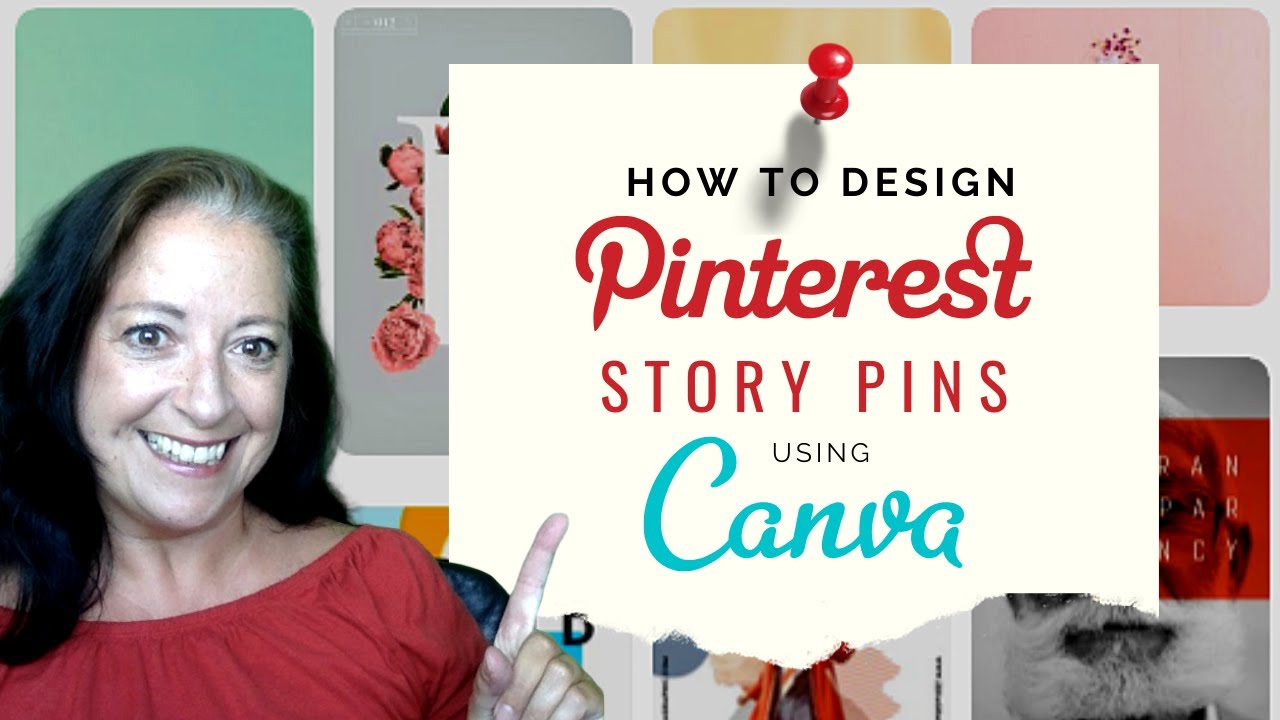
Canva Pinterest Tutorial: How to Create Pinterest Story Pins
Автор: Nicky Pasquier
Загружено: 2020-06-02
Просмотров: 3616
Описание:
Canva Pinterest Tutorial: How to Create Pinterest Story Pins //
⚠️ PLEASE NOTE: PINTEREST STORY PINS ARE NO LONGER AVAILABLE ⚠️
During this tutorial I'm going to give you step-by-step instructions so that you can create a Pinterest Story Pin in Canva for massive engagement and lead generation.
I'll also be showing you how to upload your Pinterest Story Pin via desktop and smartphone.
There are subtle differences about how Story Pins are displayed on desktop and smartphone so you need to be aware of these to avoid making any design errors.
🚫 APOLOGIES THIS TEMPLATE HAS NOW EXPIRED 🚫
📌 Recommended Template Guidelines
1. Pinterest recommends using a template which is 900 x 1600 pixels.
2. You can include images as well as quick videos.
3. Upload up to 20 Pins to your Story.
4. Videos must be no longer than 20 seconds in duration.
------------------------------------------------
To upload a Pinterest Story Pin via Desktop
1. The first Pin you upload will be the Story Pin 'Cover'.
2. Include a headline using up to 42 characters.
3. This headline will be visible on smartphone devices only as a white text overlay. This overlay will cover your template.
4. You can add text overlay and customise the text to your Cover Pin by clicking on the pencil icon at the centre ✏️.
5. Upload your logo to your template and customise the position using the editing tools.
6. Continue to upload more Pins to your Story Pin design.
7. You will have the opportunity to include a Page Title, Page Description and all that all-important link to the remaining Pins in your Story by clicking on the tool provided. I'll show you how to do this during my video.
8. Finish with a compelling Call-to-Action to maximise your chances of generating leads!
9. If you want to re-arrange the order of the pages you can do so by holding down each Pin with your cursor and dragging it into a different position.
10. Once done choose which board to publish your Story Pin to.
11. Now click PUBLISH!! 📌🎊📌
12. Use the side arrows to scroll through your completed Story Pin.
---------------------------------------
To Upload a Pinterest Story Pin via Smartphone (please note I've used an Android devices so iPhone users may have a slightly different experience)
1. Choose your first 'Cover' Pin in the same way as you would do on desktop.
2. Add a Story Pin Title - this is visible as a white text overlay on smartphones so keep your title short but sweet.
3. You cannot add text overlay onto your Story Pin cover on smartphone devices - this is only available on desktop (as at 02.06.20). This may change, however.
4. Continue to add more Pins to your Story.
5. Include a Page Title, Page Description and your page link by clicking on the "+" icon at the foot of the Pin.
⚠️ NB: the white text box which contains your Title, Description and Link is visible on all devices and covers your template.
🎨 My Canva template will help you figure out where this text box appears so please feel free to use it to help you design better Pinterest Story Pins → http://eepurl.com/cuPKhb
6. Finish off with a compelling Call-to-Action to maximise your lead generation opportunities!
7. Choose which board to publish to and hit 'PUBLISH'!!
Happy Pinning, everyone 📌
--------------------------------------------------
RESOURCES
☞ A free Canva account - https://www.canva.com
☞ A free Pinterest business account - https://www.pinterest.com
-------------------------------------------------
Chat with Me on Social ⬇︎
● Twitter: / virtuosoassist
● Facebook: / virtuosoassistant
● Instagram: / virtuosoassistant
● Pinterest: / virtuosoassist
Повторяем попытку...
Доступные форматы для скачивания:
Скачать видео
-
Информация по загрузке:







![FIGMA С НУЛЯ ЗА 1 ЧАС: Полный курс для новичков [2025]](https://imager.clipsaver.ru/QxstLdREVYY/max.jpg)