How to Build a White Layer for a Digital Label Project in Adobe Illustrator | Columbine Label Co
Автор: Columbine Label Company
Загружено: 2022-04-29
Просмотров: 226
Описание:
This video will instruct you on how to create a white layer for your digital label project.
https://columbinelabel.com/white-layer/
Hi there! Did you choose a metallic or clear material for your label? If so, you’re going to have to create a white layer, and this tutorial will show you how!
1. Open your art file in Illustrator.
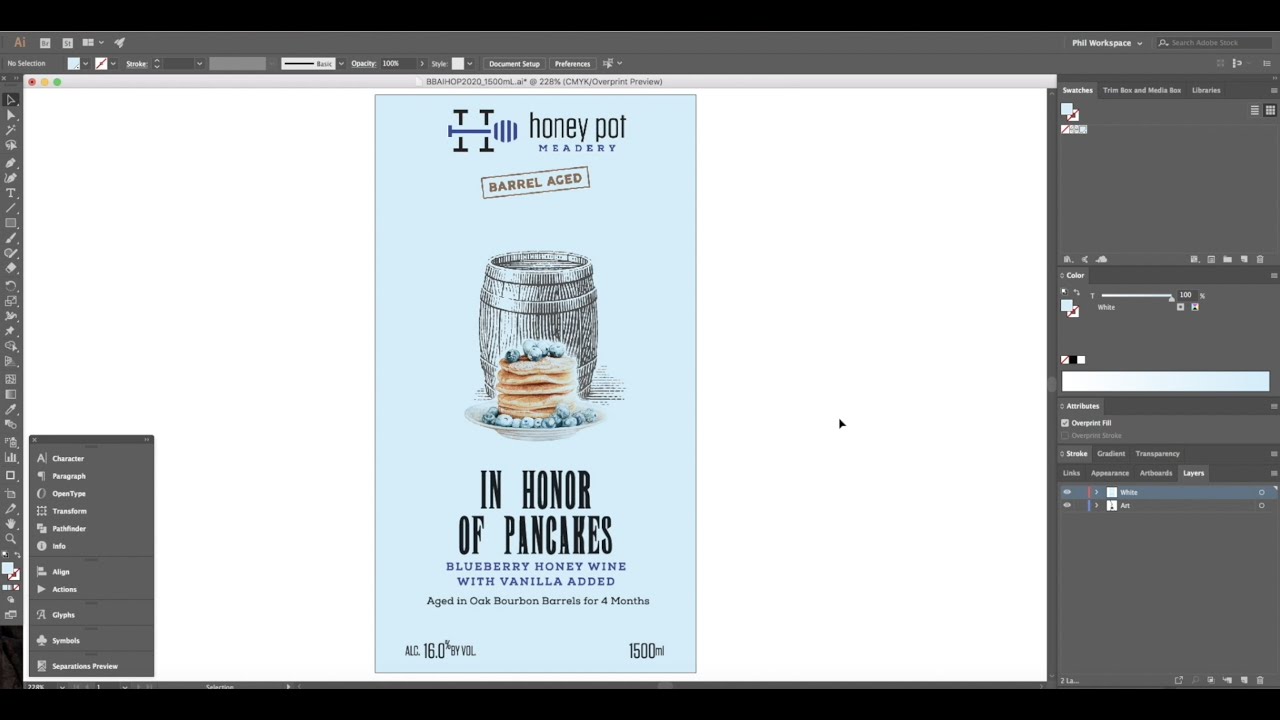
2. Create a new layer and name it “White”.
3. Open the “Swatches” window and create a new Swatch.
4. Name the new Swatch “White” and make sure it's a spot color.
5. Select all the art from the art layer, then go to “Edit” and choose “Copy”.
6. Click on your white layer, go back to “Edit”, and choose “Paste in Place”.
7. Apply the spot white color to the vector text.
8. Go to the color window and adjust the tint to 0%.
9. Go to the “Attributes” window and click on the “Overprint Fill” box.
10. After all vector metallic objects are adjusted, select any images that need to be metallic and go to the “Links” window. Select your image and edit the original image in Photoshop.
11. In Photoshop, select “Layer”, then “Flatten Image”.
12. Click “Image”, choose “Mode”, and select “Grayscale”.
13. Go to “Image”, choose “Adjustments”, and select “Invert”.
14. Go to “Image”, “Adjustments”, and select “Levels”. Adjust the dark arrow to the right, to make sure all black is 100% black, and adjust the white arrow to the left, so that all white is 100% white.
15. Click “File”, choose “Save As”. Under format select “TIFF” and include “White” in the file name.
16. Go back to Illustrator. Select the image on the white layer and relink the image.
17. Select your new white image and click “Place”.
18. While your white image is still selected, go to the “Swatches” window and click on the spot white color to apply to your image.
19. Go to the “Attributes” window and check the “Overprint Fill” box. Make sure that all objects on your white layer are set to “Overprint Fill” or “Overprint Stroke”.
That's it! Now you can send us your project and know that your visual effect intentions will be executed! If you have any questions or need additional help with your project please give us a call we are more than happy to assist you!
#ColumbineLabel #WhiteLayer #DigitalPrinting #HowTo #Illustrator #Photoshop #HowToBuildAWhiteLayer #Art #graphicdesign
Music Credit: Ben Sound
Get more help with your custom label project and needs by contacting us: https://columbinelabel.com/contact-us/
Повторяем попытку...
Доступные форматы для скачивания:
Скачать видео
-
Информация по загрузке: