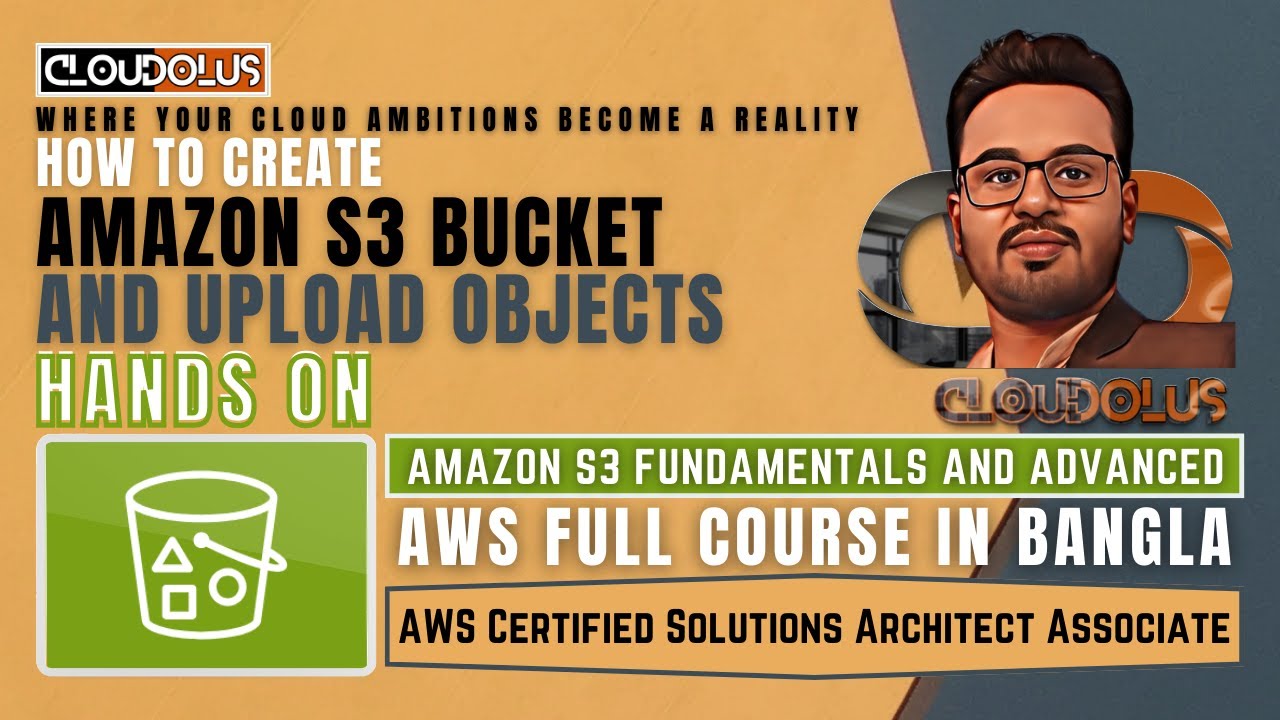
How to Create Amazon S3 Bucket And Upload Objects | Hands On
Автор: ClouDolus
Загружено: 2024-04-01
Просмотров: 68
Описание:
AWS Full Course In Bangla: • AWS Certified Solutions Architect–Associat...
AWS All Hands-On Labs: • AWS Hands-On Labs | AWS Services | AWS Fu...
AWS Storage Full Series: • AWS Storage | Amazon Web Services | AWS Fu...
*****************************
How to Create Amazon S3 Bucket And Upload Objects | Hands On
🎥: • How to Create Amazon S3 Bucket And Upload ...
*****************************
0:00 - Intro
0:27 - How to Create A Amazon S3 Bucket
3:02 - How to Upload Objects to Amazon S3 Bucket
4:04 - How to Delete Objects From Amazon S3 Bucket
4:37 - How to Delete Amazon S3 Bucket
4:58 - Conclusion, Please Like, Share, Comments and Subscribe
5:36 - Thank You!
*****************************
How to Create Amazon S3 Bucket And Upload Objects
Here's a step-by-step guide on how to create an Amazon S3 bucket and upload objects:
Step 1: Sign in to AWS Management Console
Go to the AWS Management Console (https://console.aws.amazon.com/) and sign in to your AWS account.
Step 2: Navigate to Amazon S3
Once signed in, navigate to the Amazon S3 service by clicking on "Services" in the top left corner, then selecting "S3" under the "Storage" category.
Step 3: Create a New Bucket
In the Amazon S3 dashboard, click on the "Create bucket" button.
Enter a unique name for your bucket. Bucket names must be globally unique across all of Amazon S3, so choose a name that hasn't been taken.
Select the region where you want to create your bucket.
Optionally, configure additional settings such as bucket versioning, server access logging, and tags.
Click on the "Create bucket" button to create your new bucket.
Step 4: Upload Objects
Once your bucket is created, click on the bucket name to open it.
Inside the bucket, click on the "Upload" button to upload objects.
Click on the "Add files" button to select files from your local computer, or drag and drop files directly into the upload window.
Optionally, you can set permissions for the uploaded objects by configuring the access control settings.
Click on the "Upload" button to start uploading the selected files to your S3 bucket.
Once the upload is complete, you will see the uploaded objects listed in your bucket.
That's it! You have successfully created an Amazon S3 bucket and uploaded objects to it. You can now access and manage your objects within the S3 bucket using the AWS Management Console or programmatically using the AWS SDK or command-line tools.
s3 bucket,s3 bucket in aws,s3,s3 object storage,aws s3,aws s3 bucket tutorial,amazon s3,aws s3 bucket creation,aws s3 bucket,cloudolus,free course,aws bangla,aws,object storage,cloud storage,block storage,File Storage,aws cloud,cloud storage types,aws Storage,object storage vs block storage,How to Create A Amazon S3 Bucket,How to Upload Objects to Amazon S3 Bucket,How to Delete Objects From Amazon S3 Bucket,create s3 bucket in aws
object storage,block storage,File Storage,aws,cloud object storage,object storage vs block storage,cloud storage,network attached storage,storage area network,what is block storage,what is file storage,aws bangla,free course,cloudolus,amazon,aws cloud,free,object storage architecture,cloud storage types,amazon s3,aws Storage,amazon web services,aws services,aws ec2,ec2 instance,aws ec2 tutorial,ec2,object storage tutorial,object storage s3
*****************************
Follow Me
/ cloudolus | / cloudolus | / 14347089 | / cloudolus | / cloudolus | / cloudolus | / @cloudolus | https://www.tumblr.com/cloudolus | https://cloudolus.blogspot.com/
*****************************
🔔Subscribe & Stay Updated:
Don't forget to subscribe and hit the bell icon to receive notifications and stay updated on our latest videos, tutorials & playlists!
ClouDolus: / @cloudolus
THANKS FOR BEING A PART OF ClouDolus! 🙌✨
Повторяем попытку...
Доступные форматы для скачивания:
Скачать видео
-
Информация по загрузке:




![Почему работает теория шести рукопожатий? [Veritasium]](https://image.4k-video.ru/id-video/ggI1xKzoANs)