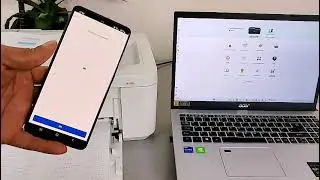
How To Print Head Alignment on Canon Pixma TR4756i Full Guide
Автор: Creative Tool School
Загружено: 2026-01-14
Просмотров: 9
Описание:
This video is How To Print Head Alignment on Canon Pixma TR4756i Full Guide
Perform this if print quality is poor (e.g., blurry text, misaligned colors).
Step 1: Print the Alignment Sheet
Ensure paper is loaded in the rear tray.
Press the Setup button (wrench icon) on the printer.
Use the Arrow buttons to select Maintenance.
Select Align Print Head and press OK.
The printer will print an Alignment Sheet with color patterns.
Step 2: Scan the Alignment Sheet
Lift the scanner lid and place the printed sheet face-down on the scanner glass, aligned with the corner mark.
Press the Color or Black copy button on the printer.
The printer will scan the sheet and align the print heads automatically.
Note: Use plain white paper. Avoid smudging the printed sheet. If alignment fails, repeat the process or run a Nozzle Check first from the Maintenance menu.
Повторяем попытку...

Доступные форматы для скачивания:
Скачать видео
-
Информация по загрузке: