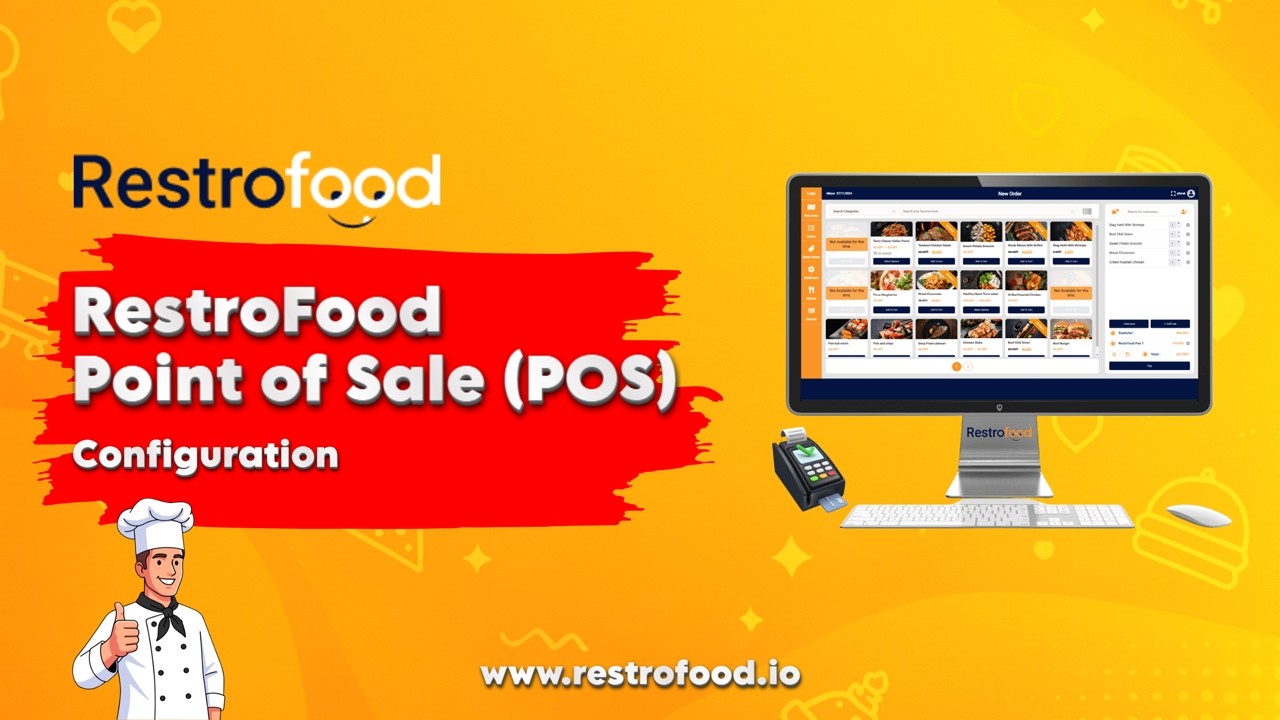
RestroFood POS Quick Installation & Setup Guide | WooCommerce POS for Restaurants
Автор: ThemeLooks
Загружено: 2026-02-09
Просмотров: 47
Описание:
RestroFood POS Quick Installation & Setup Guide | WooCommerce POS for Restaurants
Learn how to install and set up the RestroFood WooCommerce POS Add-on step by step! Manage your restaurant’s counters, branches, orders, and invoices seamlessly with RestroFood POS. Perfect for small to large restaurants, cafes, and food businesses.
1) Before you start the prerequisites
WordPress (recommended: latest stable release).
WooCommerce installed and activated.
RestroFood core plugin installed and activated. The POS add-on requires the RestroFood core.
If you plan automatic invoice printing, set up PrintNode or the specific integration required by the Invoice Printing add-on.
Tip: keep all plugins, theme and WordPress core updated, and take a full site backup before installing paid add-ons.
2) Download the plugin files
Purchase/download the RestroFood POS Add-on ZIP file from the RestroFood site.
Also, ensure you have the RestroFood core ZIP file (if not already installed).
Download RestroFood Plugin Download RestroFood POS Add-on
3) Install required plugins
Install & activate WooCommerce (if not present).
Install & activate RestroFood core plugin.
Install & activate the RestroFood POS Add-on.
Install via WordPress dashboard
WordPress Admin → Plugins → Add New → Upload Plugin → choose the .zip file → Install Now → Activate.
Install via FTP (alternative)
Unzip the plugin locally → upload the plugin folder to /wp-content/plugins/ via FTP → WordPress Admin → Plugins → Activate.
4) Enter license
After activation, go to RestroFood → Add-ons or RestroFood → License (location may vary) and enter your license key to enable updates and support.
Activate the POS add-on license so you can receive updates.
5) Core POS configuration - first run
Go to RestroFood → POS or WooCommerce → POS (menu location may vary).
Follow any on-screen setup wizard (many add-ons have an initial wizard). If present, complete basic settings:
Default counter/branch
Currency & tax display for POS
Invoice template selection
Receipt format
Save settings.
6) Set up products & inventory
Ensure your menu items are created as WooCommerce products (simple or variable).
Configure stock, SKUs, and prices in each product.
If you want branch-specific products, use the Multi-Branch add-on or enable branch product mapping (if included) and assign products to branches.
7) Create branches, counters & users
Branches: RestroFood supports multi-branch. Create branches under RestroFood → Branches (add address, opening hours).
Counters: Create counters/cash registers under POS → Counters (e.g., Counter 1, Counter 2).
Users & Roles: Create staff accounts and assign POS roles (Branch Manager, Kitchen Manager, Delivery Boy).
8) Payment methods & invoice settings
Configure WooCommerce payment gateways (Cash, Card, Stripe, PayPal).
In POS settings, enable the payment methods that are allowed at the POS.
Customize invoice layout (logo, taxes, footer) under POS → Invoice Settings or similar.
If you need automatic invoice printing, install and configure the Automatic Order Invoice Printing Add-on and connect to PrintNode.
9) Barcode generation & billing tools
If using barcode billing: enable the Barcode Generator feature and set up SKUs for each product.
Test scanning with a barcode scanner (most behave like keyboard input).
10) Offline mode (if included)
POS offline support lets you continue taking orders when the internet drops. To use:
Enable Offline POS in POS settings.
Test by bringing your device offline (disconnect Wi-Fi) and placing a test order.
When reconnected, verify orders sync back to WooCommerce.
11) Testing checklist (do these before going live)
Create a test product and confirm it appears in POS.
Place a cash transaction and confirm the WooCommerce order created.
Place a card or gateway transaction and confirm status and receipt.
Test order hold/ resume workflow
Test barcode scanning to add product to cart
Test branch-specific product visibility (if using multi-branch)
Test user permissions
Test offline order creation and later sync
Generate sales report and verify totals match orders
Test invoice/receipt printing (manual and automatic)
12) Security & performance tips
Keep WordPress, WooCommerce, RestroFood, and add-ons updated.
Use strong passwords & two-factor auth for admin/staff where possible.
Use a reliable host, enable server caching for the front-end, but exclude POS pages from aggressive cache.
Have a daily backup schedule for DB + files.
13) Useful next steps & add-ons (based on the product page)
Multibranch Add-on
Automatic Invoice Printing Add-on
Table Reservation Add-on
Tip Management Add-on
In-Restaurant Orders Add-on
Multi-delivery Fees Add-on
Website Link: https://restrofood.io/
Page Link: https://restrofood.io/restrofood-poin...
💡 If you found this guide helpful, hit Like, Subscribe, and click the bell icon for more WordPress and restaurant management tutorials.
Повторяем попытку...
Доступные форматы для скачивания:
Скачать видео
-
Информация по загрузке: