How to DEPOSIT USD on Crypto.com | USDC Global Bank Transfer via SWIFT | Tutorial
Автор: Au Tech
Загружено: 2025-01-10
Просмотров: 124
Описание:
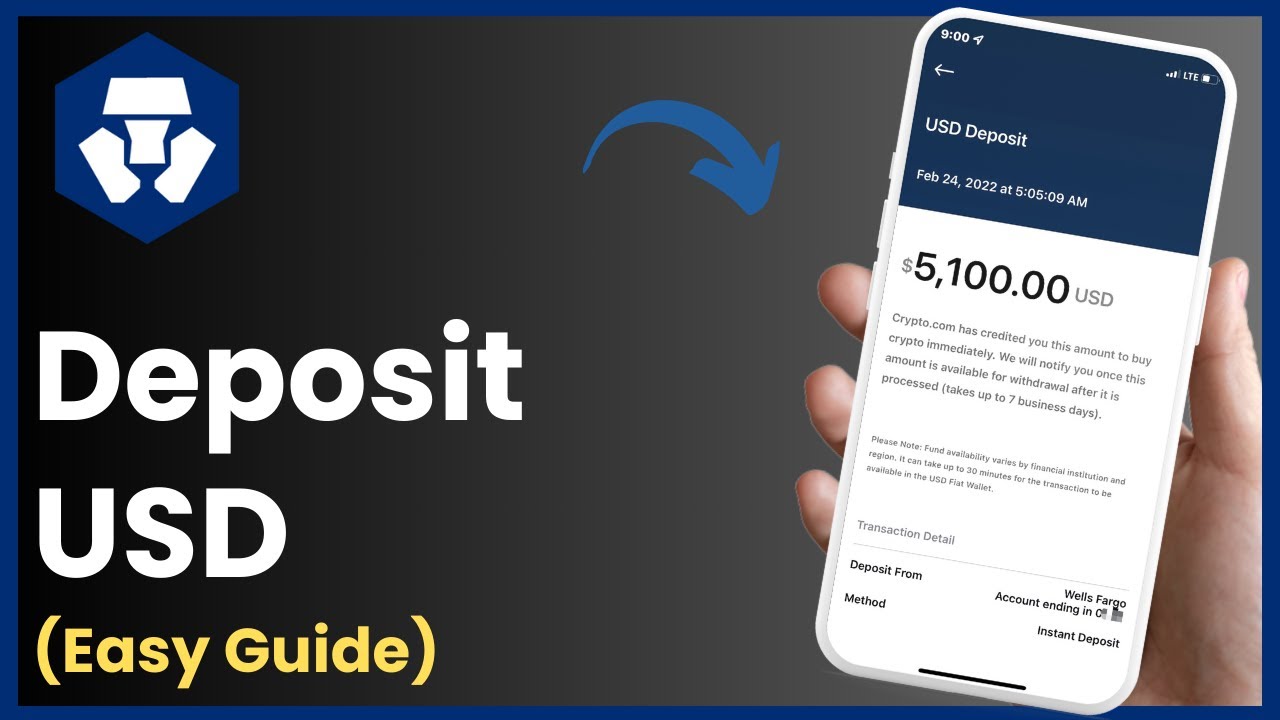
In this video, I’ll guide you on how to deposit USD on Crypto.com. Depositing fiat currency like USD into your Crypto.com wallet is straightforward and can be done directly from your bank account. Here’s how you can do it step-by-step.
How to Deposit USD on Crypto.com
#### 1. *Open the Crypto.com App:*
Launch the *Crypto.com* app on your mobile device.
Log in to your account using your credentials (email and password).
Complete any additional security steps like 2FA (Two-Factor Authentication), if prompted.
#### 2. *Navigate to the Deposit Section:*
Once logged in, go to the *Accounts* tab, usually located at the bottom of the screen.
Tap on the *Fiat Wallet* option.
#### 3. *Select ‘Deposit’ and Choose USD:*
Tap on the *Transfer* button.
Select *Deposit* from the options that appear.
Choose *USD* as your deposit currency.
#### 4. *Add a Bank Account:*
If you’re depositing for the first time, you’ll need to add a bank account.
Tap on *Add Bank Account* and follow the prompts to link your bank.
You may be asked to provide information like your bank name, account number, and routing number.
Once submitted, wait for confirmation that your bank account has been successfully linked.
#### 5. *Select the Deposit Method:*
After linking your bank account, you can choose *Instant Deposit* for a quicker transaction.
You might also see options for *ACH* (Automated Clearing House) transfer, which takes a few days but is free.
#### 6. *Enter the Deposit Amount:*
Input the amount of USD you want to deposit into your Crypto.com wallet.
Double-check the amount to ensure accuracy.
#### 7. *Complete the Deposit:*
Review the details, then tap *Confirm* to initiate the deposit.
You may need to enter a verification code or complete other security checks to finalize the deposit.
#### 8. *Check Your Balance:*
Once the deposit is complete, the funds will reflect in your **Fiat Wallet**.
You can now use these funds to purchase crypto or transfer them within the app.
Additional Tips:
*Deposit Limits:*
Be aware of daily and monthly deposit limits, which may vary based on your account verification level.
*Processing Time:*
Instant deposits typically take a few minutes, while ACH transfers may take up to 3-5 business days.
*Fees:*
While some deposit methods are free, others might have associated fees. Always check the fee structure in the app before proceeding.
Timestamps:
0:00 Introduction
0:03 Welcome to the video
0:07 Opening the Crypto.com app
0:15 Navigating to the Accounts section
0:25 Selecting USD as the deposit currency
0:32 Adding a bank account
0:45 Entering the deposit amount
0:55 Completing the deposit process
1:00 Checking your Fiat Wallet balance
1:02 Request for likes, comments, and subscriptions
1:04 Conclusion
By following these steps, you can easily deposit USD into your Crypto.com account and start trading or purchasing crypto directly from your fiat balance.
Hashtags:
#CryptoCom #FiatDeposit #USDDeposit #CryptoGuide #CryptoApp #CryptoTrading #CryptoWallet #DepositFunds #CryptoTips #DigitalBanking
Повторяем попытку...
Доступные форматы для скачивания:
Скачать видео
-
Информация по загрузке: