How to Change Nameservers on Namecheap | Point Your Domain to Any Host 2026
Автор: Virtual Garage
Загружено: 2025-12-13
Просмотров: 14
Описание:
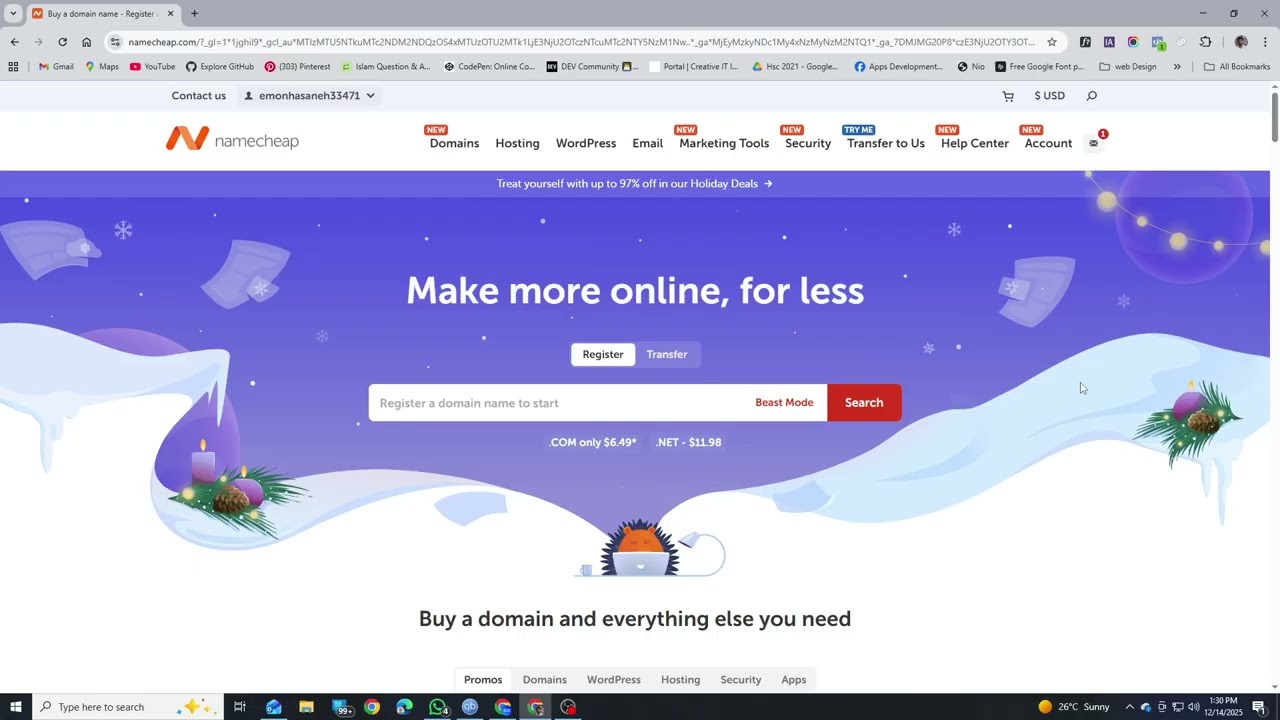
Ready to point your Namecheap domain to a new host? In this quick Virtual Garage tutorial, I’ll walk you through the exact steps to update your Namecheap nameservers in under two minutes.
Changing your DNS is a key step when setting up a website with your preferred hosting provider. I’ll show you how to do it directly from your Namecheap dashboard, whether you're switching to a new web host, a specialized platform, or just need to update your DNS records.
What You'll Learn in This Video:
✅ How to access the nameserver settings in your Namecheap account.
✅ How to switch to custom nameservers (for most web hosts like SiteGround, Bluehost, Cloudways, etc.).
✅ How to select Namecheap’s default DNS if you’re using their hosting.
✅ The simple save process and what to expect next.
Step-by-Step Process:
Log in to your Namecheap account dashboard.
Navigate to "Domain List" and click "Manage" on your chosen domain.
Find the "Nameservers" section and select your option from the dropdown menu.
Choose "Custom DNS" to enter nameservers from your web host, or select "Namecheap Web Hosting DNS" if you're staying with them.
Click "Save" – you're done! Propagation can take up to 24-48 hours.
Need help? Drop your questions in the comments below!
Subscribe to Virtual Garage for more straightforward tech tutorials, website guides, and tips to take your online projects to the next level.
🔔 Subscribe & Hit the Bell Icon for Notifications!
#VirtualGarage #Namecheap #Nameservers #DNS #DomainSetup #WebHosting #WebsiteTutorial
Повторяем попытку...
Доступные форматы для скачивания:
Скачать видео
-
Информация по загрузке:


