How to Assign Controllers to Your KE2 Smart Access Site - Video 066 (FAQ: Walk in Freezer)
Автор: KE2Therm
Загружено: 2016-10-12
Просмотров: 1654
Описание:
For more information please visit our website at http://www.ke2therm.com
If you are planning to use KE2 Smart Access to monitor and control your refrigeration systems, you can choose to create portal sites specified by customer, one including all your customers,
or if you are and End User, you can track your multi-store locations.
Hi my name is Patricia Bleckman, I’ll take you through the process of assigning your controllers to a designated KE2 Smart Access site.
Navigate to your KE2 Evaporator Efficiency’s webpage. Then from the Settings tab on the controller, login.
Then, find the Smart Access Settings section. This is where you can change the Site and password.
Click the Press to Enable button
Create a Site and Password that you can remember. Using the same site name and password, displays each controller you want to see on the same portal.
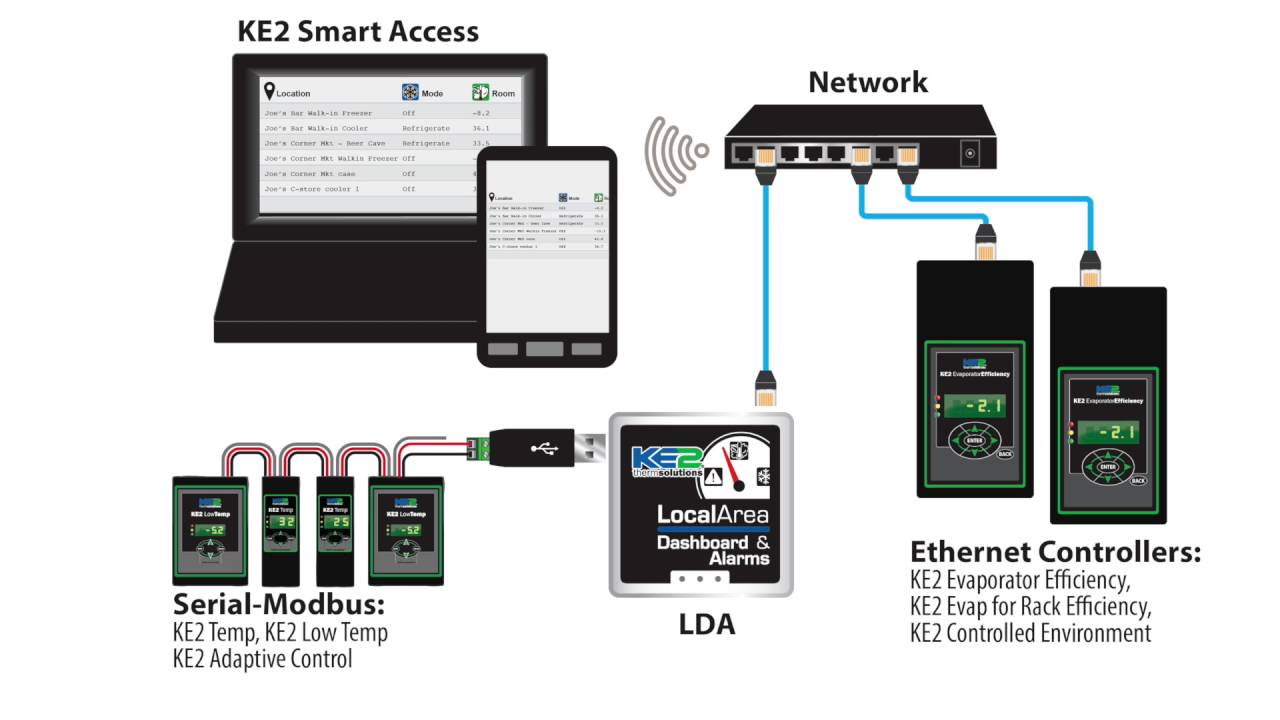
If you are connecting to KE2 Smart Access through a KE2 LDA communication device, you can also choose a Site and password on the Manage page of the KE2 LDA.
If you use the same site and password on the controllers connecting through the KE2 LDA,
they will join your other controllers on the dashboard.
It’s that simple, and if you want to customize the information displayed on the dashboard, you can view Video 067 on customizing the dashboard.
Повторяем попытку...
Доступные форматы для скачивания:
Скачать видео
-
Информация по загрузке: