Setup & Troubleshooting The Cyan Smart Glasses | Liberated Eyewear
Автор: Liberated Eyewear, Inc.
Загружено: 2025-11-21
Просмотров: 4616
Описание:
Learn how to set up, connect, and troubleshoot your CYAN Gen 1 smart glasses as a Certified Partner Guide
In this video, we’ll walk you through:
What’s included with your CYAN Gen 1
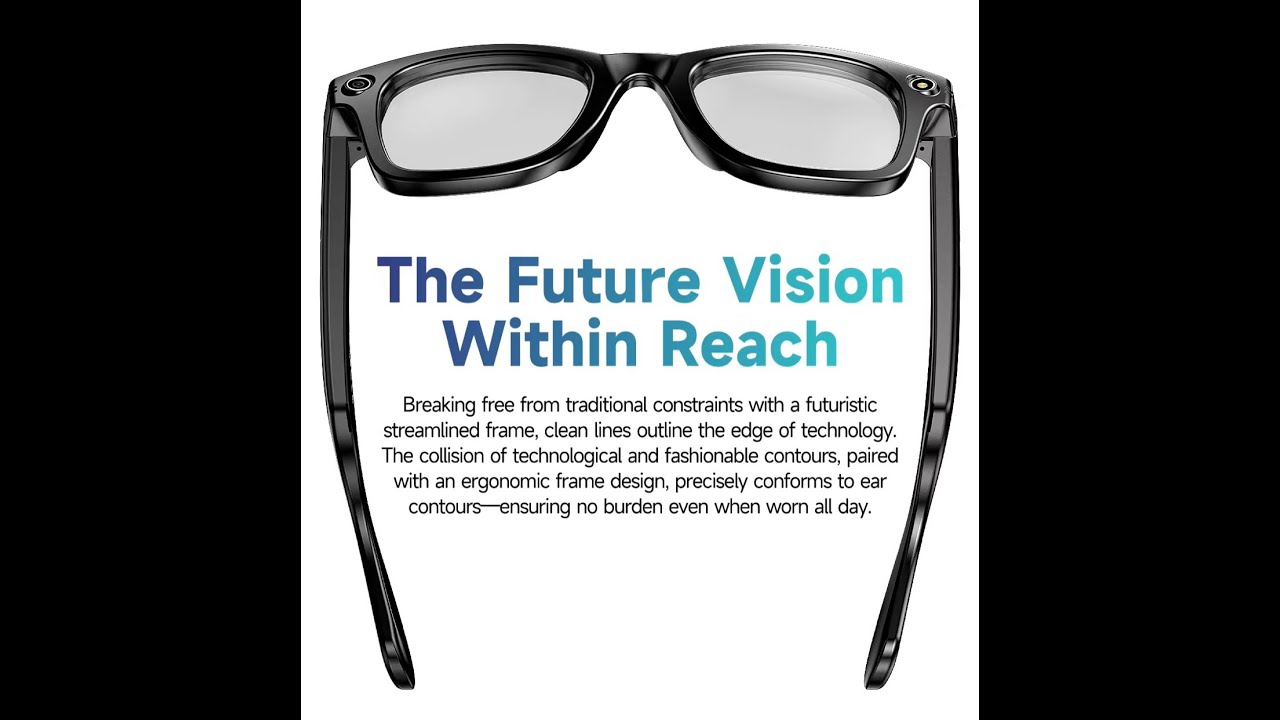
Key features on the front of the frames
How to power on and pair your glasses
How to connect to Bluetooth
How to activate the Hey Cyan voice app
Basic troubleshooting + when to use a factory reset
🔍 Front-of-Frame Features Overview
On the front of the CYAN Gen 1, you’ll find:
Discreet camera for hands-free photos and video
Open-ear speakers for audio without blocking your hearing
Built-in microphones for Hey Cyan voice control
Touch or button controls on the temple
Indicator light to show power / pairing / recording status
(Exact placement may vary by model—refer to your insert card or quick start guide for the layout.)
🔌 Step 1: Power On & Charge
Fully charge your CYAN Gen 1 before first use.
Press and hold the power button until you see the LED indicator turn on or hear the startup tone.
📱 Step 2: Connect to Your Phone & Bluetooth
On your phone, turn Bluetooth ON.
Open your CYAN app (or download it from your app store if you haven’t yet).
In the app, select Add Device or Pair Glasses.
Choose CYAN Gen 1 from the list and confirm pairing.
Once paired, your glasses should show as Connected in both Bluetooth settings and the app.
🎙️ Step 3: Activate the “Hey Cyan” Voice App
Make sure your glasses are on and connected via Bluetooth.
Open the CYAN app and follow the prompts to enable voice activation.
Allow any microphone / Bluetooth / notification permissions requested by the app.
Test it: say “Hey Cyan” and follow with a supported command (like capture, record, etc., depending on your setup).
🧰 Troubleshooting Basics
If you experience technical issues or bugs:
First move: Reboot.
Turn the glasses off, wait a few seconds, then turn them back on.
Close and reopen the app on your phone.
If problems continue and you need to restore the app and glasses:
Use a Factory Reset:
Open the CYAN app and go to Settings or Device Management.
Select Factory Reset (this will remove previous data and pairing info).
Re-pair your glasses like they’re brand new following the steps above.
⚠️ Note: A factory reset usually clears saved preferences and connections. Only use it if rebooting doesn’t fix the issue.
💬 Need More Help?
If you’re a Certified Partner and still having issues after reboot + factory reset, contact your support rep or reach out to our tech support team with:
Your device model (CYAN Gen 1)
Phone type (iOS/Android + version)
A short description of what’s happening
www.liberatedeyewear.com
Повторяем попытку...
Доступные форматы для скачивания:
Скачать видео
-
Информация по загрузке: