Merge Salesforce Records into a PDF with Gutenburg
Автор: Gutenburg PDF for Salesforce
Загружено: 2026-02-04
Просмотров: 0
Описание:
Add Dynamic Record Lists with Gutenburg Data Tables
In this video, we demonstrate how to use Gutenburg Data Tables to merge lists of Salesforce records into a PDF template. Data Tables allow a variable number of related records—ranging from just a few to thousands—to be displayed cleanly and dynamically inside a document.
This feature functions much like a Salesforce report, but is embedded directly into a PDF and requires no code to configure.
What you’ll learn:
When to use Data Tables instead of individual fields
How to configure a Data Table in a template
How to select fields, including parent fields
How to filter records dynamically
How to handle child records and multi-page tables
Walkthrough overview:
When a list of related records such as Opportunity Products or Work Order Lines needs to be included in a PDF, Gutenburg’s Data Table feature provides a flexible solution.
To begin, navigate to the Data Tables section within the template’s Data Settings panel and click Add Data Table. Select the Salesforce object whose records should populate the table.
Next, choose the fields that should appear as columns in the table. Click the field dropdown to select the first field. All standard and custom fields are available, including fields from parent relationships. To add additional columns, click the plus icon below the configured field and repeat the selection process until all desired fields are included.
Optional filters can be applied by clicking Add Filters. Select the field that drives the filter, choose an operator, and specify the value to compare against. By default, the comparison value can be entered manually, but another field value can be used by selecting the Text option next to the value field.
Additional filter conditions can be added by clicking Add Condition. For advanced scenarios, filter groups can also be used; this topic is covered in a later video.
If only child records should be included in the Data Table, the Child Records Only checkbox provides a simple way to restrict results to child records only.
If the Data Table spans multiple pages, the option to repeat the table header on every page can be enabled. This improves readability when working with large data sets.
Once configuration is complete, click Insert Data Table to add it to the Template Canvas. A Data Table can be reused multiple times within the same template if needed.
With Data Tables, Gutenburg enables powerful, report-like data displays in PDFs using a simple point-and-click process—no code required.
Resources:
Product documentation: https://www.gutenburg.ai/
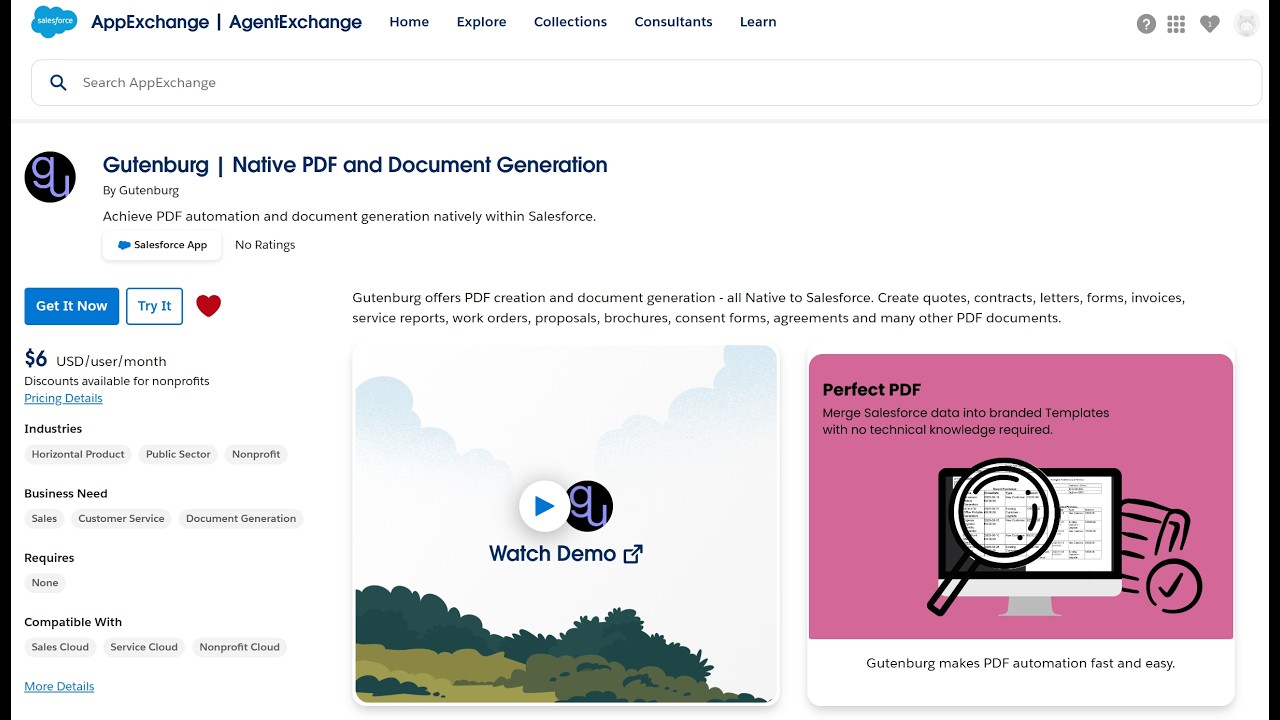
Salesforce AppExchange listing: https://appexchange.salesforce.com/ap...
This video is part of the Gutenburg PDF documentation series.
Повторяем попытку...
Доступные форматы для скачивания:
Скачать видео
-
Информация по загрузке: