How to Record Sales from PayPal in QuickBooks
Автор: Candus Kampfer
Загружено: 2018-05-16
Просмотров: 4278
Описание:
Learn how to record sales from PayPal in QuickBooks.
Save time using Sales Receipts to track your PayPal sales and merchant fees in one step.
In this video, I want to help you save time by using Sales Receipts to track your PayPal sales and merchant fees. You can use this same technique with Stripe, Venmo or Zelle. 😊
I personally use Sales Receipts for 97% of my sales because I get paid at the time of the purchase for products or services. Remember sales receipts track the customer and payment at one time. This will save you time if you have a business model that supports it.
If you need QuickBooks to track your accounts receivable, refer to this video: https://canduskampfer.com/setup-a-pay...
After you watch the video use the step-by-step guide below the video for reference.
Create Invoices → Receive Payments
Tracking Accounts Receivable Getting Paid later
➡️ Create Sales Receipt
If providing products/service and getting paid at the exact same moment
➡️ Sales Receipt
Pick “Customer”
“Deposit To” (Undeposited Funds or PayPal)
“Payment Method” (PayPal – Cash)
“Date” (Date Sale Happened)
Pick “Item” (Product/Service Being Sold
2nd Line Item (PayPal)
“Amount” of charge (make sure its negative)
Click “Save & Close”
PayPal – Does one transaction at a time
Stripe – They do batches
➡️ Undeposited Funds Setting
Go to “Edit”
“Preferences”
“Payments”
“Company Preferences”
Check/Uncheck “Use Undeposited Funds as a default deposit to account”
Click “OK”
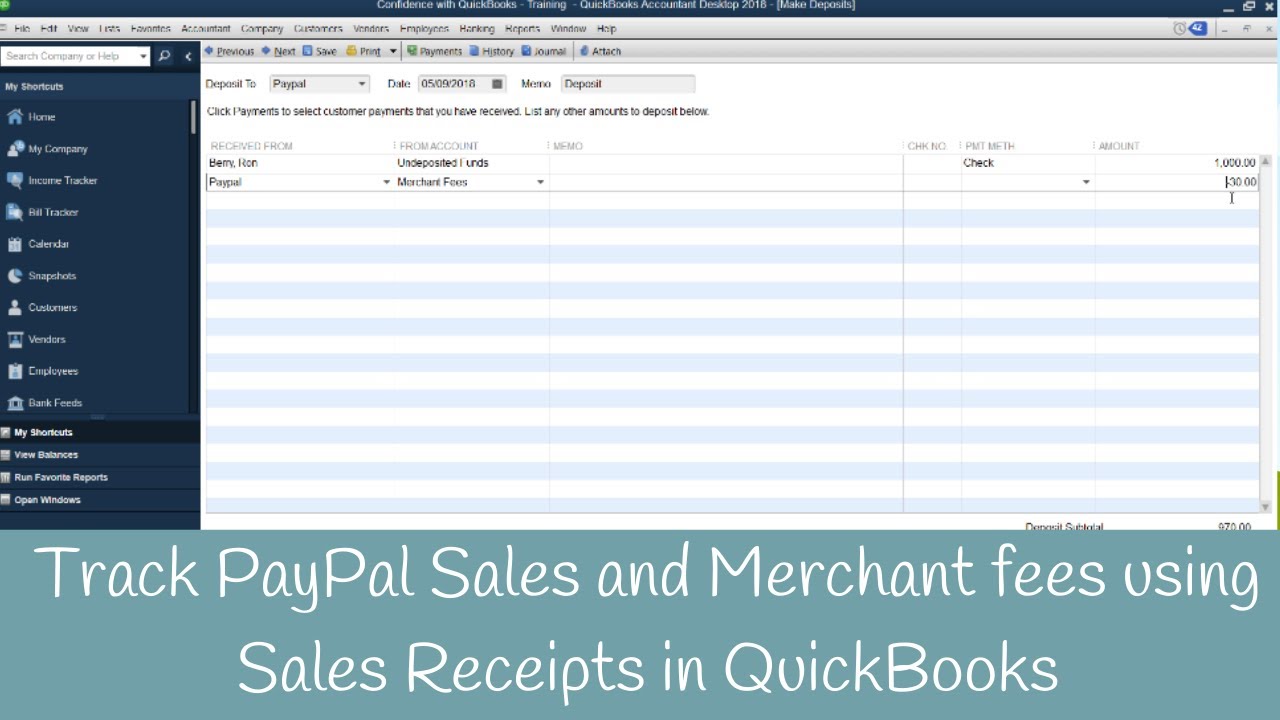
If You Don’t Want to Add the Merchant Fee in Sales Receipt
**You can add the merchant fee in the record deposits
➡️ TRACKING PAYPAL SALES AND MERCHANT FEES USING SALES RECEIPTS IN QUICKBOOKS
Sales Receipt – Providing your products/services and getting paid the exact same moment. You can combine both the payment and the sale details in one transaction.
PayPal – Can be tracked per transaction or a total weekly/monthly. I do at least one transfer from my PayPal account to my bank account at the end of each month. This helps to keep your records clean and makes sure you don’t miss any transactions. I prefer to do a transfer every Friday and then on the last day of the month.
Stripe – This merchant uses batches. The best way to use these is “Undeposited Funds” to match to the bank for all transactions.
➡️ Steps to Start Entering a Sales Receipt
1. Click on “Sales Receipt” from the home screen or inside the Customer Center
2. Pick individual customer’s name, ex: Online Sales
Payment method - Add New Payment method
Payment Method: PayPal - Payment Type: Cash - OK
Choose PayPal - Pick the date that the sale happened
3. Select Item(s) (Products or Services) to bill customer
4. Set PayPal Item by adding new - Other Charge
Item Name/Number : PayPal - Account: Merchant Fees
Tax Code: Non - OK
**Only need to set up your “PayPal” item once.
5. Enter the amount of the PayPal Fee they charged you, should be in **negative (-) number
6. Save and Close
7. Verify transaction inside the Check Register - You will see your Sales Receipt
Tip: Ctrl + Y (to see the transaction details)
➡️ PayPal Not Handled in Sales Receipt
Record Deposits
Choose your item - OK
Deposit to: PayPal - Under Received From: PayPal
From Account: Merchant Fees - Amount
Save and Close
➡️ Undeposited Funds Settings: (Choose the best setting for you)
Edit - Preferences - Payments - Company Preferences
You can choose “Use Undeposited Funds” as a default account to deposit
Timestamps:
0:00 - Intro
0:13 - Invoice & Sales receipts
0:35 - Sales receipts in QuickBooks Desktop
1:49 - Deposit to Undeposited funds or PayPal
5:30 - Look Check Register inside Paypal
5:54 - Profit & Loss
6:09 - If you don't want to handle Paypal directly in Sales Receipt
7:22 - Final Thoughts
Need to learn more areas of QuickBooks? Join us on our next workshop to learn how to design QuickBooks for your specific business...
➡️ https://CandusKampfer.com/workshop
Receive our QB tips straight to your inbox each week visit:
➡️ https://CandusKampfer.com/tips
Subscribe here for more QuickBooks tips
➡️ https://www.youtube.com/c/CandusKampf...
I’d love to connect with you 👇
Instagram: / candus.kampfer
Facebook: / canduskampfer
CandusKampfer.com: https://canduskampfer.com/
TikTok: / canduskampfer
Pinterest: / canduskampfer
#CandusKampfer #QuickBooks
Повторяем попытку...
Доступные форматы для скачивания:
Скачать видео
-
Информация по загрузке: