Diesel Railcar Simulator - How to make routes with real world map data
Автор: Uriel Untevarin
Загружено: 2022-03-13
Просмотров: 850
Описание:
I used a program called PureRef. You can download it here: https://www.pureref.com (You can set the pay amount to 0) and download it for free.
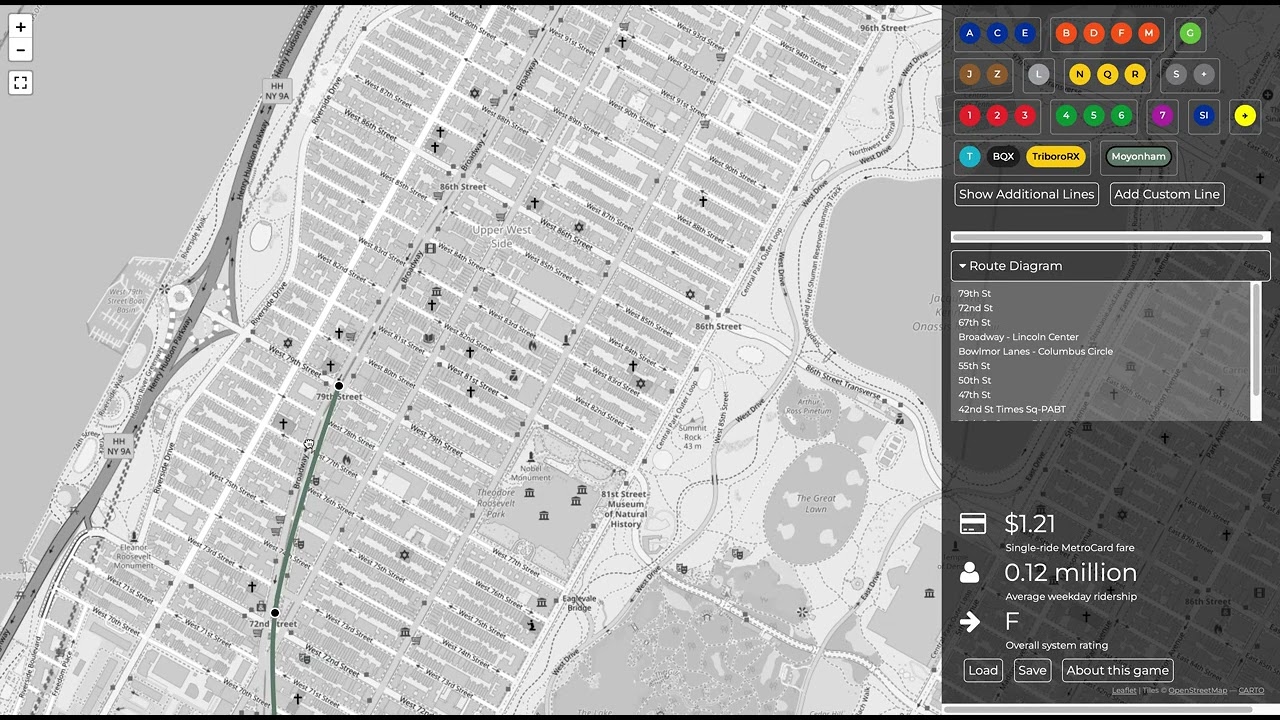
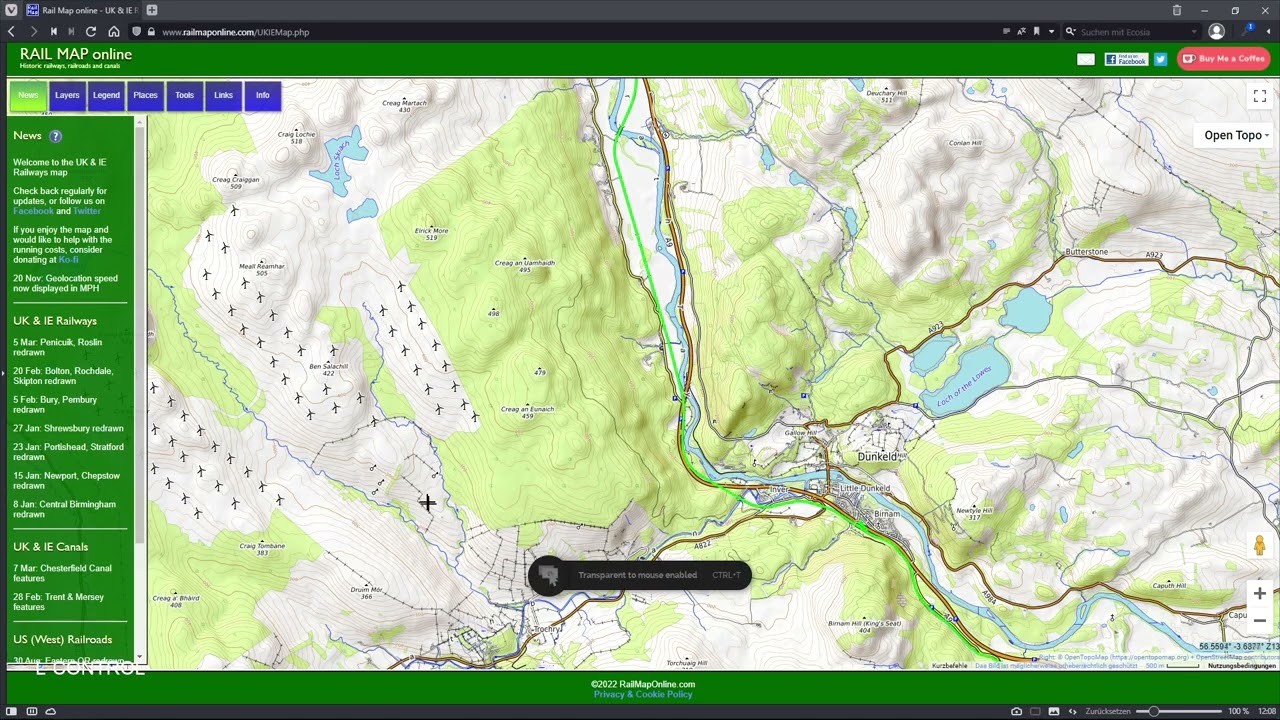
Than I went to https://www.railmaponline.com/UKIEMap... and choose the section of track I want to model. Zoom in until the legend in the lower right says 500m or 1km.
Then you need to open the route editor in DRS and draw a line of track at 90 degrees with a length of 500 to 1km (depends on how a zoom level you did your screenshot)
Now, Alt+Tab back to your browser:
Press Print Screen on Keyboard to make a screenshot of the map and press CTRL+V in PureRef to get the Screenshot into PureRef. Then go into the options of Pureref by right clicking settings, then color tab - Master Opacity all the way to the left, close the settings window, right click again, Mode - Always on Top. Now you should set it up so that you can see your "real" browser window behind the window of PureRef. Lay both over an another, so the
real map and your screenshot in PureRef are overlapping. (You can right click - window - maximize to maximize PureRefs window) Now you can enable Transparent to mouse mode with Ctrl+T. Now you should always see your PureRef map anywhere you go. Alt Tab back to DRS and match the piece of track you made with the scale legend in the bottom right of the map. Now you can start laying down your tracks, aided by the map. When you are done with the section in your map screenshot, Alt+Tab to PureRefs window and press CTRL+T again to disable transparent to mouse. Right Click in Pureref - Window - minimize. Now you can pan the map view in the browser to the next section and do print screen again. Then paste it again in pureref, Match real map and your screenshot, back to drs, and so it goes..
It´s a bit tedious but it works.
Повторяем попытку...
Доступные форматы для скачивания:
Скачать видео
-
Информация по загрузке: