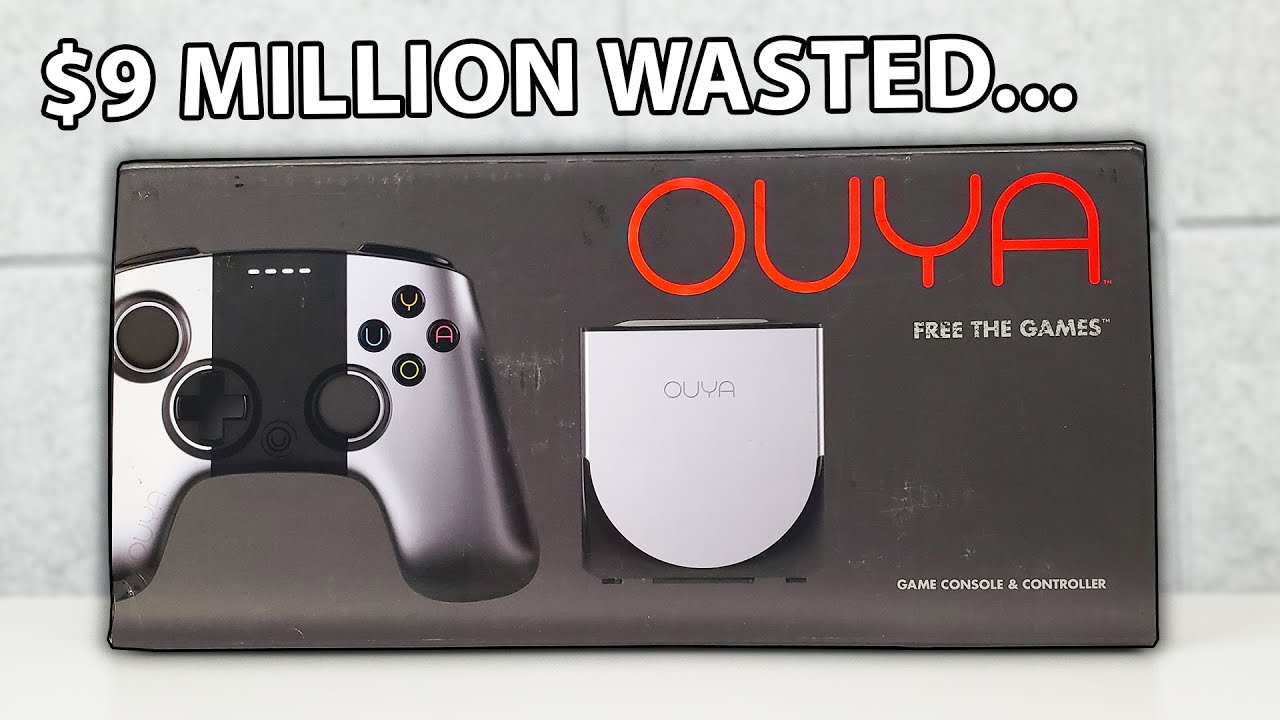
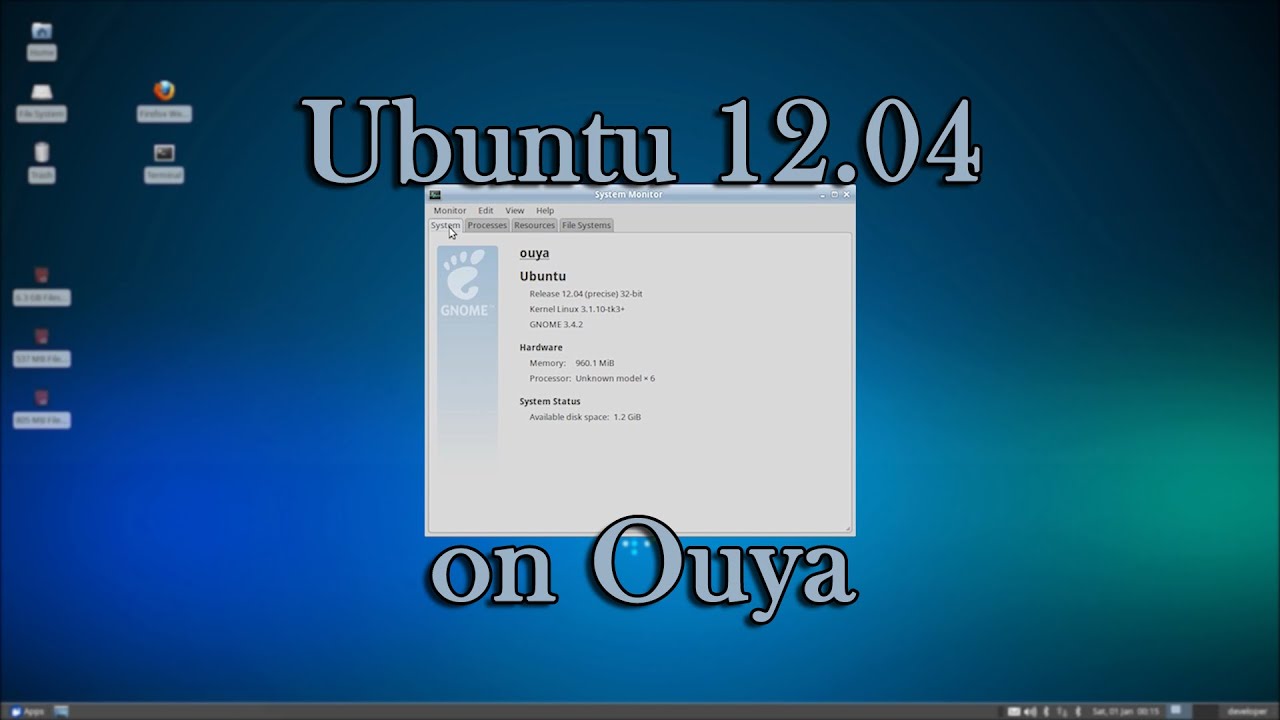
Run Ubuntu 12.04 on Ouya
Автор: i12bretro
Загружено: 2020-05-25
Просмотров: 2987
Описание:
#ouya #savetheouya #microconsole
Full steps can be found at https://i12bretro.github.io/tutorials...
NOTE: None of the slowness/delays have been edited out of the Linux footage so you can see first hand what the Linux experience was like running on the Ouya
Things You Will Need
- A USB flash drive, at least 4 GB of free space https://amzn.to/3wkR5ju
- A USB hub, preferably with external power https://amzn.to/3KTviDw
- A USB keyboard https://amzn.to/3qgUQTe | https://amzn.to/3uchJsj
Prerequisites and Downloads
01. Download Ubuntu 12.04 files https://app.box.com/s/ni5rttar4x40tss...
02. Download win32diskimager https://sourceforge.net/projects/win3...
03. Download i12bretro_OUYA_Ubuntu_commands.zip https://drive.google.com/open?id=1m0a...
04. Extract Ubuntu 12.04 files
05. Extract the downloaded i12bretro_OUYA_Ubuntu_commands.zip
06. Extract win32diskimager
07. Launch win32diskimager
08. Navigate to the extracted Ubuntu files and select the .img file
09. Select and then double and triple check the correct device is selected from the dropdown
All data will be lost, check the selected device one more time
10. Click the Write button
11. Ignore prompts to format the drive
12. Safely remove the flash drive
13. Plug the flash drive, keyboard and mouse in the USB hub
14. Plug the USB hub into the Ouya
Installing Ouya USB Drivers
01. Right click Start ≫ Command Prompt (Admin)
02. Paste the following commands to disable driving signing checks temporarily
bcdedit -set loadoptions DISABLE_INTEGRITY_CHECKS
bcdedit -set TESTSIGNING ON
shutdown /r
03. Your PC will reboot
04. Connect a USB cable from the micro USB port on the back of the Ouya to your PC
05. Connect the USB hub to the USB port on the Ouya ≫ Plug in the USB keyboard and prepared USB flash drive
06. Make sure the Ouya is connected to a display via HDMI
07. Power on the Ouya
08. After a few seconds you should hear Windows chime that a new device has been detected
09. Right click Start ≫ Device Manager
10. Expand Other Devices and you should see OUYA listed
11. Right click OUYA ≫ Update Driver
12. Select Browse my computer for driver software
13. Click the Browse... button
14. Navigate to the extracted i12bretro_OUYA_Ubuntu_commands\files\driver
15. Click OK
16. Make sure "Include subfolders" is checked, click Next
17. Windows should find the correct driver for the Ouya and install it
18. Navigate to the i12bretro_OUYA_Ubuntu_commands in windows explorer
19. Right click i12bretro_OUYA_Ubuntu_commands.bat ≫ Run as administrator
20. The script uses the Android Debug Bridge (ADB) to boot the Ouya into recovery
21. When the command prompts to "-- Setup the fastboot driver", go back to Device Manager expand Android Device
22. Right click Android Bootloader Device ≫ Update Driver
23. Select Browse my computer for driver software
24. Click the Browse... button
25. Navigate to the extracted i12bretro_OUYA_Ubuntu_commands\files\driver
26. Click OK
27. Make sure "Include subfolders" is checked, click Next
28. Windows should find the correct driver for the Ouya and install it
29. Press Enter at the command prompt once the driver is installed to continue
30. The script will run another ADB command to push a custom zImage kernel to the Ouya
31. The Ouya should boot Ubuntu 12.04 from the USB
32. Default logins are as follows:
root/123456
developer/ouya
Configure Ubuntu
01. Change the root and developer passwords by running the commands below, replacing the passwords with something secure
sudo passwd developer
sudo passwd root
02. Configure wireless networking by modifying /etc/network/interfaces
03. To return to the Ouya OS simply reboot from the Ubuntu interface
There are instructions included in the Ubuntu download to dual boot the Ouya with Ubuntu and Android. I did not test this option, but beware the dual boot option has the potential to brick your device. The fastboot option demonstrated in the video poses very little risk to your console. For further reading and history on this check out http://tuomas.kulve.fi/blog/2013/09/1....
Cleaning Up
01. To restore driver integrity checks, do the following:
02. Right click Start ≫ Command Prompt (Admin)
03. Paste the following commands to re-enable driving signing checks
bcdedit -set loadoptions ENABLE_INTEGRITY_CHECKS
bcdedit -set TESTSIGNING OFF
shutdown /r
04. Your PC will reboot
Connect with me and others ###
★ Discord: / discord
★ Reddit: / i12bretro
★ Twitter: / i12bretro
Повторяем попытку...
Доступные форматы для скачивания:
Скачать видео
-
Информация по загрузке: