Auto Scheduled - MSP quick tip # 1
Автор: Solid Support
Загружено: 2020-07-23
Просмотров: 557
Описание:
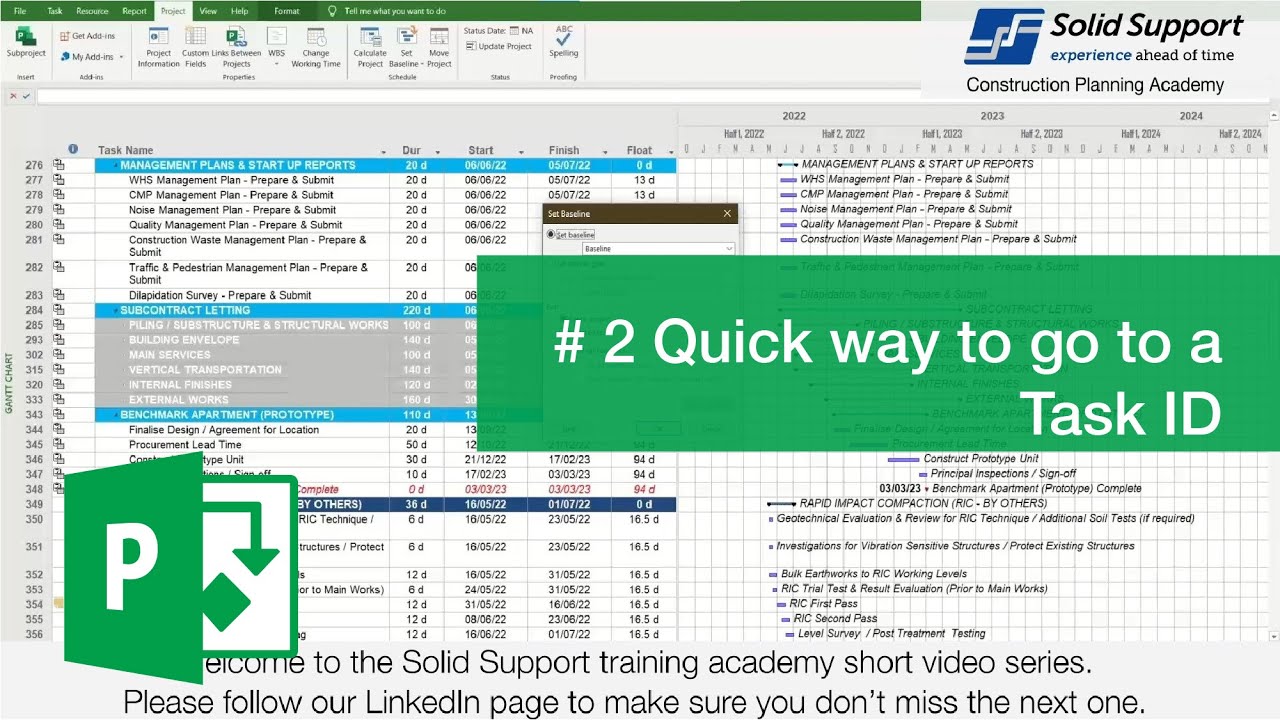
Welcome to the Solid Support training academy short video series. Please follow our LinkedIn page to make sure you don’t miss the next one.
Ever wanted to learn how expert construction planners create and manage their programmes in Microsoft Project?
Now is your chance to join instructor led courses, conducted by me, Daren Maynard.
Here is just one example of the things I will teach.
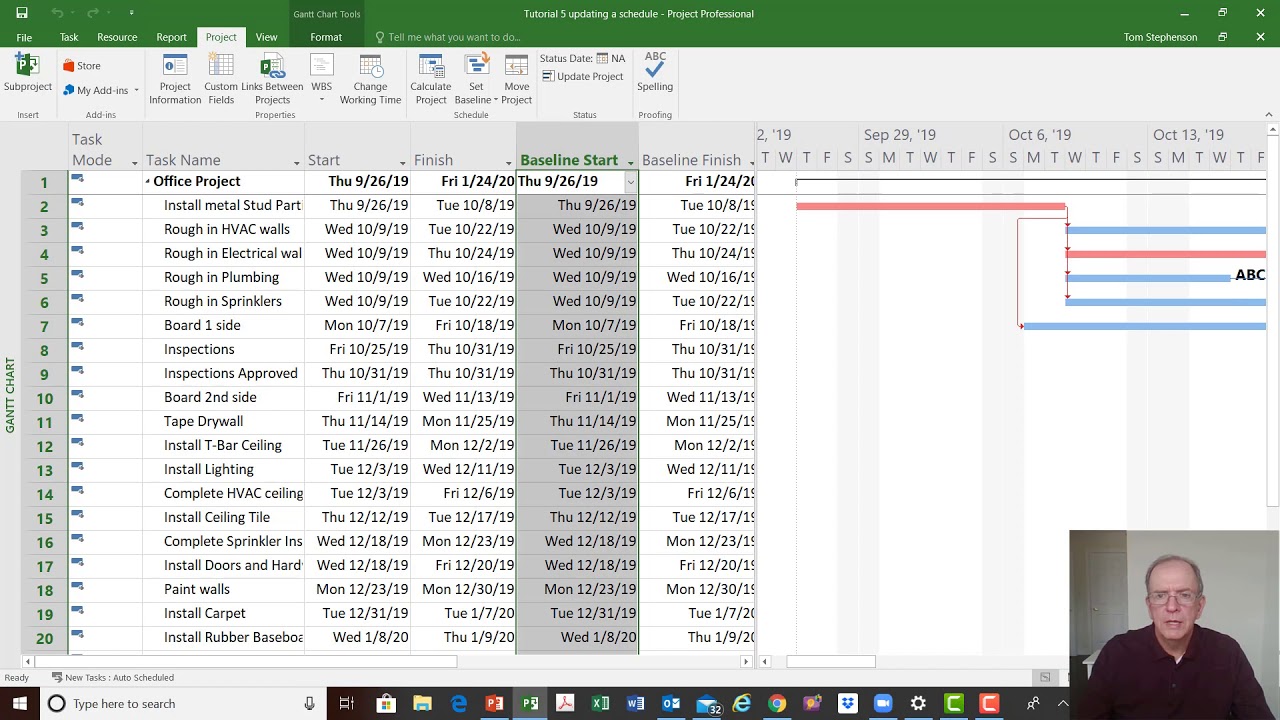
When you create a new project, your project should be set to Auto Scheduled. This ensures when you add your calendars, durations and links that Project automatically reflects those changes.
Go to the File tab - Select Options
The Project Options dialogue box appears.
Select Schedule - Scroll to Scheduling options for this project.
Select from the dropdown: All New Projects
Go to the New tasks created and select from the dropdown menu: Auto Scheduled
You can repeat this step for the current project, by selecting it from the Scheduling options for this project dropdown menu,
Go to New tasks created and select from the dropdown menu: Auto Scheduled
Click OK.
Now, you can start scheduling your project with the new tasks set to Auto Scheduled.
If you like this feature, and would like to learn more, please join our instructor led online classes from the links below. Registering is easy, I’ll see you in class.
https://solidsupport.com.au/course-ov...
For more info please visit:
https://solidsupport.com.au/training/
Get in touch with the Solid Support team by emailing:
[email protected]
Повторяем попытку...

Доступные форматы для скачивания:
Скачать видео
-
Информация по загрузке:












![Best of Deep House [2026] | Melodic House & Progressive Flow](https://imager.clipsaver.ru/Il-ZpBuC8tA/max.jpg)