How to Repair and Troubleshoot Windows 11 Using Built In Tools & Maintenance Features
Автор: Control Alt Delete Tech Bits
Загружено: 2024-11-09
Просмотров: 3204
Описание:
#windows11 #windows #techtips #microsoft #troubleshooting
How to Repair and Troubleshoot Windows 11 Using Built In Tools & Maintenance Features
Learn essential Windows 11 troubleshooting techniques and repair methods in this guide. From Automatic Maintenance and Advanced Startup Options to System File Checker (SFC) and DISM commands, this video covers built-in tools to fix common issues, improve performance, and resolve crashes. We’ll show you how to access recovery options like System Restore and Reset This PC to roll back changes or perform a fresh install without losing files. You’ll also learn how to use Reliability History and Event Viewer to diagnose system errors, Task Manager to monitor performance, and Device Manager for hardware troubleshooting. Whether you’re facing errors, slowdowns, or driver issues, this guide equips you with tools to repair and maintain Windows 11 and how to fix windows 11
Check out my website https://controlaltdeletetechbits.co.uk
Automatic Maintenance: Keep your system running at its best with scheduled clean-ups and updates. Learn how to configure it for optimal performance.
Recovery Options: Revert your PC to an earlier point or reset it entirely. We’ll cover System Restore and Reset This PC for flexible troubleshooting.
System Restore and Creating Restore Points: Go back to a stable point in time to resolve recent software or driver issues. Learn to configure System Restore and create restore points.
Reliability History: Track system events, crashes, and errors to pinpoint issues over time. We’ll guide you through using this tool effectively.
Event Viewer and Custom Views: Use Event Viewer logs to troubleshoot system, application, and security issues. Learn to create custom views to filter logs by type and severity.
Built-In Windows Troubleshooters: Access Windows troubleshooters for network, audio, and update issues. Quickly detect and resolve problems on your PC.
Task Manager: Task Manager helps monitor system performance. We’ll cover how to view active processes, check CPU, memory, disk, and network usage, and manage startup programs to improve boot times. Task Manager also lets you control background processes, monitor performance, and view logged-in users.
Performance: Real-time stats for CPU, RAM, and network, along with device uptime.
Startup: Enable or disable programs that load on startup to optimize performance.
Users: View current users and their running applications.
Services: Monitor, stop, and restart services, like Windows Update, for troubleshooting
System File Checker (SFC) /scannow: SFC is a command-line tool that scans for and repairs corrupted or missing system files, helping resolve issues that affect stability. Running sfc /scannow checks protected files and replaces damaged ones from the Windows Component Store.
DISM /Online /Cleanup-Image /RestoreHealth: If SFC cannot repair some files, DISM provides deeper repairs. The /RestoreHealth command scans and repairs issues in the Component Store. We’ll demonstrate how to use DISM to restore system integrity, ensuring SFC has healthy files for repairs.
Device Manager: Troubleshoot connected hardware by updating, disabling, or reinstalling drivers for issue resolution.
Memory Diagnostic Tool: Run this tool to detect memory (RAM) errors that could cause crashes and performance problems.
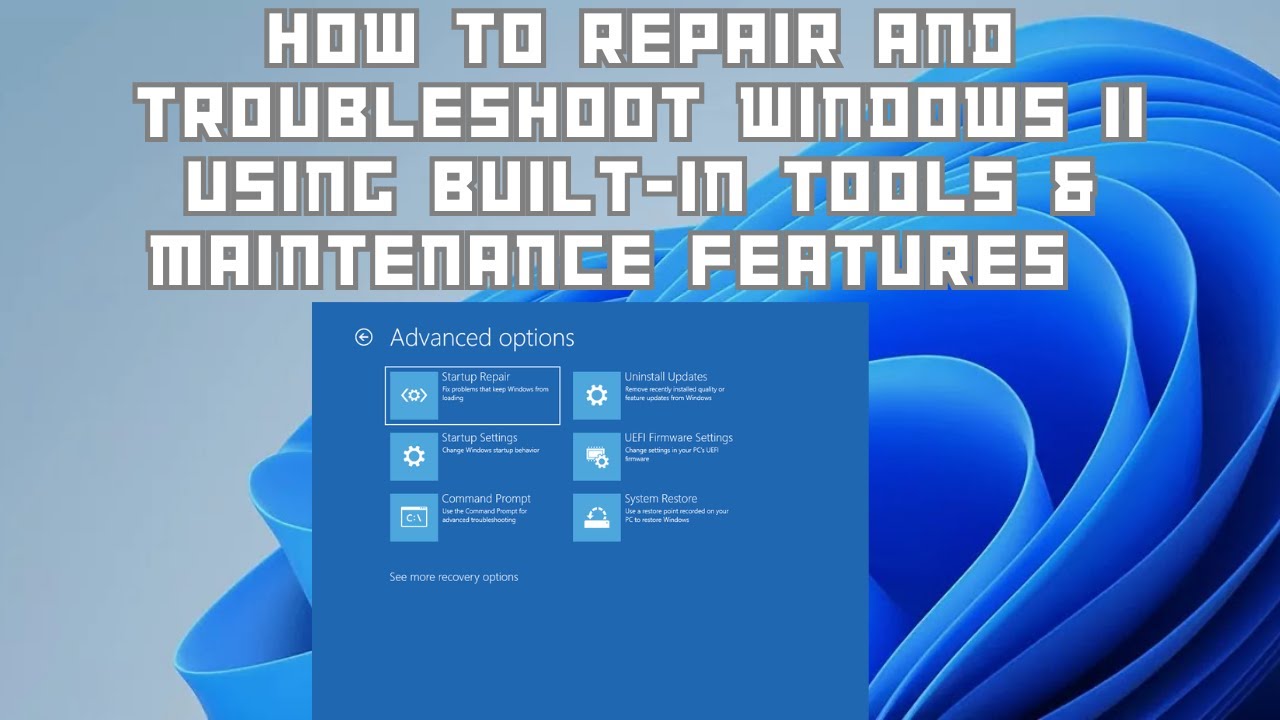
Advanced Startup Options: Advanced Startup Options offers various built-in recovery tools, accessible by holding Shift while restarting.
Startup Repair: Diagnoses and fixes problems preventing Windows from booting.
System Restore: Roll back the system to a previous restore point, undoing changes that cause instability.
Uninstall Updates: Roll back recent updates that may have introduced issues.
Command Prompt: Run commands like SFC, DISM, and bootrec commands for boot issues.
System Image Recovery: Restore everything from a backup, including system files and apps.
Reset This PC: Reset This PC reinstalls Windows, providing a last-resort solution for severe issues. It has two options:
Keep My Files: Reinstalls Windows without affecting personal files, ideal for fixing system problems while preserving data.
Remove Everything: A complete reinstall that wipes all files, apps, and settings, restoring Windows to its default state. Choose between Cloud Download for the latest Windows version or Local Reinstall for faster installation.
Video Chapters:
0:00 - Introduction
0:17 - Security and Maintenance
1:00 - Recovery Options
1:24 - Using System Restore
1:45 - Creating a Restore Point
1:56 - Step-by-Step: Create a Restore Point
2:51 - Reliability History
3:57 - Event Viewer
4:34 - Event Viewer Filters
5:40 - Windows 11 Troubleshooters
7:00 - Task Manager
10:08 - SFC /scannow Command
10:42 - SFC Errors
10:53 - Disk Cleanup
11:05 - Device Manager
12:17 - Memory Diagnostic Tool
12:59 - Advanced Startup Options
13:55 - Resetting Your PC
Повторяем попытку...
Доступные форматы для скачивания:
Скачать видео
-
Информация по загрузке: