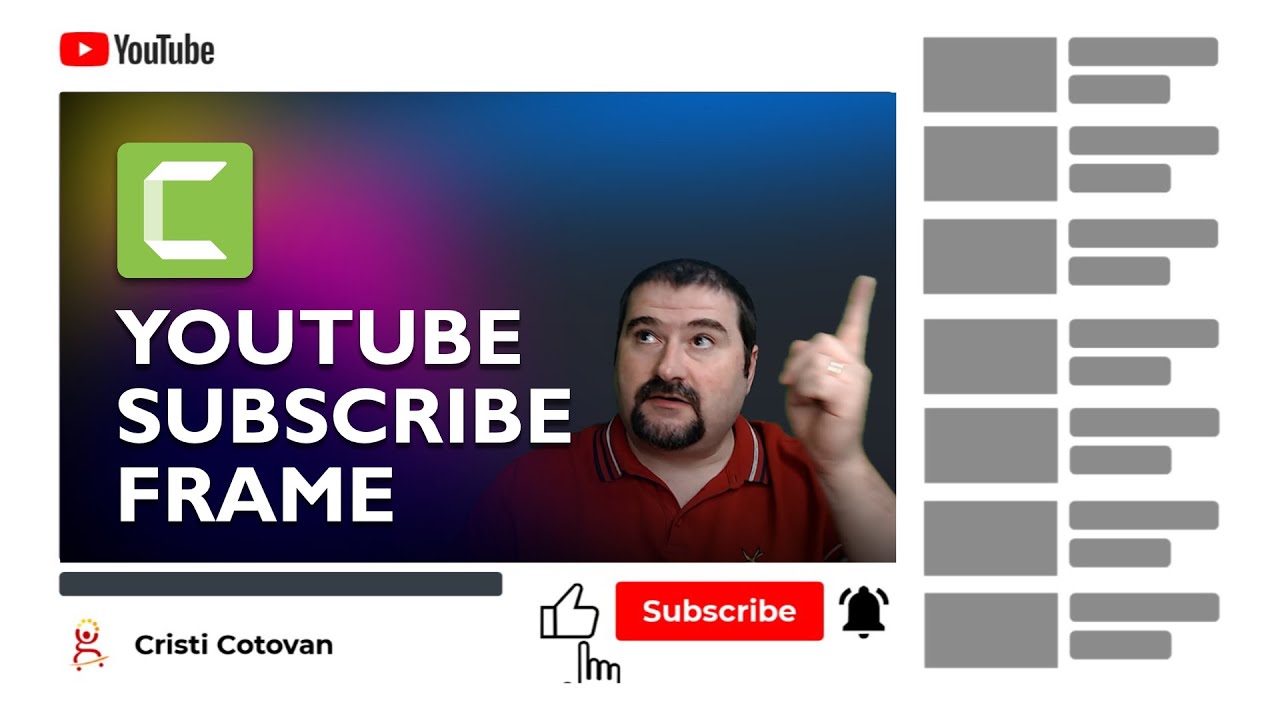
YouTube Animated Subscribe Frame | Camtasia Asset with Like and Bell Call to Action
Автор: Cristi Cotovan
Загружено: 2022-10-21
Просмотров: 2520
Описание:
You can download this asset pre-built and use it in Camtasia right away:
buymeacoffee.com/cristi/e/96590
Build an animated YouTube subscribe frame in Camtasia, with animated call-to-action buttons for Like, Subscribe, and Ring the Bell. This asset can be reused when you add it to your Camtasia library, you can customise the colours, the logo and branding, the channel name and the sidebar with 'recommended' videos.
The asset can be used in Camtasia on top of your regular video to provide a quick 'interruption' and advise your viewers to subscribe to your channel, while your video is still playing inside the 'placeholder' video. The animated frame comes into the screen using a 'zoom out' motion, plays for a few seconds, then zooms out and restores the original size of your video.
I realise this is a long tutorial, it's almost a course on its own, but I teach a lot of principles, tricks, and workarounds, to do with groups, animation flow, planning ahead, organizing your content, creating reusable assets with quick properties and so much more!
Feel free to download the asset from the link below, if you don't have the patience to build it yourself :)
Enjoy this Camtasia Advanced tutorial and use the chapters below to jump around:
Chapters:
00:00 Introduction
00:10 Example
00:43 How the effect works
01:09 Planning the animation
01:50 Grab guide screenshot
02:24 Don't forget to save
03:05 Create a mock-up of the page
03:22 Ensuring the aspect ratio
04:55 Create "recommended" sidebar
07:28 Create the title of the video
07:41 Add channel branding
08:37 Buy the pre-made asset
10:00 Group the sidebar
11:07 Add YouTube logo
12:34 Add a background
13:06 Creating the subscribe CTA
13:50 Design the subscribe button
15:09 Add like and bell icons
17:11 Animate the call to action
18:17 Camtasia 2022 Channel Kit
19:18 Add the bell icon
19:39 Add the like button
20:42 Animate the hand
25:11 Add change events to buttons clicked
28:38 Animate the frame and sub-elements
30:30 Synchronising animations
33:11 Use markers to help sync movement
35:08 Animate the whole frame
38:03 Adding the mask for the video
39:42 Use the frame with a real video
44:53 Add your own logo and customisations
53:22 Closing remarks
I have many more Camtasia tutorials here:
• Camtasia Tutorials
Join my Camtasia Help Facebook Group and ask questions, get help with Camtasia:
https://cotovan.com/group
Are my tutorials useful? Buy me a coffee! I LOVE coffee:
https://www.buymeacoffee.com/cristi
Cristi's website, blog and newsletter:
https://cotovan.com
-- SOFTWARE I use and recommend * --
Camtasia (includes 10% OFF coupon: CRISTI10): https://cotovan.com/camtasia
Snagit (includes 10% OFF discount code CRISTI10): https://cotovan.com/snagit
Transcription and Captions: https://cotovan.com/descript
Remote recording: https://cotovan.com/riverside
Audio clean up and processing: https://cotovan.com/auphonic
My newsletter platform: https://cotovan.com/convertkit
Disclosure: Some of these links take you to my website and some of them are affiliate links where I will learn a small commission if you make a purchase. This is at no additional cost to you and they help support my work. Thank you!
#camtasia #youtube #videoeditingtutorial
Повторяем попытку...
Доступные форматы для скачивания:
Скачать видео
-
Информация по загрузке: