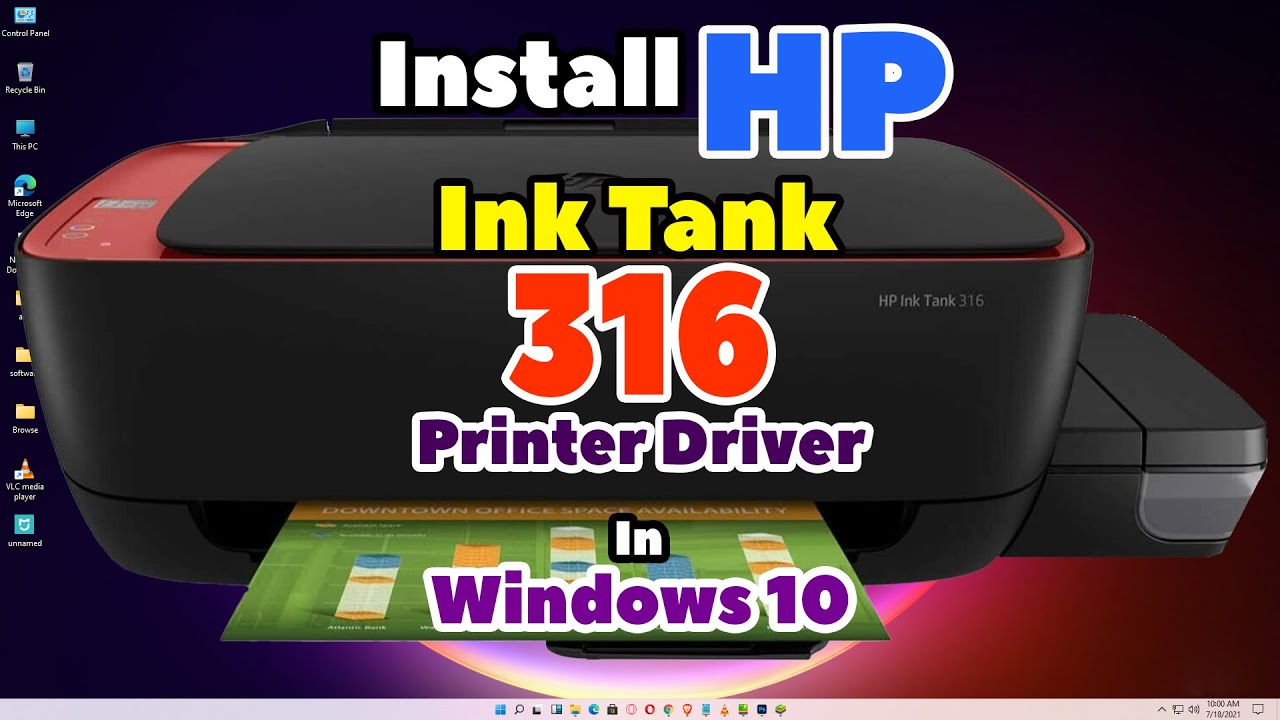
How to Download & Install HP Ink Tank 316 Printer Driver in Windows 10 PC or Laptop
Автор: Discover You
Загружено: 2026-01-19
Просмотров: 19
Описание:
Complete step-by-step guide to safely download and install the official HP Ink Tank 316 (ink tank all-in-one printer – print & scan) driver on Windows 10 using USB. This method uses the basic or full driver from HP – perfect for home users!
📌 Steps to Download & Install HP Ink Tank 316 Printer Driver in Windows 10 via USB:
1 Check Your Windows 10 Version
Settings → System → About → Under Device specifications → Note System type (32-bit or 64-bit – most PCs are 64-bit).
2 Download Driver
Go to official HP support:
https://support.hp.com/in-en/drivers/...
(or search “HP Ink Tank 316 driver” on support.hp.com)
Select Windows 10 → Download Basic Driver or Full Feature Software & Drivers package (includes print & scan – file like HP_Ink_Tank_310_410_series_basic.exe, ~100-200 MB).
3 Extract Files
Right-click the downloaded file → Choose Extract All → Select a destination folder (Desktop recommended) → Extract completely.
4 Connect USB
Connect the USB cable from your HP Ink Tank 316 to your PC → Keep the printer OFF initially.
5 Install via Printers & Scanners
Navigate to Start → Settings → Devices → Printers & scanners → Click Add a printer or scanner.
If not detected → Click The printer that I want isn’t listed.
6 Manual Setup
Select Add a local printer → Choose USB001 (Virtual printer port for USB) → Click Next.
Click Have Disk → Browse to the extracted driver folder → Select the .inf file (e.g., hpink316.inf or similar) → Click OK.
7 Install Driver
Choose HP Ink Tank 316 from the list → Follow the installation prompts → Turn ON the printer when prompted → Finish setup.
8 Verify Installation
In Printers & scanners → Select HP Ink Tank 316 → Click Manage → Print a test page to confirm.
Test scan via HP Scan software or Windows Fax & Scan.
🕒 Timestamps:
0:00 🎬 Introduction
0:19 🔍 Check Windows 10 32-bit or 64-bit
0:50 📥 Download HP Ink Tank 316 Printer Driver
2:35 📂 Extracting the Driver Files
3:11 ⚙️ Install HP Ink Tank 316 Printer Driver in Windows 10
5:09 ✅ Check Printer is Properly Installed
5:32 🏁 Conclusion
Extra Tips:
Windows 10 often auto-installs basic drivers on USB connect – try that first before manual method.
For Wi-Fi setup: After USB install, run HP Printer Setup utility (included in download) to configure wireless.
Official HP driver includes full print & scan features – no fax on this model.
If .inf file not found: Search extracted folder for "*.inf".
If issues: Run HP Print and Scan Doctor (download from HP site) or update driver via Device Manager.
Your HP Ink Tank 316 will now print & scan perfectly on Windows 10! 👍 Like, subscribe, and comment if this helped you! 🚀
Повторяем попытку...
Доступные форматы для скачивания:
Скачать видео
-
Информация по загрузке: