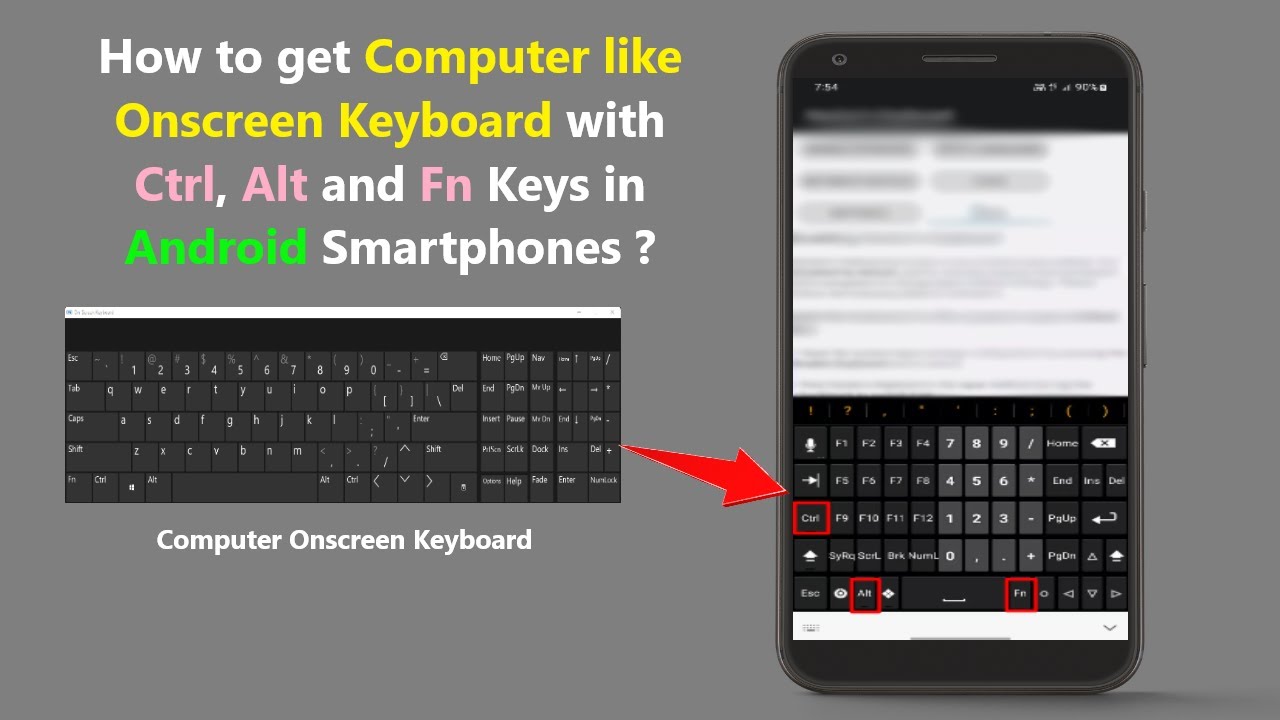
How to Add an Undo Button to the Gboard Keyboard App on Android?
Автор: Explaining Android
Загружено: 2024-03-12
Просмотров: 6395
Описание:
UPDATED METHOD - • Google Adds an Undo Button to Gboard Keybo...
There's an interesting way to add an "undo" key to Google's keyboard application on Android.
~~~~~
Hi! Don't forget to like the video, subscribe to the channel, and hit the "Thanks" button on this video, if you can, and join our channel community here - / @explainingandroid
Video Description
~~~~~~
Have you ever been typing something, accidentally swiped back across the backspace key and found that it deleted the very thing you had just typed?
#android #googlepixel #samsunggalaxy #galaxys24 #galaxys24ultra #pixel8 #pixel8pro #gboard #gboard_keyboard
If so, I recently found a way to access an undo button within Gboard for those times when you just don't want to type something out again.
To begin, we first need to open up the Gboard settings area.
So either find the app icon for Gboard itself, which should be there if you manually installed the application yourself.
Or bring up the keyboard and then tap the gear icon
Either way, you'll be brought to a page like this, and from here we want to add a new language.
So tap on the Add Keyboard button
And then search for the Japanese keyboard
Add this language to your current Gboard layout but be sure to choose the left-most Japanese keyboard with a name that starts with 12.
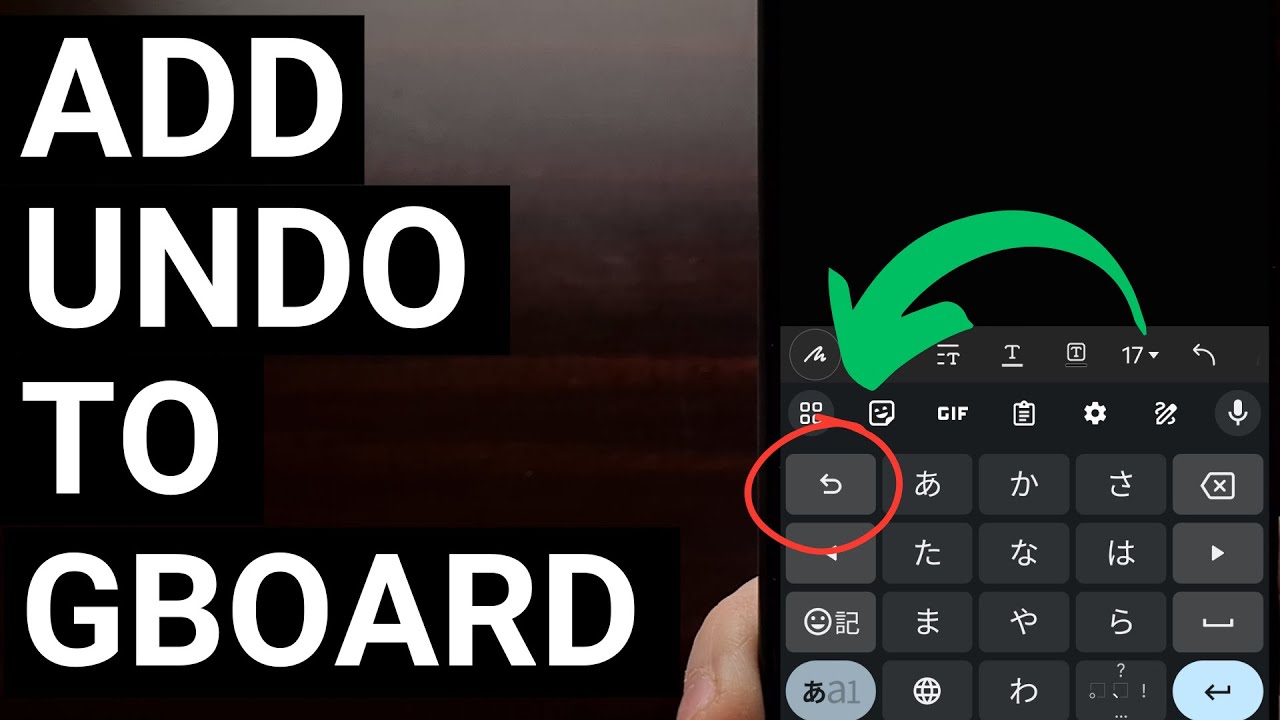
With this done, an undo key has been added to your Gboard keyboard application.
To use this new button, let's bring up an application that we can type in.
So you're in an app, typing along, and you find that you need to undo an action.
Like undoing the action that just deleted this word.
We can find that undo button by switching over to the Japanese keyboard
With this keyboard selected, simply tap the top left button here, with the undo icon, and your last action with the keyboard will then be undone.
This workaround is not ideal and can, in some instances, be more work that just typing the word again.
But maybe you backspaced over an image, or a whole bunch of text.
This undo button can still be useful if you really need it.
Now, I would like to see Google adding an undo button to the Gboard keyboard itself. . .maybe up in the suggestions strip right here.
Sadly, as of recording this video that is not possible. However, I have read that Google has been working on such a feature and that it's been in the works for the better part of the last 12 months.
When that feature could make its way to the public stable version of Gboard is anyone's guess, though.
We just know that Google had begun working on it in the past. . .but they could have decided to drop development of it for a system-wide solution. Maybe something that is similar to what Apple has for iOS.
We won't know until Google announces the new feature. But for now, at least we can use the undo button with this workaround using the Japanese language.
Step by Step Tutorial
~~~~~~~~~~~~~~~~~
1. Intro [00:00]
2.
As an Amazon associate, I may earn a commission on sales from the links below.
The Gear I Use
~~~~~~~~~~~~~~~~~
5W "Slow" Charger - https://amzn.to/2OaUMV8
Fast Charger - https://amzn.to/3rtBsC6
MicroUSB Cable - https://amzn.to/38dkpeM
USB-C Cable - https://amzn.to/2OqlTvi
TPU Cases - https://amzn.to/38g9b9w
USB-C to 3.5mm Dongle - https://amzn.to/3rVt7c3
USB-C to 3.5mm DAC - https://amzn.to/3CyksSJ
NVIDIA Shield TV - https://bit.ly/3KA17RV
Telescopic Controller - https://amzn.to/3uDrvY9
Повторяем попытку...
Доступные форматы для скачивания:
Скачать видео
-
Информация по загрузке: