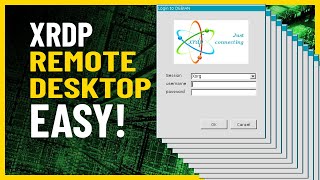
Perfect video for: How to Install XRDP on Ubuntu 22.04 / 24.04 / 25.05 [Step-by-Step Guide] [2025]
Автор: Nischal Tech Support
Загружено: 2025-05-22
Просмотров: 893
Описание:
Perfect video for: How to Install XRDP on Ubuntu 22.04 / 24.04 / 25.05 [Step-by-Step Guide [2025]
✅ Remote Desktop From Windows to Linux with xRDP (Fix Black Screen Issue)
✅How To Install XRDP (Remote Desktop) on Ubuntu 24.04 & 22.04
✅Remote desktop from Windows to Linux with xRDP / fix black screen issue
✅Fix: xRDP Black Screen After Login
✅XRDP black screen then disconnects - Linux
✅Black screen after login, followed by disconnect Issue
✅xrdp disconnects immediately after connection from Windows
✅Oh no! Something has gone wrong" / ubuntu 22.04/23.04/24.04/25.05 / xrdp / xfce-desktop
If you're looking to access your Ubuntu desktop remotely using Remote Desktop Protocol (RDP), XRDP is a great solution. It’s open-source, easy to set up, and compatible with Windows’ built-in RDP client.
This guide will walk you through installing XRDP on Ubuntu 25.05, 24.04, and 22.04, step-by-step.
✅ XRDP Installation and Configuration steps for Ubuntu 22.04 / 24.04 / 25.05
Step 1: Install xrdp
sudo apt install xrdp -y
Step 2: Enable and restart xrdp service
sudo systemctl enable xrdp or sudo systemctl enable --now xrdp
sudo systemctl restart xrdp
Step 3: Verify xrdp service status
sudo systemctl status xrdp
Step 4: Add xrdp user to ssl-cert group
sudo usermod -a -G ssl-cert xrdp
Step 5: Restart xrdp service
sudo systemctl restart xrdp
Step 6: Configure firewall for RDP
sudo ufw status
sudo ufw enable
sudo ufw allow 3389/tcp
sudo ufw reload
🛠 Configure GDM to Use Xorg (If Using GNOME Display Manager)
sudo vim /etc/gdm3/custom.conf
Uncomment or add the following line:
WaylandEnable=false
🌐 Install XFCE Desktop Environment (or your preferred one)
sudo apt update
sudo apt install xfce4 -y
sudo apt install dbus-x11 -y
sudo dbus-launch
⚙️ Configure xrdp Startup Environment
sudo vim /etc/xrdp/startwm.sh
Replace or add the following lines before startxfce4 or exec ...:
unset DBUS_SESSION_BUS_ADDRESS
unset XDG_RUNTIME_DIR
export DESKTOP_SESSION=ubuntu
export GNOME_SHELL_SESSION_MODE=ubuntu
export XDG_CURRENT_DESKTOP=ubuntu:GNOME
export$(dbus-launch)
(If using XFCE, replace GNOME values with xfce accordingly.)
🔁 Choose Default Session Manager (Optional)
sudo update-alternatives --config x-session-manager
Then reboot the system:
sudo reboot
"To download the .sh script, please click the link below.": https://drive.google.com/drive/folder...
!!!!!!!!!!!!!!!!!!!!!!!!!!!!!!!!!!!!!!!!!!!!!!!!!!!!!!!!!!!!!!!!!!!!!!!!!!!!!!!!!!!!!!!!!!!!!!!!!!!!!!!!!!!!!!!!!!!!!!!!!!!!!!!!!!!!!!!!!
👍Let's try for 500+ Likes! 👍
For this helpful tutorial?! If you found this video useful, do your part and hit "Like" now! 😊 And hey, don’t forget to suggest more tutorials you’d like to see and Subscribe for more awesome content! ✔
►Don't forget to subscribe to my channel. By the way, it's completely FREE!
🆓🆓🆓🆓🆓🆓🆓🆓🆓🆓🆓🆓🆓🆓🆓🆓🆓🆓🆓🆓🆓🆓🆓🆓
☑ Watched the video!
☐ Liked?
☐ Subscribed?
Please let me know if you have any questions.
✅Email ID:[email protected]
✅Telegram link: https://t.me/nischaltechsupport
*******************************************************************************
Disclaimer: This channel doesn't promote any illegal contents, all content are provided by this channel is meant for educational purposes only. Thank you!
********************************************************************************
#xrdp #rdp #remotedesktop #ubuntu #ubuntututorial #ubuntulinux
#upgrade #windows11 #windows10
#nischaltechsupport #nischaltechs #windowserror #installationerror #solve #ntsyoutuber
#NTS
#nischaltechs
#computertips
#computertricks
#computertraining
#computertroubleshooting
#windows11 #windows #windows10 #computers #computereducation
Повторяем попытку...
![Perfect video for: How to Install XRDP on Ubuntu 22.04 / 24.04 / 25.05 [Step-by-Step Guide] [2025]](https://ricktube.ru/thumbnail/_iO-DcjEMCc/hq720.jpg)
Доступные форматы для скачивания:
Скачать видео
-
Информация по загрузке: