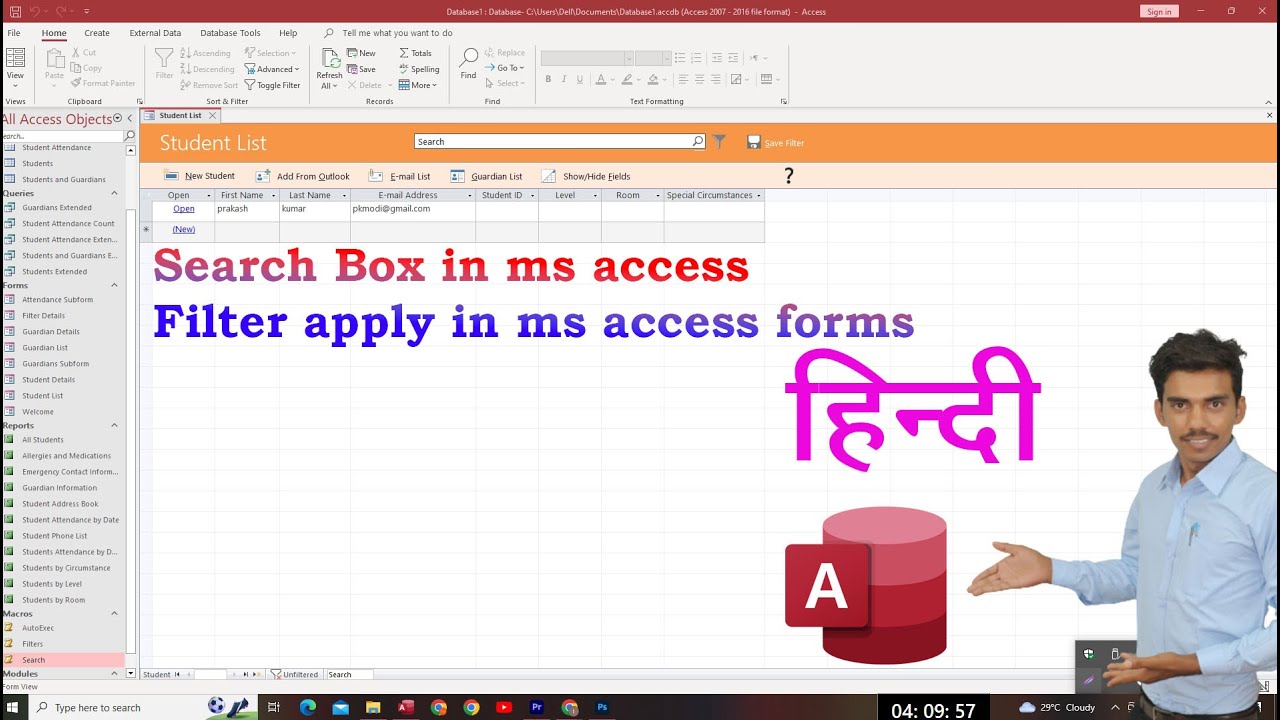
How to add Search Box in Microsoft Access Form | ms access search box add | ms accss filter in हिंदी
Автор: Info Soft
Загружено: 2023-07-21
Просмотров: 1292
Описание:
How to add Search Box in Microsoft Access Form | ms access search box add | ms accss filter in hindi
To add a search box in Microsoft Access, follow these steps:
Step 1: Create a Form
Open your Microsoft Access database.
Go to the "Create" tab in the ribbon.
Click on "Form Design" to create a new blank form in design view.
Step 2: Add a Text Box Control for the Search Box
In the Form Design view, go to the "Design" tab in the ribbon.
Click on the "Text Box" control to add a text box to the form.
Click and drag on the form to draw the text box. This will be your search box.
Step 3: Configure the Search Box Properties
With the search text box selected, click on the "Property Sheet" button in the "Design" tab.
In the Property Sheet, select the "Data" tab.
Set the "Control Source" property to the field you want to search in your database (e.g., the field that contains the data you want to search).
Step 4: Add a Command Button for the Search Action
From the "Design" tab, click on the "Command Button" control to add a button to the form.
Click and drag to create the button.
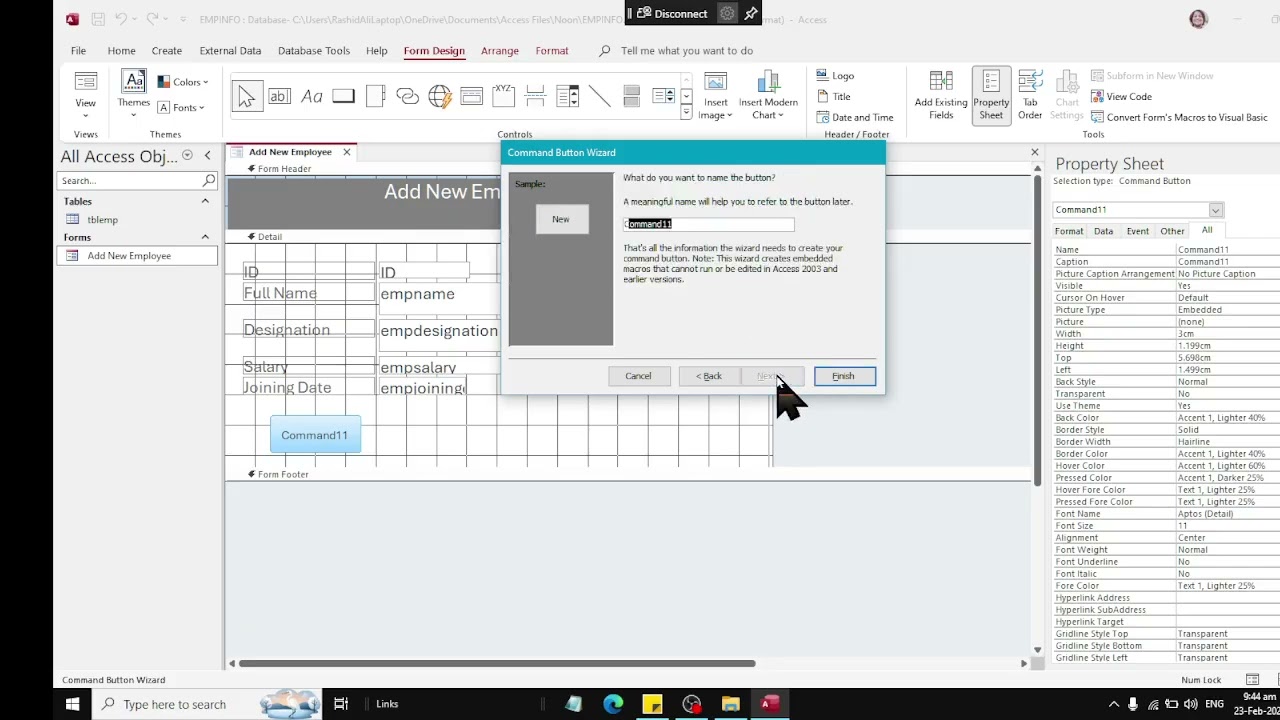
The "Command Button Wizard" will appear. Choose "Find a record on my form based on the value I selected in my search box" and click "Next."
Select the search box control from the list and click "Next."
Choose the layout and appearance of your button and click "Finish."
Step 5: Save and Test the Search Form
Save your form with a meaningful name.
Switch to the "Form View" to test the search functionality.
Now, when you type a value in the search box and click the search button, the form should display the records that match the search criteria.
===================================================================
Welcome to Infosofts, your go-to destination for tech tutorials and database expertise! In this illuminating video, we'll walk you through the step-by-step process of adding a Search (Filter) Box to your Microsoft Access Forms. Unlock the power of efficient data filtering and enhance your data management skills with ease.
📊 The Magic of Search (Filter) Boxes in Access Forms:
A Search Box, also known as a Filter Box, is a valuable tool that empowers users to quickly narrow down and retrieve specific records from a large dataset in Microsoft Access. By integrating this feature into your Access Forms, you can streamline data searches, improve data analysis, and make informed decisions with precision.
🔍 Building the Search (Filter) Box - A Comprehensive Tutorial:
Our tutorial leaves no detail unexplored as we guide you through the entire process of creating and incorporating a Search Box into your Access Forms. From form design considerations to query setup and form control implementation, we'll cover every aspect to ensure you grasp this essential database feature effortlessly.
📋 Step-by-Step Implementation Guide:
Follow along as we demonstrate each step in a clear and concise manner, making the process easy to understand for learners of all levels. Learn how to design user-friendly forms, set up the search query, and display search results dynamically to enhance the overall user experience.
🔎 Optimizing Search Performance:
We'll share valuable tips and tricks to optimize the search functionality for enhanced speed and efficiency. Discover how to create custom search criteria, implement wildcard searches, and fine-tune the filtering process to cater to your specific data retrieval needs.
💡 Exploring Advanced Search Features:
Beyond the basics, we'll introduce you to advanced search techniques that will take your Access Forms to the next level. Uncover the potential of multi-criteria searches, date range filtering, and other advanced features to master your Access database like a pro.
🌐 Connect with Us:
Stay connected with Infosofts for more tech tutorials, database insights, and software expertise. Don't forget to subscribe to our channel and hit the notification bell for updates on our latest videos.
🔔 Subscribe Now:
Link to your channel's subscription button or subscription page.
🎬 Watch Next:
Thank you for choosing Infosofts as your trusted tech companion! If you found this video helpful, give it a thumbs up and share it with others seeking to enhance their Microsoft Access Forms with a powerful Search (Filter) Box. Together, we'll delve deeper into the world of databases and elevate your data management skills to new heights!
#Infosofts #MicrosoftAccess #SearchBoxTutorial #DatabaseExpertise #TechTutorials
Повторяем попытку...
Доступные форматы для скачивания:
Скачать видео
-
Информация по загрузке: