Advance Steel 2018 - How to change the selection color default when numbering
Автор: Graitec Canada
Загружено: 2017-06-01
Просмотров: 3568
Описание:
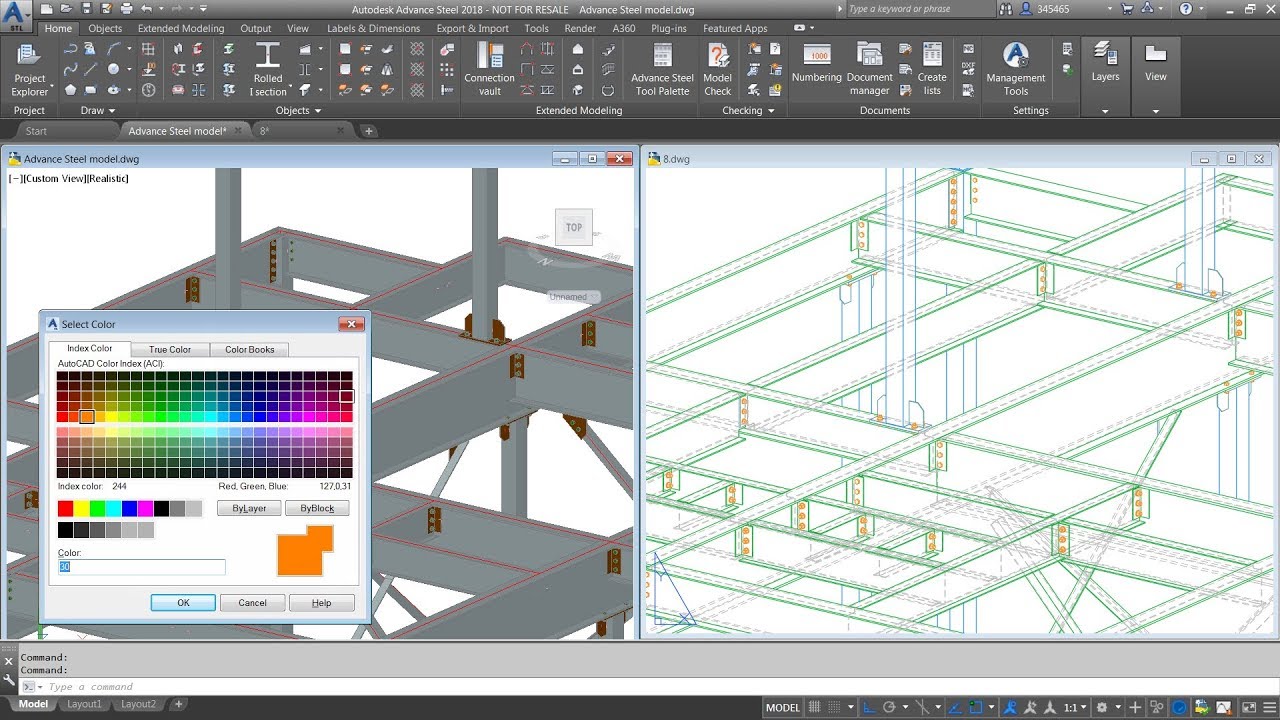
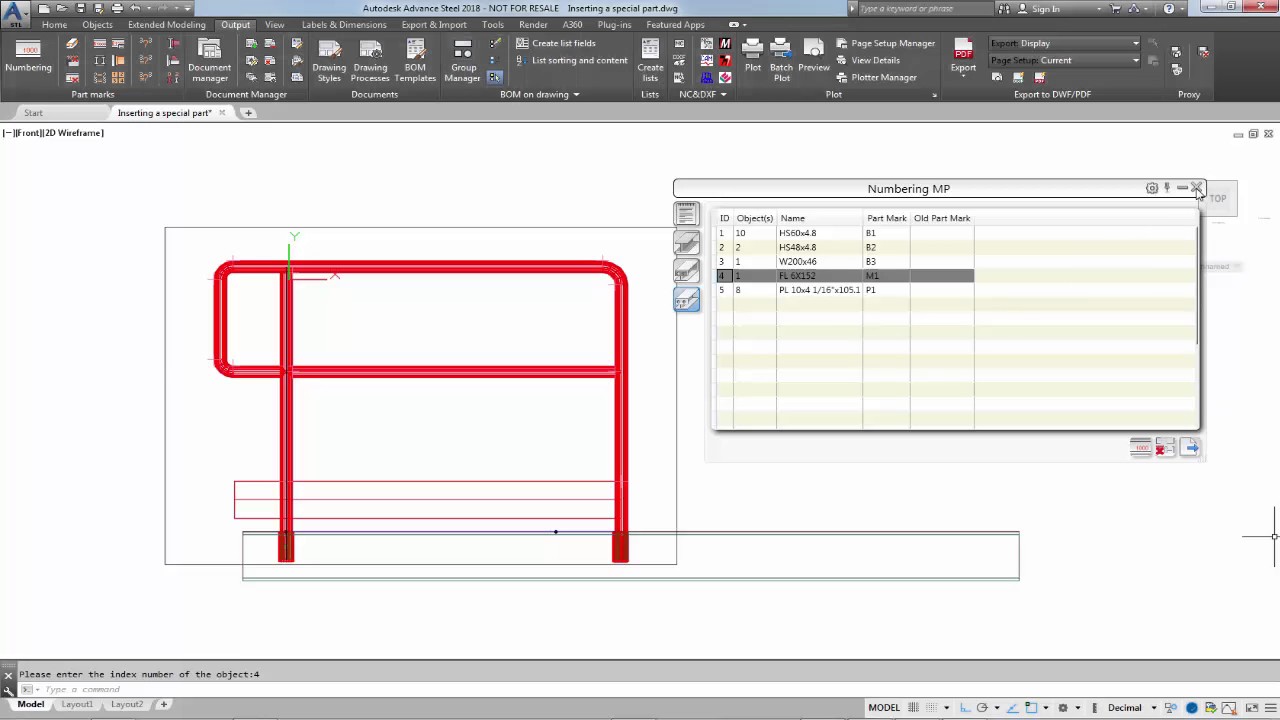
Here is the dilemma, you have numbered your structure and want to locate a certain element in the structure.
However, when selecting an element from the numbering dialog box, the element is highlighted in red.
This is the default color. Sometimes it is difficult to see the highlighted element in a large structure.
Well advance Steel is completely customizable, in that you can change the default color to one of your preference.
The changes are made in the Advance Steel Management tools (ASMT) located on the Home tab- Settings panel.
Simply navigate to the Default category, type color in the field and make the modifications from the General-General sub category.
Remember to Load settings in Advance from the Default category and Update defaults back in the model structure to lock in the changes to the database.
Повторяем попытку...
Доступные форматы для скачивания:
Скачать видео
-
Информация по загрузке: