ycliper

Популярное

Музыка Кино и Анимация Автомобили Животные Спорт Путешествия Игры Юмор

Интересные видео

2025 Сериалы Трейлеры Новости Как сделать Видеоуроки Diy своими руками

Топ запросов

смотреть а4 schoolboy runaway турецкий сериал смотреть мультфильмы эдисон
Скачать

How to Create a Pivot Table in Microsoft Access

Автор: Excel, Word and PowerPoint Tutorials from Howtech

Загружено: 2012-11-24

Просмотров: 120832

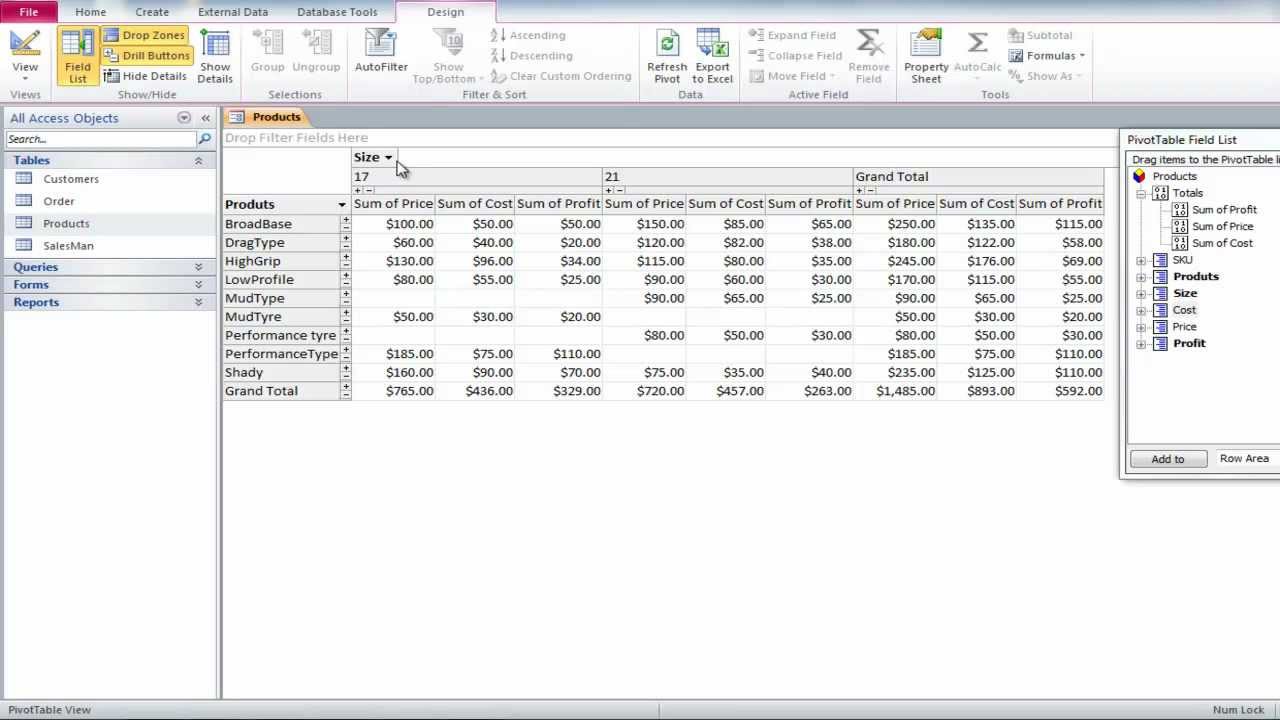
Описание: Learn how to create a pivot table which is a data summarization tool found in Ms Access. It presents your data in a dynamic tabular form.

Don't forget to check out our site http://howtech.tv/ for more free how-to videos!
   / ithowtovids   - our feed
  / howtechtv   - join us on facebook
https://plus.google.com/1034403827176... - our group in Google+

Pivot table in Access is a good way to group and summarize huge amounts of information like sales records pulled from a database. Pivot tables allow you to analyze your data in a more graphical manner.

The best thing about pivot tables is that they are very customizable. For example, you can start with a sub grouped view that shows you all your sales grouped by customer's country. Let's say, you change your mind and want all the sales grouped according to the orders. This change can easily be brought about in the pivot table.

Step # 1 -- Selecting pivot table

To create a pivot table in Access, click once on the "products table" then go to the "create" tab. From there, click on the "more forms" button and select the "pivot table" option.

Step # 2 -- Fields to be added

Click on the" field list" button in the "show and hide" panel until you get a "pivot table" field list on the right hand side of the screen.

Step # 3 -- Dragging fields

You will notice that screen is divided into different zones. Drag the products table and drop it where it says "drop row fields here". This will group all the tires together.

Now drag "size" and drop it where it says "drop column here". This shows the different sizes of the tires. Drag the "profit" field and drop it in the middle of the screen. It will show the profit margin for each type of tire.

Drag "profit" one more time and this time drop it in the "grand total" column. This will show us our total profit but it will also show sub totals. This might make the table a little complicated.

Step # 4 -- Hiding unwanted information

Go to the hide details button and all the unwanted information will disappear from the pivot table.

Step # 5 -- Changing the view

Do the same with cost but drop it between profit and price. This will show you the cost of the product, its price and the profit made on each product.

Не удается загрузить Youtube-плеер. Проверьте блокировку Youtube в вашей сети.
Повторяем попытку...
How to Create a Pivot Table in Microsoft Access

Поделиться в:

Доступные форматы для скачивания:

Скачать видео

  • Информация по загрузке:

Скачать аудио

Похожие видео

Create a Crosstab Query in Microsoft Access to Summarize Data from Two Fields

Create a Crosstab Query in Microsoft Access to Summarize Data from Two Fields

Создание таблиц и полей в Microsoft Access

Создание таблиц и полей в Microsoft Access

Introduction to Pivot Tables, Charts, and Dashboards in Excel (Part 1)

Introduction to Pivot Tables, Charts, and Dashboards in Excel (Part 1)

Crosstab Queries in Microsoft Access - Similar to Pivot Tables in Excel

Crosstab Queries in Microsoft Access - Similar to Pivot Tables in Excel

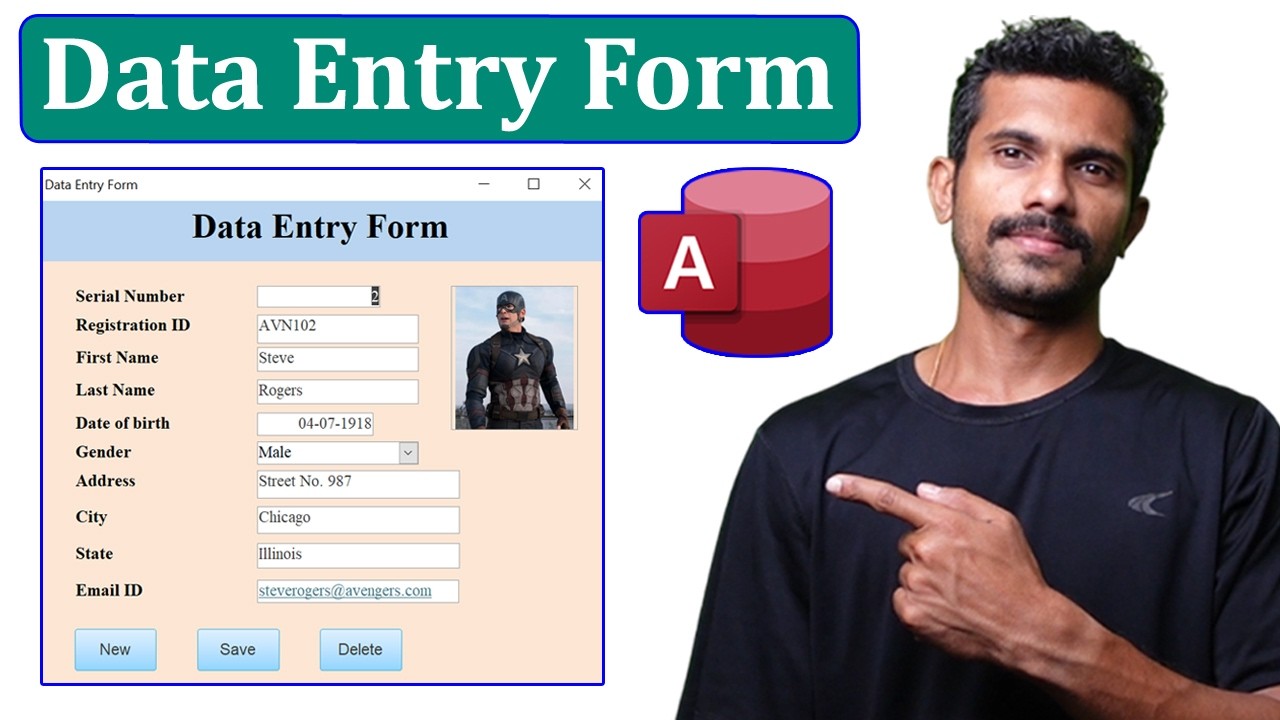
How to create a Data Entry Form in Microsoft Access

How to create a Data Entry Form in Microsoft Access

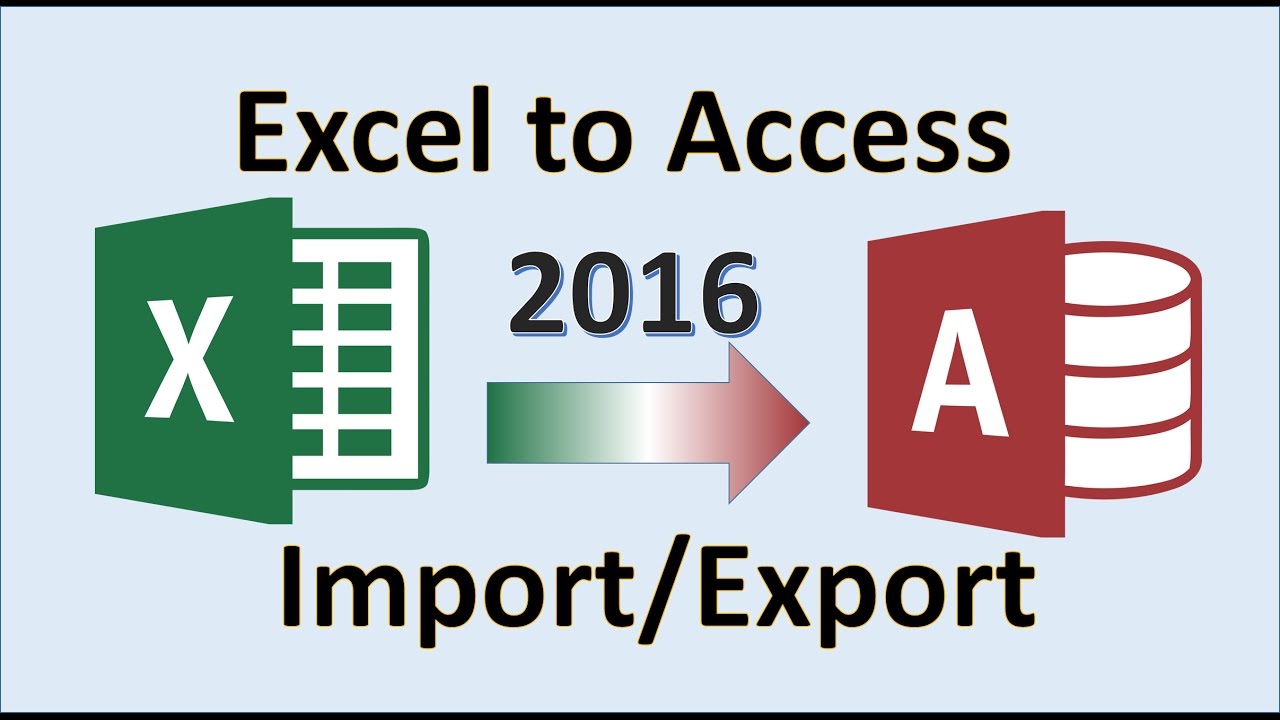
Excel 2016 — Импорт в Access — Как экспортировать данные из Microsoft MS в базу данных — Учебное ...

Excel 2016 — Импорт в Access — Как экспортировать данные из Microsoft MS в базу данных — Учебное ...

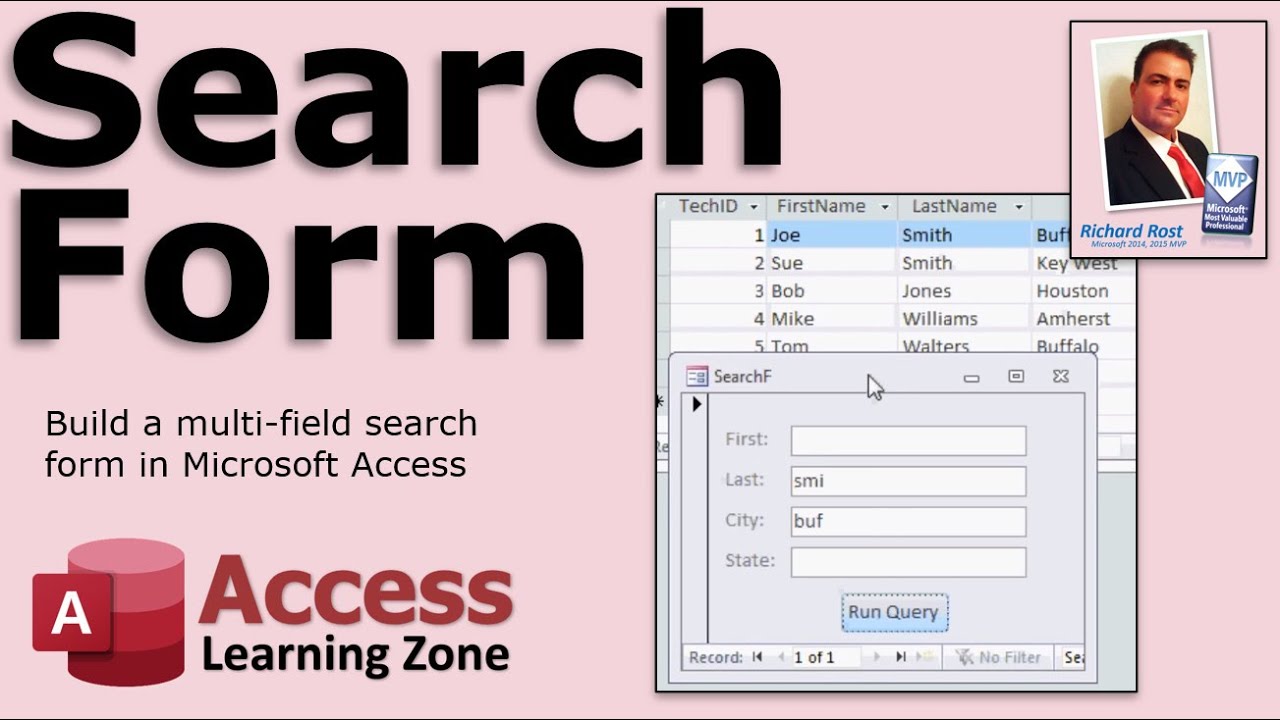
Форма поиска по нескольким полям Microsoft Access

Форма поиска по нескольким полям Microsoft Access

Как создать базу данных в Microsoft Access

Как создать базу данных в Microsoft Access

How to create DASHBOARD in Ms Access

How to create DASHBOARD in Ms Access

12 Pro PivotTable Formatting Tricks = No more UGLY PivotTables!

12 Pro PivotTable Formatting Tricks = No more UGLY PivotTables!

How to use Microsoft Access - Beginner Tutorial

How to use Microsoft Access - Beginner Tutorial

Армия РФ прорвала границу / Главком заявил о резком продвижении

Армия РФ прорвала границу / Главком заявил о резком продвижении

How to Use Crosstab Queries in MS Access

How to Use Crosstab Queries in MS Access

No More Pivot Tables in Access 2013. What Now?

No More Pivot Tables in Access 2013. What Now?

👩‍🍼 СТРАНА ВДОВ И СИРОТ. Хриплый крик из бункера. Тайна наступления ВСУ. Братство СС-ТЦК - Арестович

👩‍🍼 СТРАНА ВДОВ И СИРОТ. Хриплый крик из бункера. Тайна наступления ВСУ. Братство СС-ТЦК - Арестович

Automate Excel Pivot Table with VBA | Create A Pivot Table | Lesson 1

Automate Excel Pivot Table with VBA | Create A Pivot Table | Lesson 1

Создание таблицы в Excel простыми словами / Урок excel для начинающих

Создание таблицы в Excel простыми словами / Урок excel для начинающих

Информационные панели и формы навигации Microsoft Access. Почему бы их НЕ использовать! Создайте ...

Информационные панели и формы навигации Microsoft Access. Почему бы их НЕ использовать! Создайте ...

Access: Introduction to Objects

Access: Introduction to Objects

How to create a Dashboard in Microsoft Access for homepages | Front End designing

How to create a Dashboard in Microsoft Access for homepages | Front End designing

© 2025 ycliper. Все права защищены.


  • Контакты
  • О нас
  • Политика конфиденциальности


Контакты для правообладателей: [email protected]