System Release April 2025 - RxWeb User Guide
Автор: RxWeb
Загружено: 2025-03-31
Просмотров: 1307
Описание:
All data used in product demos and videos is fictional and intended for illustrative purposes only.
Transcript:
0:08
Scan to Claim is a new feature that has been added to the To be Claimed queue for customers that prefer to scan the prescription tokens whilst claiming.
0:16
This should make the process a lot quicker and more efficient.
0:20
In the Scan to Claim screen you can scan multiple prescription barcodes into the grid and then claim them all in one go.
0:27
Once you've finished scanning your barcodes in, simply click on the claim button at the bottom of the screen and the claims will be sent.
0:34
Any successful claims will turn green with YES to indicate they've gone through.
0:38
Any unsuccessful will be red with a NO.
0:42
You can copy these failed prescriptions by clicking on the Copy Failed button at the bottom of the screen.
0:48
By pasting the barcode back into the queue you can see the status of the failed prescription and here for this one we can see it is in the To be Dispensed queue so it's not ready for claiming.
1:08
A recurring patient drug note is a note that's added to a drug for a particular patient.
1:13
You'll notice on the To be Checked screen, there's now a note button next to each of the items.
1:18
To add a note, simply click on the button, type it in, and then click on Save.
1:23
Once the note's been saved, the button will turn red.
1:29
Once that prescription is dispensed, the drug note label will print alongside the other drug labels.
1:40
A recurring patient drug note can also be added from the home screen.
1:44
Bring up the patient, click on an item in their record, and then click on the Item note button at the bottom.
1:50
Search for your drug and then simply enter in the note that you wish to add to it.
1:55
Recurring patient drug notes will always exist for that particular drug until it's removed from the system.
2:01
If you go into Edit Patient from the home screen, you can also access this from the Notes tab as well.
2:07
From here, click on Item Note and again you can add a new note or simply remove the current note that's on there.
2:20
The One click exclusion list is accessed from the Group Administration account.
2:25
Once you log in, click on Stock from the main menu and select One Click Exclusion List.
2:31
Any drugs that are set up in here will be excluded from one click dispensing and always require a clinical check if it's switched on.
2:38
To add a drug, simply search for it.
2:41
It's best to search via the VMP.
2:43
That way it doesn't matter which version of that drug is dispensed, all of the generics will apply.
2:49
Simply choose the drug and it will be added to the exclusion list.
2:53
If you want to remove it, simply click on the drug and then click on the remove button at the bottom of the screen.
3:01
Any items added to the exclusion list will be excluded from one click.
3:05
Dispensing and always require a clinical check as indicated here in the clinical check screen.
3:17
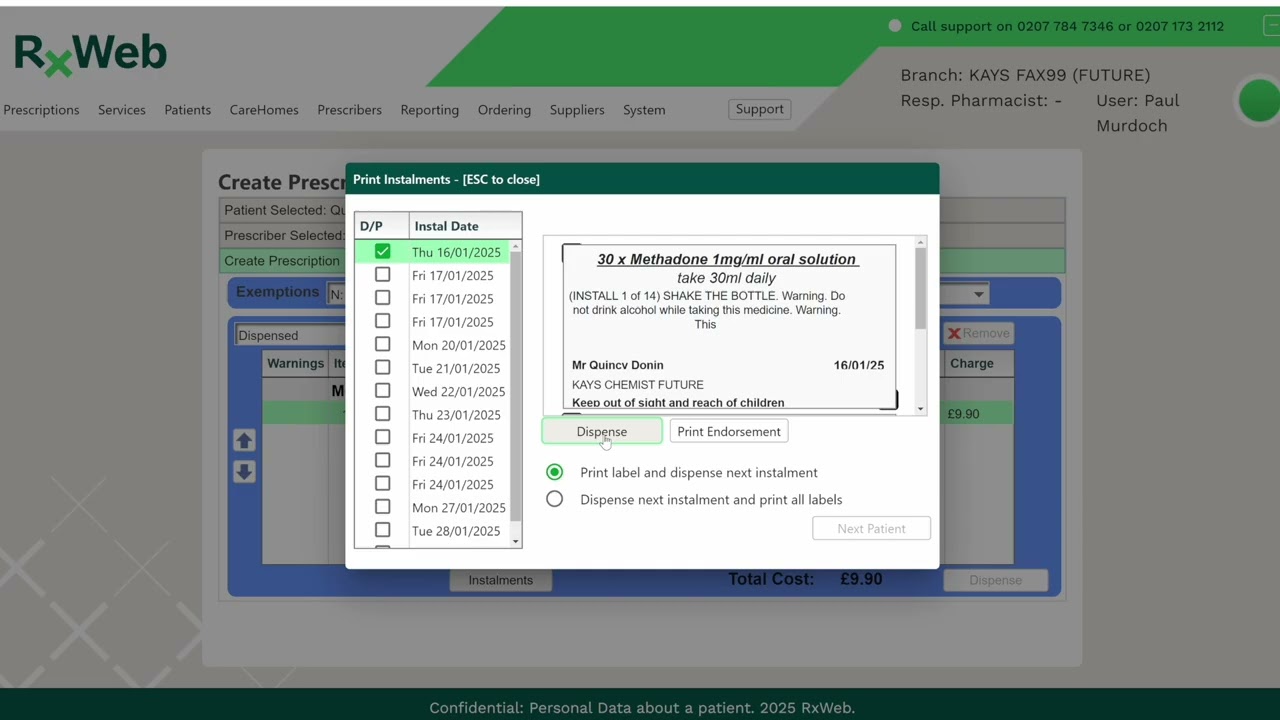
This update also includes improvements to the way robot items are displayed on the dispensing screen.
3:22
Now if a robot item has AY next to it, it means you can request the actual product pack from the robot by selecting the actual button whilst dispensing.
3:31
If the actual product isn't available and it's a robot item, you can still dispense the virtual product which would be anything that is stored in the robot under that drug name.
3:44
The robot mapping screen now also allows you to search for items via the drug name as opposed to just the barcode.
3:51
This is for the purpose of checking which barcodes have been associated with a particular drug in case they need to be removed or updated.
Повторяем попытку...

Доступные форматы для скачивания:
Скачать видео
-
Информация по загрузке: