How To Transfer Files From USB Flash Drive To Samsung Galaxy A06
Автор: How To Samsung
Загружено: 2024-10-01
Просмотров: 454
Описание:
Learn how to transfer files from USB flash drive to Samsung Galaxy A06 effortlessly.
This guide will walk you through the simple steps needed to move your important documents, photos, and videos from your USB flash drive directly to your Samsung Galaxy A06. Whether you're looking to back up your files or access them on your mobile device, this process is quick and straightforward, ensuring that you can enjoy all your content on the go. Follow along to discover how to make the most of your Samsung Galaxy A06 by easily transferring files from your USB flash drive.
How To Transfer Files From USB Flash Drive To Samsung Galaxy A06;
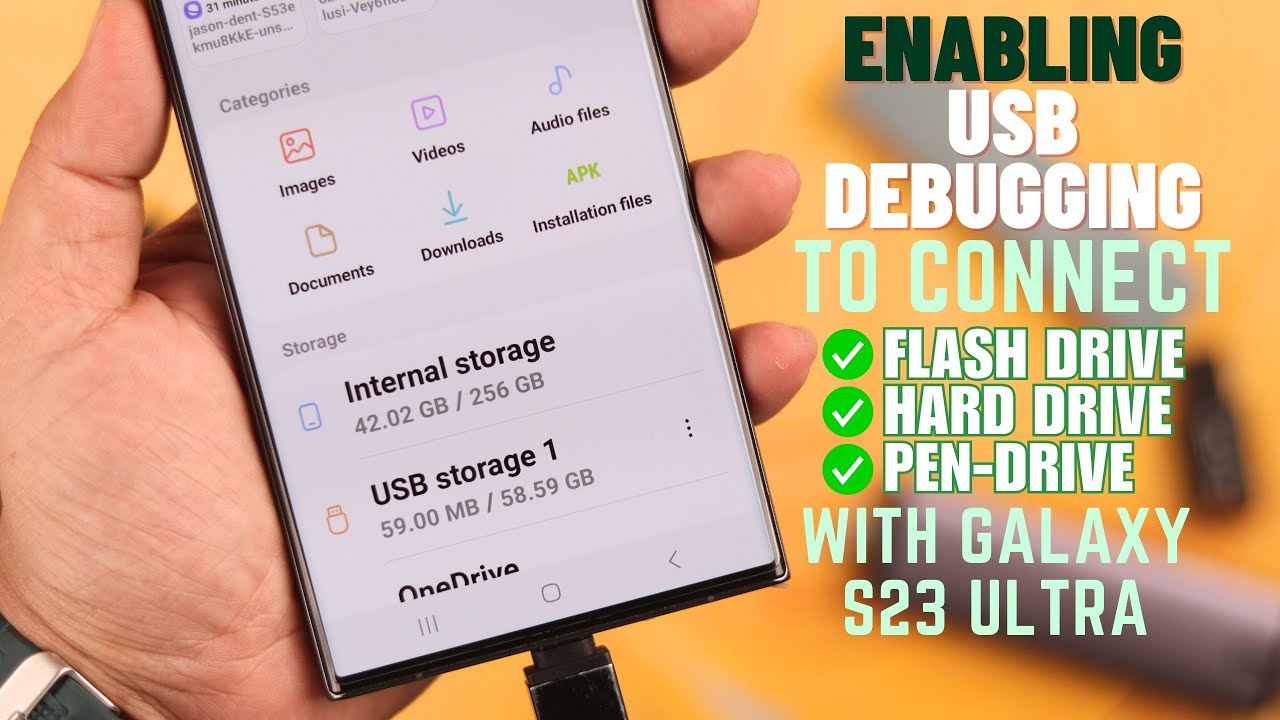
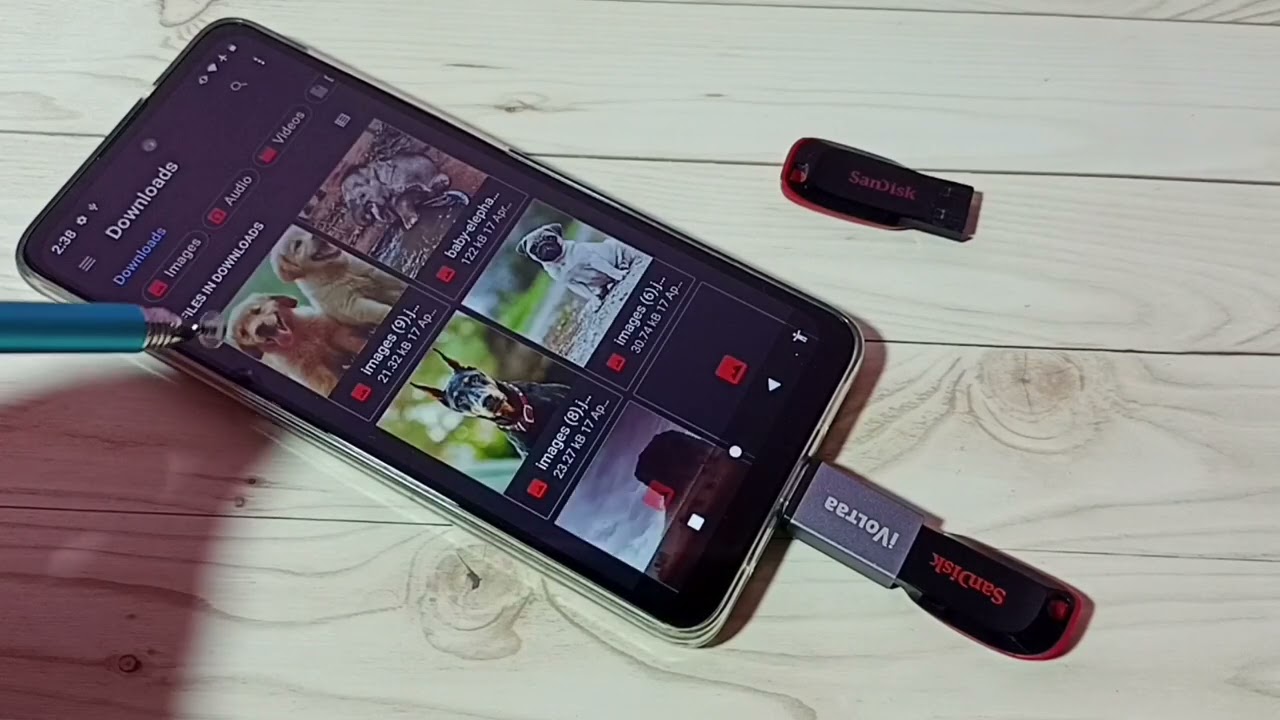
-Ensure that the USB flash drive is connected to the Samsung Galaxy A06.
-Open the My Files app.
-Under the Storage section, select the USB storage (your flash drive).
-Choose the files to transfer.
-Select the transfer method: Move or Copy.
-In the popup menu, confirm that Internal Storage is selected.
-To create a new folder, tap the plus icon, or scroll through existing folders to select a destination.
-After selecting the destination, tap Move Here.
-Navigate to the specific folder on your phone to verify that the files have been transferred, indicated by a red dot next to the new files.
#SamsungGalaxyA06 #FileTransfer #USBFlashDrive #DataTransfer #TechTips #MobileStorage #SmartphoneGuide #AndroidTips #MyFilesApp #ExternalStorage #PhoneTransfer #MobileTech #DigitalFiles #GadgetGuide #HowTo
My Gear for Youtube videos
Main Camera (iPhone 13 pro): https://amzn.to/3GZztve
Tripod: https://amzn.to/35acqRa
Cell Phone Tripod Adapter: https://amzn.to/3v3wFuI
Lights: https://amzn.to/3vkoGK7
As a full disclosure, I use affiliate links on this channel, and purchasing through these links earns me a small commission. The price you pay will be the same!
Повторяем попытку...
Доступные форматы для скачивания:
Скачать видео
-
Информация по загрузке: