How To Connect To A Minecraft Server with FTP
Автор: The Breakdown
Загружено: 2020-06-12
Просмотров: 17054
Описание:
This video is a step-by-step guide on how to connect to a Minecraft server with FTP. We show you everything you need to know in order to join any Minecraft server that is hosted on a remote host with FTP. From Apex Minecraft Hosting to MCProHosting to ScalaCube and Beastnode, no matter what server hosting company you use, this video will show you how to join your Minecraft server with FTP.
Start your 24-hour DDOS-Protected Minecraft server with Apex Minecraft Hosting!
Download FileZilla: https://TheBreakdown.xyz/FileZilla
Download EssentialsX: https://TheBreakdown.xyz/EssentialsX
Download Vault: https://TheBreakdown.xyz/Vault
---------------------------------------------
★ Minecraft Server IP: Play.BreakdownCraft.com ► Store: http://Store.BreakdownCraft.com/
★ Join BreakdownCraft on Discord!: https://BreakdownCraft.com/Discord
---------------------------------------------
► Subscribe!: https://TheBreakdown.xyz/YTSub
---------------------------------------------
Plugin Tutorials: https://TheBreakdown.xyz/MCPluginGuides
Top 5 #Minecraft Servers!: • Top 5 Best Minecraft Servers of 2020!
---------------------------------------------
*SOCIAL MEDIA*
Facebook: / breakdownhowto
Twitter: / breakdownhowto
---------------------------------------------
★ My Gear
Get your C920 Webcam: https://TheBreakdown.xyz/c920
Get your Blue Snowball: https://TheBreakdown.xyz/Snowball
About this video: In this video, we will show you exactly how to join a Minecraft server via FTP in order to add plugins, change your configuration files, change your server’s .jar file, and pretty much do anything you want to do with a Minecraft server. Connecting to a server via FTP is the easiest way to manage a Minecraft server, and in some cases, it is the only way that you can manage your Minecraft server. Thus, without any more delay, here is how to connect to a Minecraft server with FTP.
First and foremost, you will need a server hosted on a remote host. This could be anyone, but for this video, we are going to be using Apex Minecraft Hosting. Apex is an incredible host, we use them ourselves, and if you are looking for a remote Minecraft server host, Apex is great. This method will work with GGServers, Beastnode, Scalacube, MCProHosting, Server.pro, and any other Minecraft server hosting company out there.
After you have purchased a remote server from a hosting company, you will need to download an FTP client in order to login to it via FTP. We recommend the FileZilla FTP client, and you can find a link to FileZilla in the description above. When you click that link, you will see a ‘Download FileZilla Client’ button. Click that, and you will be taken to a page with a big, green button that again says ‘Download FileZilla Client’. Click that, and the FileZilla client will download. To install it, double click the file you download. Make sure that as you are going through the installation process, you click to not install any additional software. You just want FileZilla.
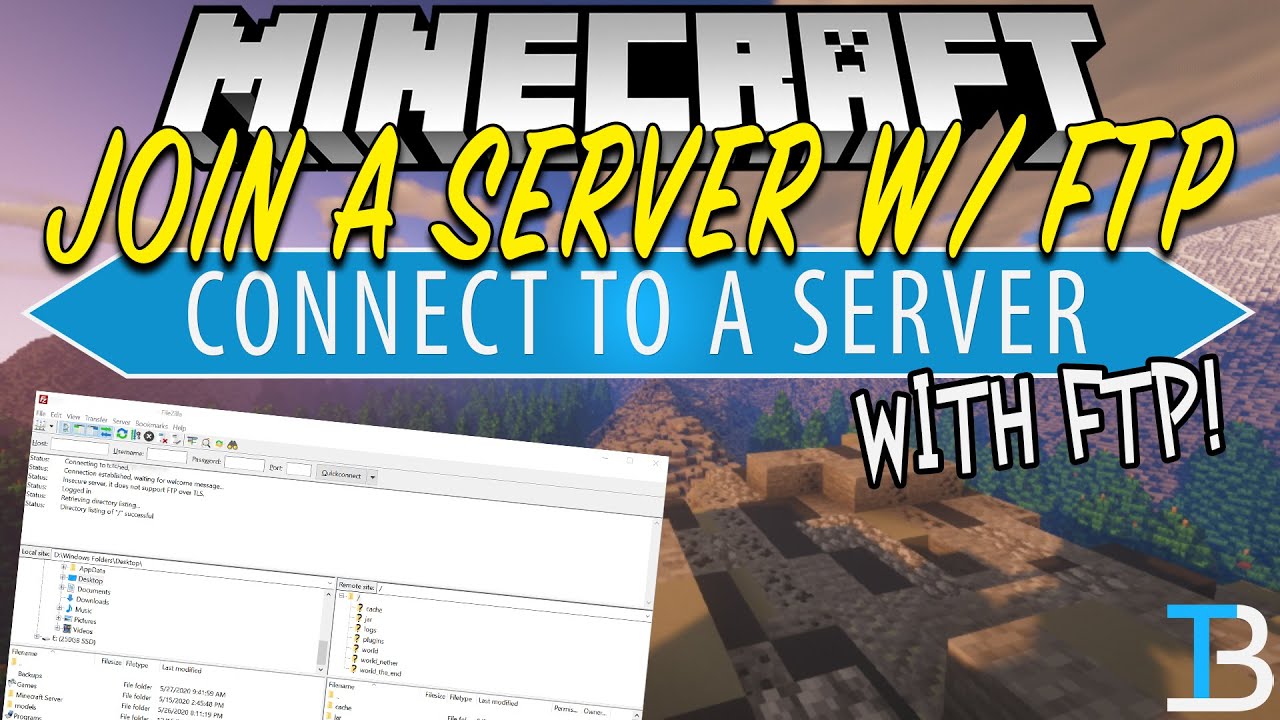
Once you have FileZilla installed, it is time to get your FTP information from your hosting company. This is going to be found in your Mutlicraft backend where you are able to see your server’s console and other information. Once you find the FTP information, go back to FileZilla and copy and paste the information from your host into the top of FileZilla. Copy the Host/IP to into the Host section of FileZilla, copy the username to the username section, and enter in your password. For port, this will be 21 unless otherwise specified on your server host’s website.
Now, click ‘Quickconnect’, and you’ll be good to go. You will connect to your server via FTP. On the left side, you will see your server and it’s files. On the right side, you will see your computer and it’s files. To add files to your server, drag them from your PC to the server. Very simple. You can upload plugins, change configs, etc. using this method. You can also download things from your server by dragging them from your server to your computer.
Congratulations! You now know how to join a Minecraft server via FTP. If you have any issues connecting to a Minecraft server with FTP, be sure to let us know in the comment section below, and if we did help you get add a Minecraft server to FileZilla, please consider giving the video a thumbs up and subscribing to the channel if you haven’t already. It really helps us out, and it means a ton to me. Thank you very, very much in advance.
Note: Some of the above links are affiliate links. I may receive a commission at no additional cost to you if you go to these sites and make a purchase.
Повторяем попытку...
Доступные форматы для скачивания:
Скачать видео
-
Информация по загрузке: