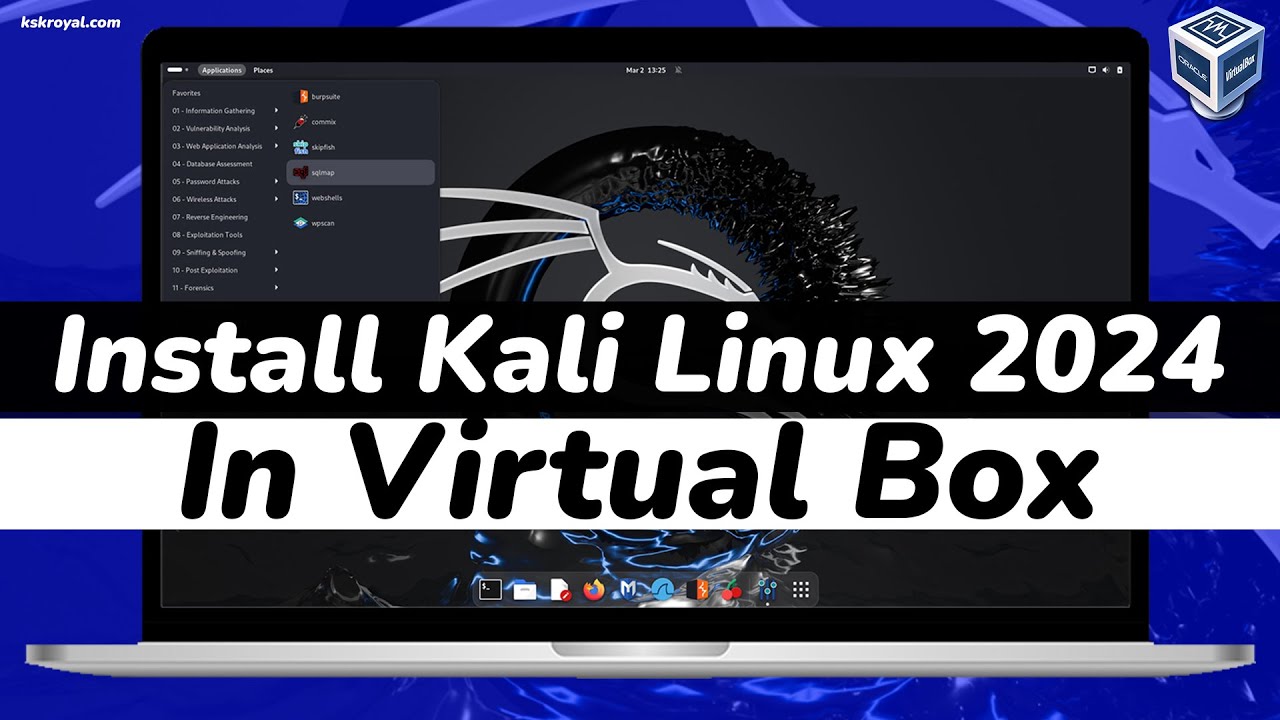
How to Install Kali Linux in Virtual box | Kali Linux 2024.1 Latest Version
Автор: Learn How
Загружено: 2024-09-10
Просмотров: 336
Описание:
To install Kali Linux 2024.1 in VirtualBox, follow these detailed steps:
*1. Download Required Software*
**VirtualBox**: Download and install VirtualBox from the [VirtualBox website](https://www.virtualbox.org/).
**Kali Linux 2024.1 ISO**: Download the latest Kali Linux ISO from the [Kali Linux official website](https://www.kali.org/get-kali/).
*2. Install VirtualBox*
1. **Download**: Get the VirtualBox installer for your operating system.
2. **Install**: Run the installer and follow the prompts to complete the installation.
*3. Create a New Virtual Machine*
1. **Open VirtualBox**: Launch VirtualBox on your computer.
2. **Create New VM**:
Click the *"New"* button.
**Name**: Enter a name for the VM (e.g., "Kali Linux 2024.1").
**Type**: Choose "Linux".
**Version**: Select "Debian (64-bit)" or "Debian (32-bit)" depending on the ISO version you downloaded (64-bit is recommended).
3. **Allocate Memory**:
Assign RAM to the VM. A minimum of 2 GB is recommended, but 4 GB or more is ideal if your host machine supports it.
4. **Create Virtual Hard Disk**:
Choose "Create a virtual hard disk now" and click **"Create"**.
**Hard Disk File Type**: Select VDI (VirtualBox Disk Image) and click **"Next"**.
**Storage on Physical Hard Disk**: Choose "Dynamically allocated" and click **"Next"**.
**File Location and Size**: Set the disk size (at least 20 GB recommended).
*4. Configure the Virtual Machine*
1. **Select the VM**:
Click on your newly created VM and then click **"Settings"**.
2. **System**:
Go to the *"System"* tab.
**Motherboard**: Ensure that the boot order has the optical drive (CD/DVD) first.
3. **Processor**:
Go to the *"Processor"* tab.
Allocate 2 CPUs if your host machine has enough resources.
4. **Display**:
Go to the *"Display"* tab.
Increase Video Memory to at least 16 MB for better graphics performance.
5. **Storage**:
Go to the *"Storage"* tab.
Click on the empty optical drive under **"Controller: IDE"**.
Click the disk icon next to *"Optical Drive"* and select **"Choose a disk file"**.
Browse and select the Kali Linux 2024.1 ISO you downloaded.
*5. Install Kali Linux*
1. **Start the VM**:
Click *"Start"* to boot the VM.
2. **Begin Installation**:
You should see the Kali Linux boot menu. Choose *"Graphical Install"* or **"Install"**.
3. **Follow the Installation Wizard**:
**Language**: Select your preferred language and click **"Continue"**.
**Location**: Choose your geographic location.
**Keyboard Layout**: Select your keyboard layout.
**Network Configuration**: Configure your network settings as prompted.
**Set Up Users and Passwords**: Create a root password and/or user account.
**Partition Disks**: Choose guided partitioning if unsure, and follow the prompts to partition the virtual hard disk.
**Software Selection**: Choose the software to install; the default selection is generally fine.
4. **Complete Installation**:
The installer will copy files and set up the system. This process may take some time.
When prompted, install the GRUB bootloader to the primary disk.
Повторяем попытку...

Доступные форматы для скачивания:
Скачать видео
-
Информация по загрузке:







![🔴 EXPRESS BIEDRZYCKIEJ | ANDRZEJ BYRT, PROF. RADOSŁAW MARKOWSKI [NA ŻYWO]](https://imager.clipsaver.ru/Jb4t5NSFHBA/max.jpg)