How to Create a Jacquard Design from an Image in Stoll M1 Plus For Beginners
Автор: Jamal's Jacquard Programming
Загружено: 2024-10-24
Просмотров: 1857
Описание:
Prepare the Image
Start by choosing the image you want to turn into a Jacquard design.
Use the Snipping Tool (or any other screenshot or cropping tool) to crop the portion of the image that will be used for the design
Open the cropped image in Microsoft Paint (or similar software).
In Paint, save the image in BMP format with 256 colors. You can do this by selecting File -Save As -BMP Picture and choosing the 256-color option. Save the image to the desktop for easy access.
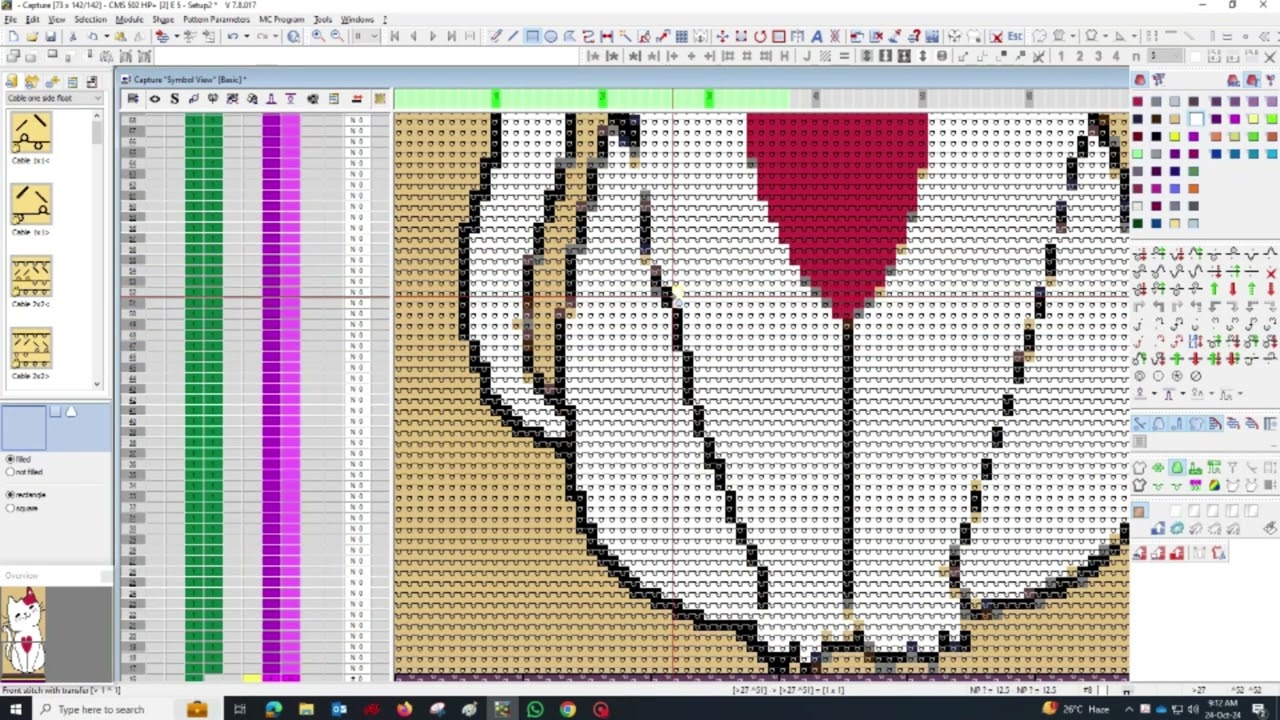
Open the Image in M1 Plus
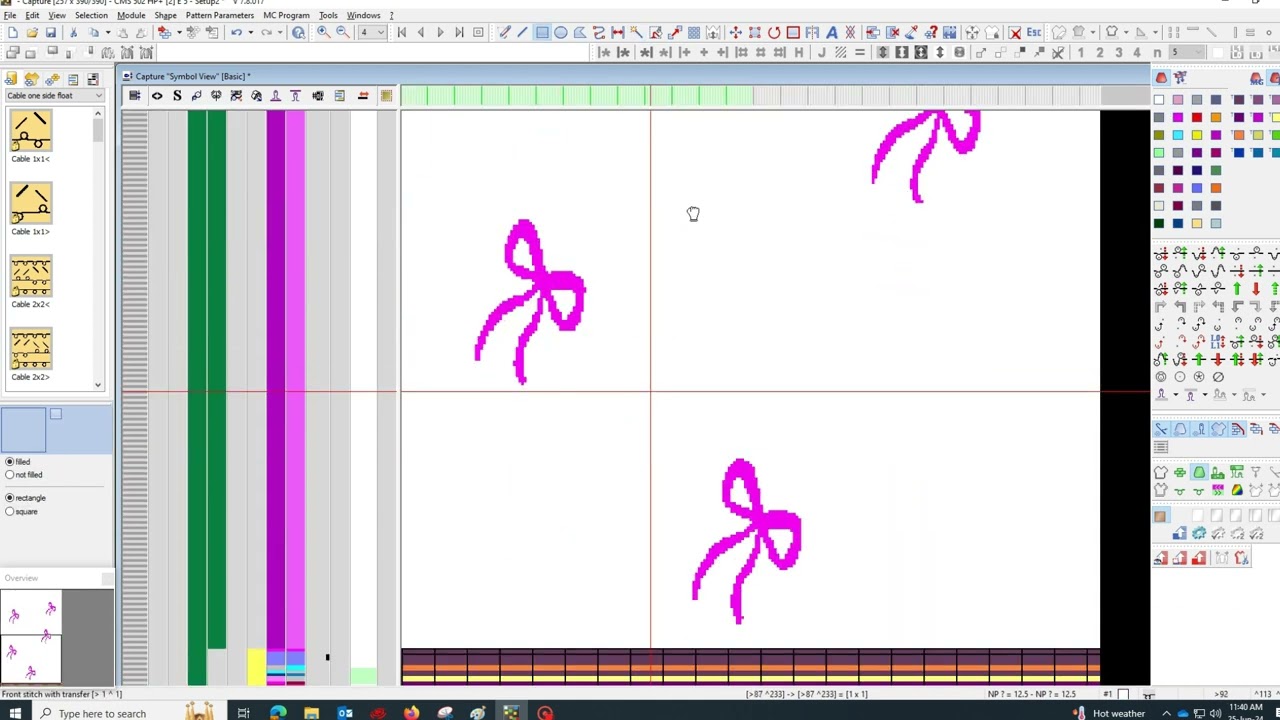
Launch the M1 Plus software and import the BMP image you saved earlier.
In M1 Plus, define the size of your project by specifying the needle count and the course/stitch size (c/s). This step is crucial for ensuring that the design fits the machine’s specifications.
After setting the size, click Next to move forward in the software.
Manage Colors
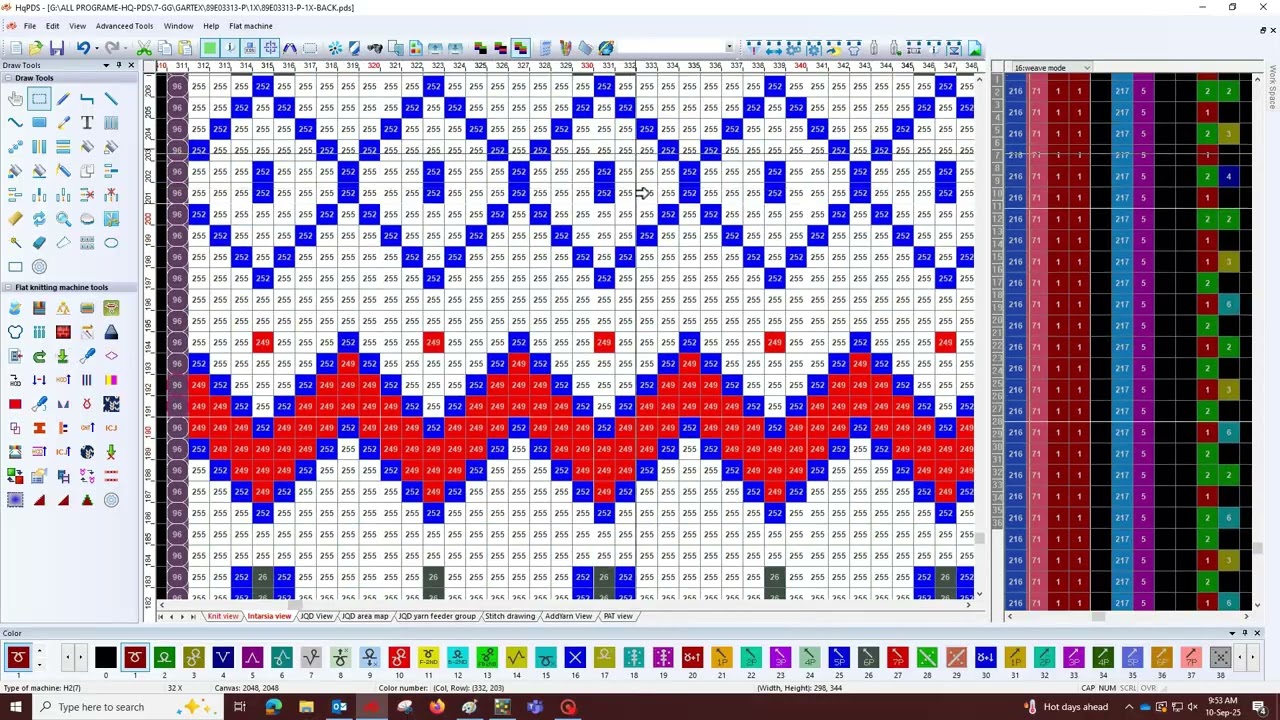
On the right side of the M1 Plus interface, you'll see a display showing the total number of colors in the image. The software will usually detect all the colors in the BMP file.
Since Jacquard knitting can be complex with too many colors, reduce the number of colors in the design to only 10. This allows for a clearer and more manageable pattern to work with.
Cleaning and Shaping the Image
Begin cleaning the image by simplifying the areas where colors may be too close together, or where the design is unclear. Use the color palette to adjust and blend areas carefully.
Next, you will create a shape using the chosen colors. It’s important to carefully define the pattern or motif that will be featured in your Jacquard design, focusing on clean lines and clear shapes.
After cleaning the image and creating the shape, reduce the design to just three colors to simplify the Jacquard weaving. This makes the knitting process more efficient and keeps the design bold and distinct.
Duplicate and Mirror the Design
Once the front part of the design is complete, drag and copy the entire area to duplicate the pattern.
Go to the back part of the design (the reverse side in the software) and paste the copied design. This ensures that the back of the fabric will mirror or complement the front in the desired way.
After pasting, adjust the colors again to match the new scheme and ensure consistency between the front and back of the fabric.
Final Design Check and Smoothing
Review the design once more, checking for any errors or inconsistencies in the color placement, pattern alignment, or stitch arrangement.
Use the smooth drawing tool to refine any rough edges or pixelated areas in the design. The goal is to make sure the design will knit smoothly on the machine without any issues.
Make sure that all the elements are clean, defined, and ready for application.
Apply Net Jacquard
Highlight the area of the design that you want to apply the 1x1 net Jacquard effect to.
This will create the characteristic Jacquard texture, where alternating stitches form a distinctive, tightly woven pattern.
Once the net Jacquard is applied, review the design one more time to ensure it meets your expectations.
Yarn Carrier Setup and Compression
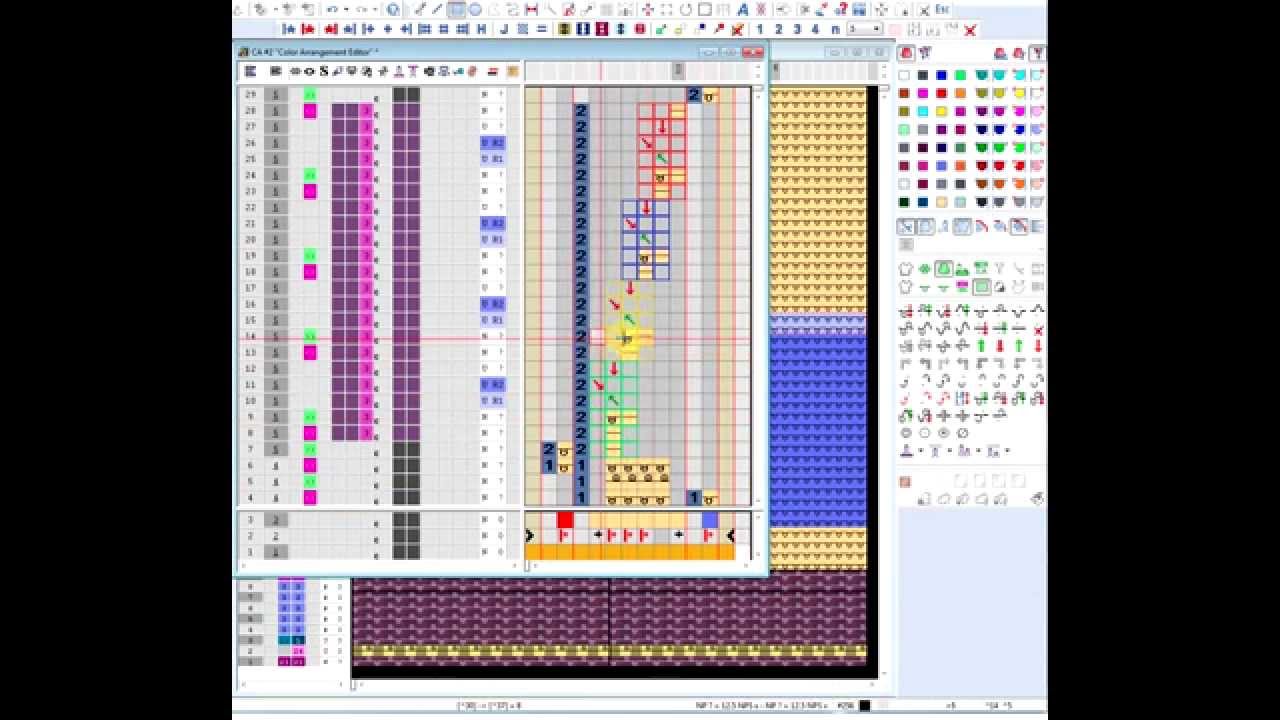
After finalizing the design, set up the yarn carrier in the M1 Plus software. The yarn carrier settings ensure that the correct yarns are used for the chosen colors and that they are properly aligned during knitting.
Once set, apply the compression tool to optimize the design for production. Compression ensures that the design will knit efficiently, without stretching or distortion, when sent to the knitting machine.
Transfer the Program to a Pen Drive
When the design is ready, save the project file and transfer it to a pen drive. This file will be input into the Jacquard knitting machine for production.
Insert the pen drive into the knitting machine and follow the machine’s instructions to load the design.
Start the Knitting Process
Once the design is uploaded to the machine, run a test to make sure the knitting pattern is correctly aligned and functioning as expected.
After confirming the setup, start the production process and monitor the knitting as it progresses to ensure the final fabric matches the design specifications.
Thanks for watching. stay happy
Повторяем попытку...
Доступные форматы для скачивания:
Скачать видео
-
Информация по загрузке: