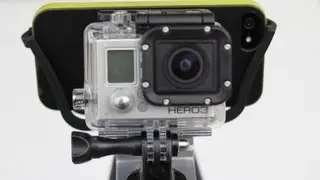
GoPro Hero3 Black n Silver Edition setup, fix random stops of recordings
Автор: Yanis Papadopoulos
Загружено: 2013-02-13
Просмотров: 28611
Описание:
First of all, GoPro Hero3 Black Edition is a PROFFESIONAL camera with high bit rate recording modes. That means it needs a GOOD geniune Class 10 microSD.
Main reason for random stops of the recordings on high resolutions is the slow speed of the microSD. Probably on low resolution and fps (720p @ 30fps )it will not random stop your recordings (because the recording video is slow enough and the microsd is able to save it).
This also might happened if you format the microSD by your computer and not by GoPro's settings. If you insert non proper microSD in your gopro you will have to buy a new one (proper one) and reset the camera (follow the instructions/video)
A) Recommended microSD for recording at 1080p @60 fps, 4K cin, 4K, 2.7K cin, 2.7K, 720p @120 is CLASS 10 UHS-1 (Ultra High Speed 1). Many bulk microsd are fake (they are class 6 while it is written class 10). Some original class 10 microsd are unable to maintain 10MB/S in the whole duration of the recording and that might cause the stop of the recording. Best is to buy a microSD with 15MB/S writing speed so you will be sure that it will write with speeds over 10MB/S
(GoPro Hero3 on high resolutions will need 7-8MB/S of writing speed at least)
#######################################
%%%%%%%%%%%%% Instructions:
#######################################
1)RE-set your Camera!
Remove microSD from your camera
Remove battery from your camera
Wait 10 seconds
Insert battery only to your camera
Press and hold SHUTTER button (upper one) and press POWER button (while holding the SHUTTER)
Camera will have been reseted.
%%%%%%%%%%%%%%%%%%%%%%%%%%%%%%%%%%%%
2) Format microSD via Gopro settings
1) Press POWER button till you go to settings and press SHUTTER
2) Press POWER button till you go to Trash icon and press SHUTTER
3) Press POWER button till you go to option ALL / format and press SHUTTER wait till camera format your microSD
%%%%%%%%%%%%%%%%%%%%%%%%%%%%%%%%%%%%%%%%
(You will need to add the firmware update again!)
3)Update camera's firmware
###################charge your camera at least 2 bar battery#########
Go to www.gopro.com at support section and click "Product update" then "Download update"
You will have to register your product in order to download the zip with the firmware files.
Download the zip with update firmware files.
Unzip the files
Connect your camera with your PC via usb
Copy the files to the root folder of your camera
Press safe eject from windows
Remove USB cable (camera will power off)
Press POWER button and let your gopro to update (it will take minutes)
After updating finished camera will work properly(as seen in video)
%%%%%%%%%%%%%%%%%%%%%%%%%%%%%%%%%%%%%%
Time: 9:50
4) Connect Remote Control with the camera
Go to Gopro's settings and then to icon "Wireless control"
Select Remote cotrol and sellect NEW
On Remote Control press and HOLD the red circle button and then press power up button. Wait until they are connected.
Повторяем попытку...

Доступные форматы для скачивания:
Скачать видео
-
Информация по загрузке:




![[SOLVED] GOPRO HERO 3 RED LIGHT LOCK UP/ NOT WORKING / HANGING / NOT TURNING ON](https://image.4k-video.ru/id-video/-HecNo_xoe4)