Learn Excel : Do Translation in Excel
Автор: My E-Lesson
Загружено: 2011-10-17
Просмотров: 54245
Описание:
In this video see how to use the inbuilt translator feature of Excel. MS Excel has a powerful inbuilt Translator which can translate to most used languages.
Translate text in Excel to a different language
You can translate text, whether a whole file, selected words for phrases, or individual words, with the translation tools available in some Office programs.
The translation tools available depend on which Office program you're using:
Translate Document/Translate Item: Word, Outlook
Translate Selected Text: Word, Outlook, OneNote, PowerPoint, Publisher, Excel, Visio.
Mini Translator: Word, Outlook, PowerPoint, OneNote
Translate a whole file in Excel
You can have an entire Word document or Outlook message translated by a computer ("machine translation") and displayed in a web browser. When you choose this kind of translation, the content in your file is sent over the Internet to a service provider.
NOTE: Machine translation is helpful for conveying the basic subject matter of the content and for confirming whether the content is relevant to you. For high accuracy or sensitive files, human translation is recommended, because machine translation might not preserve the full meaning and tone of the text.
Choose your translation language
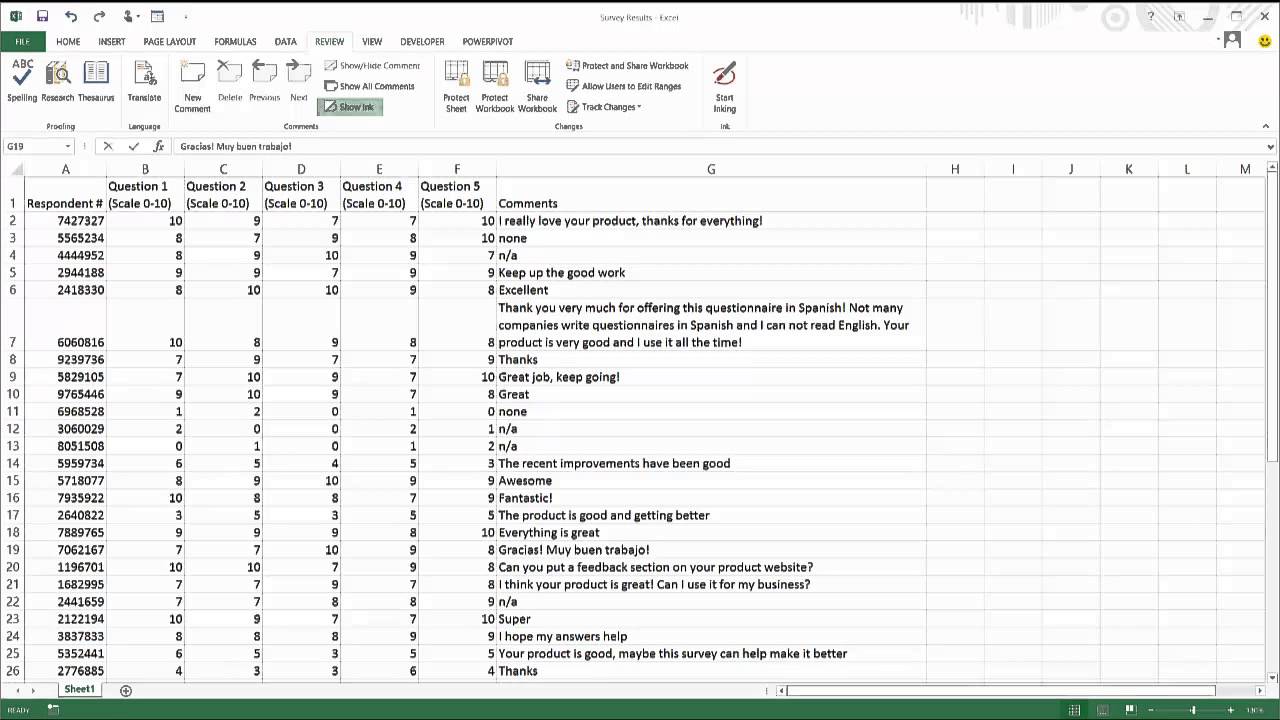
1. On the Review tab, in the Language group, click Translate - Choose Translation Language.
2. Under Choose document translation languages click the Translate from and Translate to languages that you want, and then click OK.
Translate the document or message
1. On the Review tab, in the Language group, click Translate.
2. Click Translate Document (Translate Item in Outlook). The From and To languages that you selected are listed.
A browser tab opens with your file in both the original language and the language that you selected for translation.
NOTE: If this is the first time you have used translation services, you may need to click OK to install the bilingual dictionaries and enable the translation service through the Research pane. You can also see which bilingual dictionaries and machine translation services you have enabled by clicking the Translation options link in the Research pane. See Translate selected text to learn how to access the Research pane.
Translate selected text
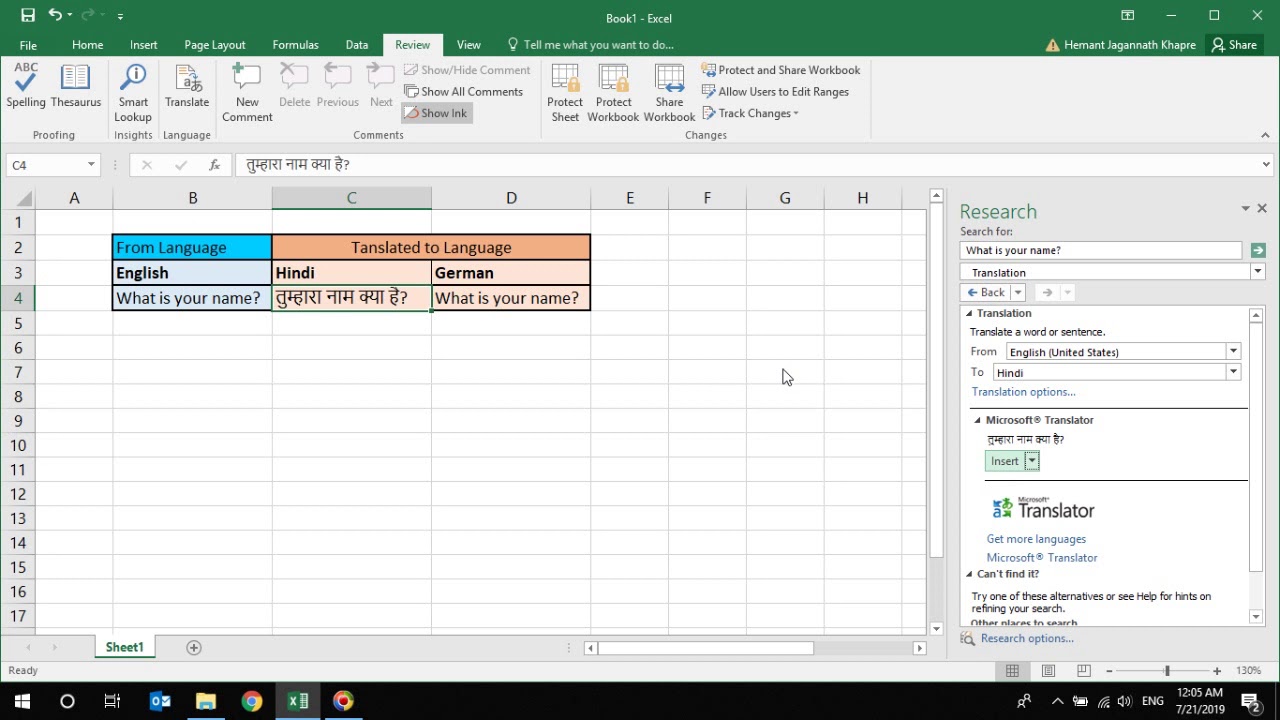
You can use the Research pane to translate a phrase, sentence, or paragraph into several selected language pairs in the following Microsoft Office programs: Excel, OneNote, Outlook, PowerPoint, Publisher, Visio, and Word.
NOTE: In PowerPoint, only one slide's text box can be translated at a time.
1. On the Review tab, in the Language group, click Translate - Translate Selected Text to open the Research pane.
TIP: In Word, you can right-click anywhere in the document, and then click Translate.
2. In the Research pane, in the All Reference Books list, click Translation.
3. Do one of the following to translate a word or short phrase:
o Select the words, press ALT, and then click the selection. The results appear in the Research pane under Translation.
Type the word or phrase in the Search for box, and then press Enter.
NOTES:
If this is the first time you have used translation services, click OK to install the bilingual dictionaries and enable the translation service through the Research pane.
You can also see which bilingual dictionaries and machine translation services you have enabled by clicking the Translation options link in the Research pane.
To change the languages that are used for translation, in the Research pane, under Translation, select the languages that you want to translate from and to. For example, to translate English to French, click English in the From list and French in the To list.
To customize which resources are used for translation, click Translation options, and then select the options that you want.
Translate words with the Mini Translator
In Word, Outlook, PowerPoint, and OneNote, the Mini Translator displays the translation of one word as you point at it with your cursor. You can also copy the translated text to the Clipboard, paste it into another document, or play a pronunciation of the translated word.
1. On the Review tab, in the Language group, click Translate - Mini Translator.
2. Point to a word or phrase that you want translated with your mouse. When a faint dialog box appears overlayed in your document, move your mouse over it to see any translations available.
NOTE: The Mini Translator will continue to appear whenever you move over words. To turn it off, repeat step 1
To watch more videos on how to use Excel please visit http://www.myelesson.org
Повторяем попытку...

Доступные форматы для скачивания:
Скачать видео
-
Информация по загрузке: