Create Morph Animation | SVGator
Автор: SVGator
Загружено: 2024-04-26
Просмотров: 5748
Описание:
Learn how to create a morph animation
Start animating: https://www.svgator.com
0:15 Convert the shape into a path
0:42 Use the morph animator
1:03 Creating a location pin
2:39 Set up rotate animation
4:01 Creating a heart shaped path
6:34 Adding bounce back easing effect on scale
7:06 Adding bounce back easing effect on morphing
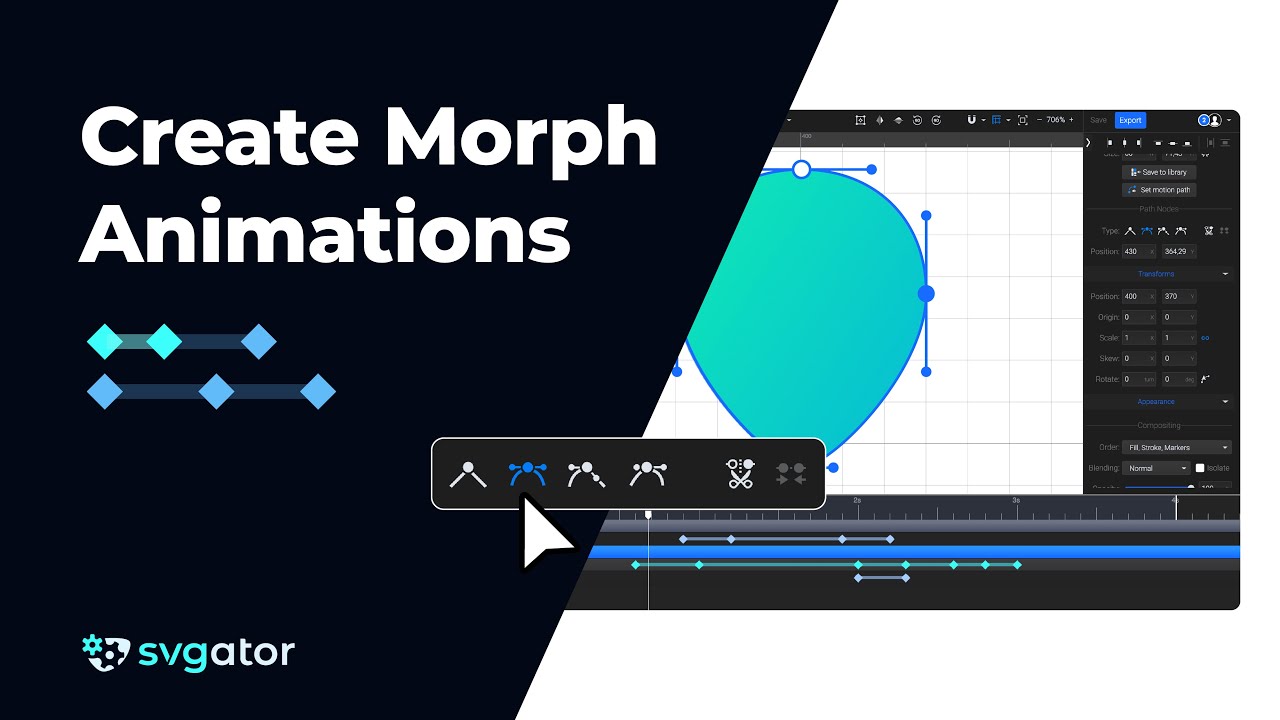
Here's a detailed description of how to create a morph animation from a circle to a location pin and finally to a heart, incorporating additional animations and easing effects for a more dynamic result.
Start with an Ellipse element:
Begin with a circle, which is an ellipse element in SVG.
Convert the ellipse into a path element by right-clicking on it and selecting "Convert to Path". This allows for more complex shape manipulation.
Edit Path Nodes:
To morph the shape, you need to edit its nodes. Access the node tool by selecting it from the tools menu or by pressing "A" on the keyboard.
Enable the snapping options and snap to grid to ensure precise movements.
Create Keyframes for Morph Animation:
Move the playhead to the 0.4-second mark and select "Morph" from the animator's list to add the first keyframe, marking the initial state of the path.
Drag the playhead to 1 second and add another keyframe. This marks the next state of the path.
Modify the Path:
To transform the circle into a location pin, select three nodes and move them up by one grid unit. Move the bottom node down by one grid unit.
Change the node type to make the bottom point sharp instead of curved by selecting "Straight" from the node type options.
Adjust the side nodes to make the shape smoother, ensuring they have the same node type (mirrored) and adjusting the handles for symmetrical curves.
Add More Elements:
At the 0.8-second mark, select the ellipse tool, turn off snapping, and draw a circle within the location pin. Use the color picker to match the color and align it centrally.
Incorporate Scale Animation:
From the animator list, select "Scale" and set the initial scale to zero. Move the playhead to 1.2 seconds and set the scale back to one.
Combine Morph and Rotate Animations:
Start the rotate animation at 2 seconds. Select "Rotate" from the animator's list and rotate the path 180 degrees by holding down the shift key for precision.
Hide the circle temporarily to focus on the path.
Refine the Shape:
At the 2.3-second mark, add another morph keyframe and start reshaping the path into a heart. Use the node tool to adjust nodes and ensure symmetry, turning on snapping if needed.
Carefully tweak each node and handle to perfect the heart shape.
Add Heartbeat Effect:
Create a heartbeat effect by adding another morph keyframe 3 milliseconds after the heart is formed. Move nodes slightly to make the heart larger.
Duplicate the previous keyframe at the end to complete the heartbeat cycle.
Wrap Up and Add Easing Effects:
Finish the circle animation by scaling it back to zero when the location pin starts transforming into the heart.
Duplicate and reverse keyframes to create a smooth scaling transition.
Adjust the timing and speed of the initial animation.
Apply easing effects to the animations for a more natural look. Use the easing panel to select and customize presets, ensuring a smooth and engaging transition.
Final Review:
Play through the animation to ensure all transitions are smooth and the shapes morph correctly.
Fine-tune any remaining details, such as node positions and easing curves, to enhance the overall animation quality.
Subscribe: / @svgator
Let's connect:
Facebook: / svgator
Instagram: / svgatorapp
Twitter: / svgatorapp
LinkedIn: / svgator
SVGator | Web-based Animation Tool 🎨 Animate SVG, Lottie, GIF & Video⚡Create lightweight animations with an intuitive and beginner-friendly design tool.
Повторяем попытку...
Доступные форматы для скачивания:
Скачать видео
-
Информация по загрузке: