ycliper

Популярное

Музыка Кино и Анимация Автомобили Животные Спорт Путешествия Игры Юмор

Интересные видео

2025 Сериалы Трейлеры Новости Как сделать Видеоуроки Diy своими руками

Топ запросов

смотреть а4 schoolboy runaway турецкий сериал смотреть мультфильмы эдисон
Скачать

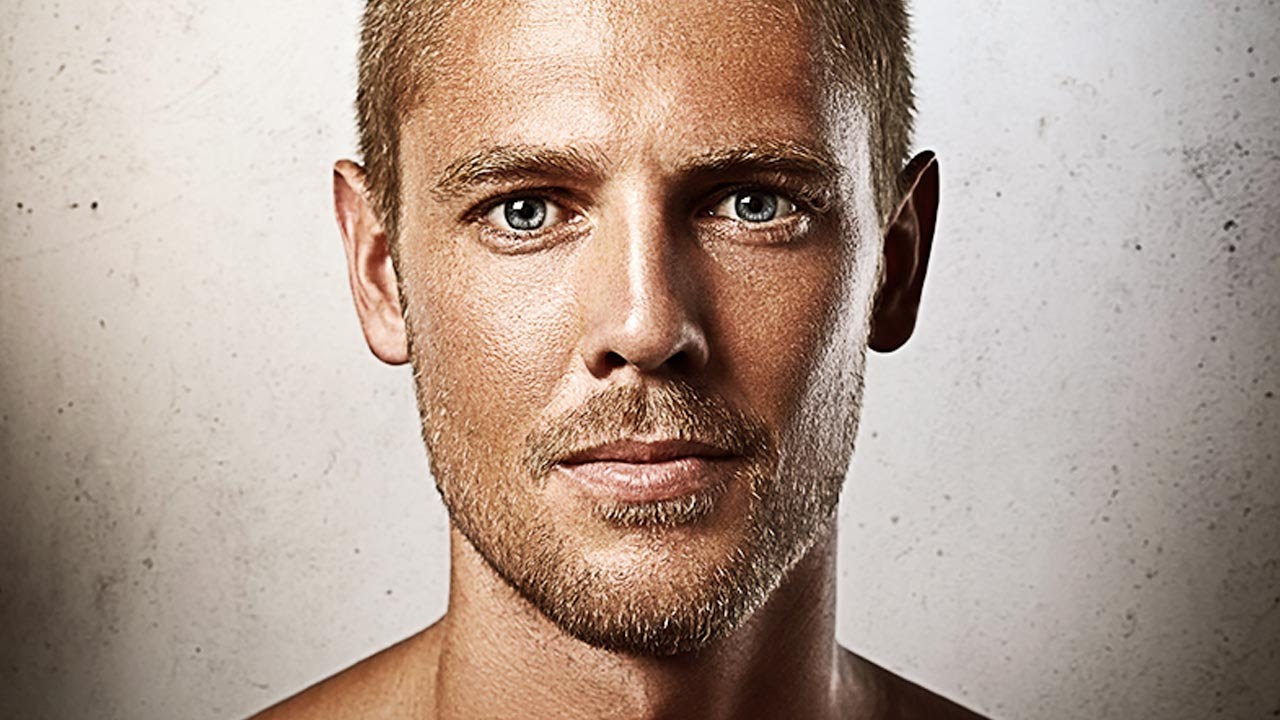
How to Create and Replace a Custom Background in Photoshop

Автор: PHLEARN

Загружено: 2014-12-03

Просмотров: 280766

Описание: I Guarantee I Can Teach You to Master Photoshop. Learn How: https://phlearn.com/aaronwillteachyou

#phlearnmethod - Photoshop Made Simple.
Download Your Free 5 Pack Today - http://bit.ly/1GfvyEq

Magic Wand

First, the subject needs to be cut out from the background. A great tool for this is the Magic Wand tool! Start selecting, and hold Shift to add to that selection when needed. A helpful aspect of this tool is that you can change the tolerance; if you’re selecting too much, lower the tolerance.

The hair is a little trickier than the rest of the body, and we must refine the edge of the selection. Go to Select - Refine Edge. Choose the best view to help you out; in this case, we use the overlay view. Click on the refine edge tool, and paint over the edges of the hair. Doing this will momentarily “erase” the mask from those edges, but will then select only what is similar to the remaining mask. In other words, it should perfectly select out only the hair.

We are going to use this selection to create a layer mask, and we want that mask to apply to all of our future layers. So, put the layer into a group, and put the layer mask onto that group rather than the layer itself. Now, any layers you add to the group will have the same mask applied to them, and you won’t have to worry about creating a new mask of your subject over and over.
Step and Repeat

To see how this process works, start by creating any shape and filling it with black. Next, turn it into a selection (hold Cmd and click on the layer).

Step: Opt + Cmd + T to select the pattern. Move it to where you’d like and click enter.

Repeat: Hold Shift + Opt + Cmd + T. This will repeat the duplication that you just completed.

Custom Patterns

Dark patterns on a light background are best for making custom patterns. Go to Edit - Define Pattern. Name it and click OK. Nothing will happen until you go back to the image of your subject and apply it there. Create a new fill layer and select Use: pattern. Select your new pattern in the custom pattern drop down. You can choose different options in the scripted pattern section as well.

Helpful hints:

Photographing your subject on a solid colored background is key for this!
To turn any layer into a selection, just hold Ctrl/Cmd and click on the thumbnail of the layer.
Multiply is a great blend mode if you want your pattern to show up but include shadows as well.


Website: http://phlearn.com
Facebook:   / phlearn  
Google+: https://plus.google.com/u/0/116791098...

Не удается загрузить Youtube-плеер. Проверьте блокировку Youtube в вашей сети.
Повторяем попытку...
How to Create and Replace a Custom Background in Photoshop

Поделиться в:

Доступные форматы для скачивания:

Скачать видео

  • Информация по загрузке:

Скачать аудио

Похожие видео

How to Master the Transform Tool in Photoshop

How to Master the Transform Tool in Photoshop

How To Create a Double Exposure in Photoshop

How To Create a Double Exposure in Photoshop

Лучшая Музыка 2026🏖️Зарубежные песни Хиты🏖️Популярные Песни Слушать Бесплатно 2026 #27

Лучшая Музыка 2026🏖️Зарубежные песни Хиты🏖️Популярные Песни Слушать Бесплатно 2026 #27

Микшер каналов / Объясняю самый непонятный инструмент в ФОТОШОПЕ

Микшер каналов / Объясняю самый непонятный инструмент в ФОТОШОПЕ

ПРЕВОСХОДНЫЙ дизайн рекламы манипуляции продуктом ✅🔥 Полный урок по Photoshop

ПРЕВОСХОДНЫЙ дизайн рекламы манипуляции продуктом ✅🔥 Полный урок по Photoshop

Люди От 1 До 100 Лет Участвуют В Гонке За $250,000!

Люди От 1 До 100 Лет Участвуют В Гонке За $250,000!

Это лучшие переходы и эффекты встроенные в Premiere Pro | Полный гайд как пользоваться Film Impact

Это лучшие переходы и эффекты встроенные в Premiere Pro | Полный гайд как пользоваться Film Impact

Полное руководство по созданию титров в Photoshop и Lightroom.

Полное руководство по созданию титров в Photoshop и Lightroom.

How to Make a Polaroid Framed Picture in Photoshop

How to Make a Polaroid Framed Picture in Photoshop

Понимание GD&T

Понимание GD&T

Учебное пособие по Premiere Pro для начинающих 2025 — всё, что вам НУЖНО ЗНАТЬ! (ОБНОВЛЕНО)

Учебное пособие по Premiere Pro для начинающих 2025 — всё, что вам НУЖНО ЗНАТЬ! (ОБНОВЛЕНО)

How to Create Professional Photoshop Actions

How to Create Professional Photoshop Actions

Music for Men Who Stay Silent | Gentleman Dark Blues

Music for Men Who Stay Silent | Gentleman Dark Blues

How to Turn Any Image Into an Illustration in Photoshop

How to Turn Any Image Into an Illustration in Photoshop

How to Color, Brighten and Sharpen Eyes in Photoshop

How to Color, Brighten and Sharpen Eyes in Photoshop

СОЗДАНИЕ ФОТОРЕАЛИСТИЧНОЙ НЕЙРОМОДЕЛИ | ПОШАГОВАЯ ИНСТРУКЦИЯ ДЛЯ NANO BANANA PRO

СОЗДАНИЕ ФОТОРЕАЛИСТИЧНОЙ НЕЙРОМОДЕЛИ | ПОШАГОВАЯ ИНСТРУКЦИЯ ДЛЯ NANO BANANA PRO

Winter Energy ❄️ Happy Day Playlist 2026 ☀️ Positive Chill House Music

Winter Energy ❄️ Happy Day Playlist 2026 ☀️ Positive Chill House Music

Как депикселировать изображения и конвертировать их в фотографии высокого качества в Photoshop

Как депикселировать изображения и конвертировать их в фотографии высокого качества в Photoshop

Это ИЗМЕНИЛО мой подход к редактированию... Изучите кривые Lightroom за 20 минут

Это ИЗМЕНИЛО мой подход к редактированию... Изучите кривые Lightroom за 20 минут

The Amazing Power of Frequency Separation Retouching in Photoshop

The Amazing Power of Frequency Separation Retouching in Photoshop

© 2025 ycliper. Все права защищены.


  • Контакты
  • О нас
  • Политика конфиденциальности


Контакты для правообладателей: [email protected]