iAquaLink Control App: How to Set Up OneTouch
Автор: Fluidra North America
Загружено: 2022-10-05
Просмотров: 18291
Описание:
Did you know you can easily turn on your pool and spa with OneTouch via the iAquaLink app? Watch to see how!
You can also follow these step-by-step instructions:
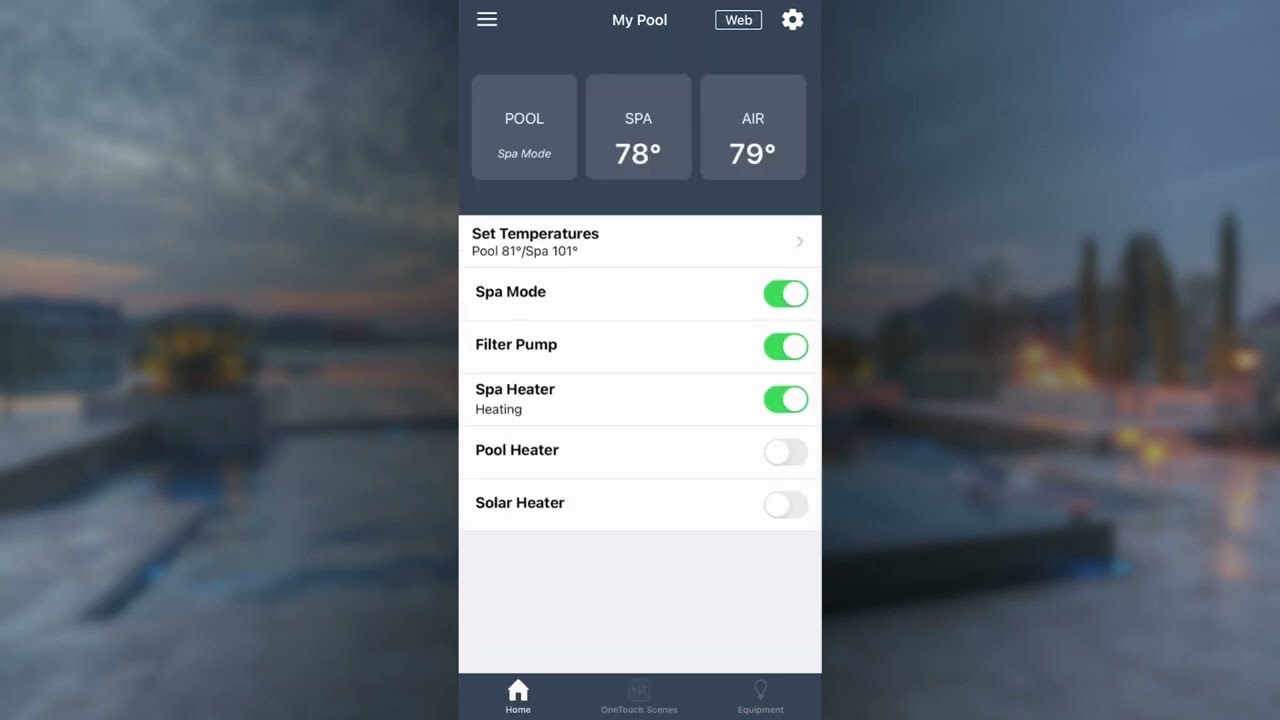
1. Open the iAquaLink app and select the pool or body of water from the "My Systems" list
2. Tap the "Web" key located in the top, right-hand corner of the app to access WebTouch. It may take the system a few minutes to connect
3. Select the "Menu" button located on the bottom left-hand side of the screen
4. Next, tap "System Setup" and then "OneTouch Setup"
5. If you want to create custom names for your OneTouch Setup, tap "Select Name" and choose the OneTouch Setup you want to rename. Use the "Back" button to return to the previous screen
6. To set up OneTouch, tap "Set Devices" and select the name of the setup you want to work on
7. A list will show all the equipment you can choose to turn on/off v is OneTouch (Note: If you select "Pool Heat" or "Spa Heat", you will need to set a temperature. These temperatures are different from the displayed temperatures on the main screen of the iAquaLink app)
8. Once all the devices have been selected, use the "Back" button to save and exit this OneTouch Setup
9. Tap the "X" to close out of WebTouch and return to the main screen
10. To access your OneTouch Setups, simple tap "OneTouch Scenes" at the bottom of the screen
11. To activate your OneTouch Setup, simply tap the scene you want to activate
To learn how to Set Temperatures in iAquaLink: • iAquaLink Control App: How to Set Temperat...
To learn how to Turn On a Pool/Spa Light in iAquaLink: • iAquaLink Control App: How to Set Up Auxil...
For more helpful how-to's, check out our full playlist: • iAquaLink Control App: How-To Videos
For more information on iAquaLink, please visit our website: https://www.iaqualink.com/en
Повторяем попытку...
Доступные форматы для скачивания:
Скачать видео
-
Информация по загрузке: