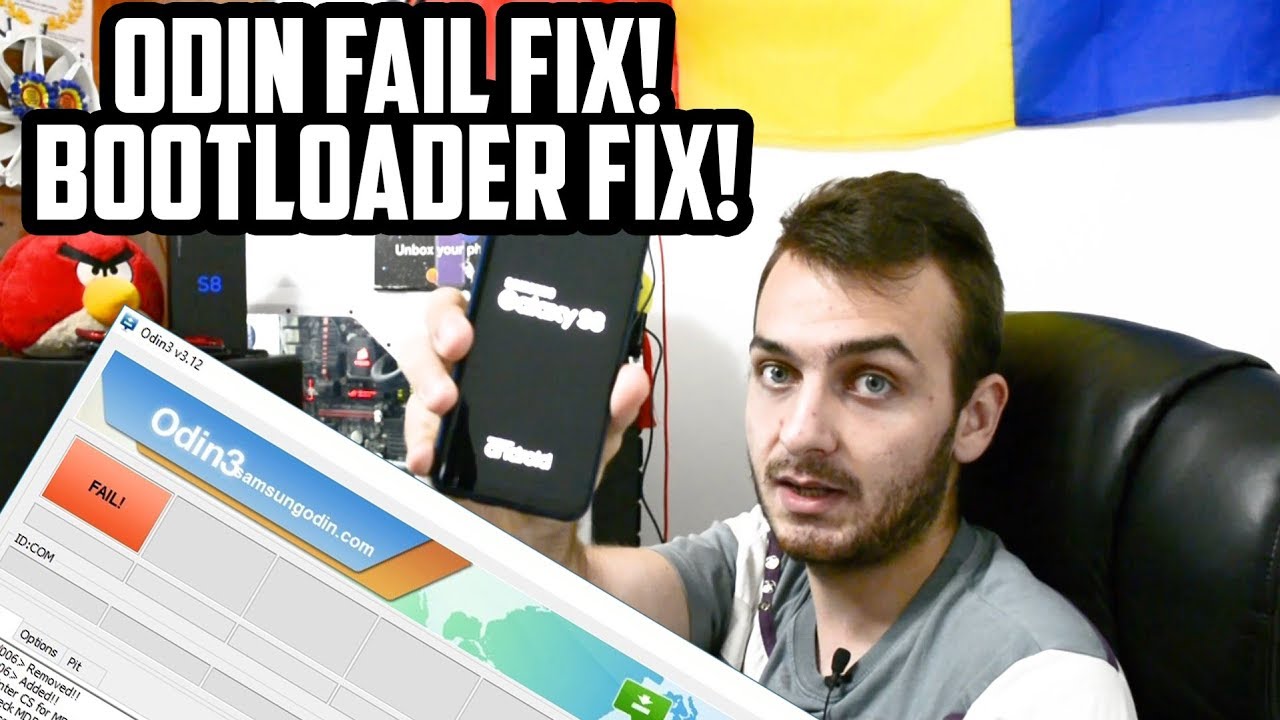
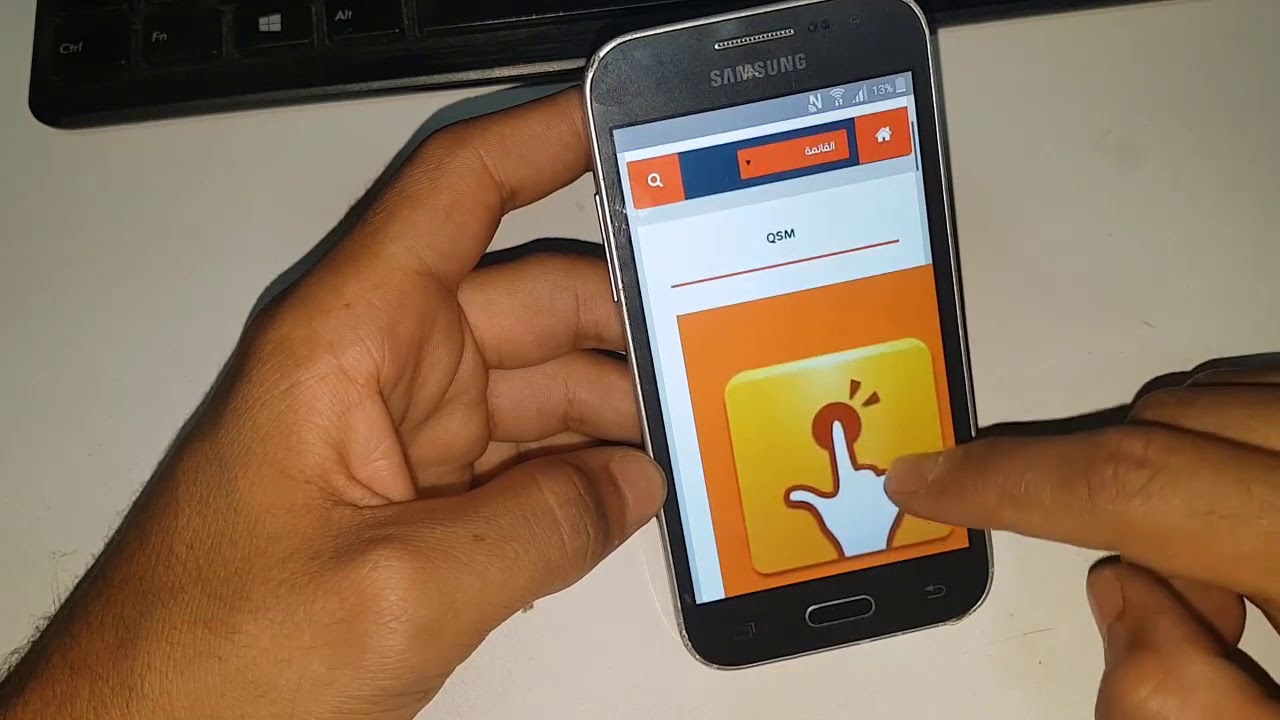
Samsung Galaxy Core Prime G361F / How To Flash Galaxy Core Prime Using Odin Tool
Автор: CS with Shams
Загружено: 2018-08-28
Просмотров: 472
Описание:
Samsung Galaxy Core Prime G361F How To Flash Galaxy Core Prime Using Odin Tool
download firmware: https://goo.gl/CPTwBP
download tool: https://goo.gl/h7TPS6
Steps to follow:
Step 1: Download and install device driver software on your computer.
Step 2: Download and extract the Stock ROM (Official/Original Firmware).
SamMobile may be the best choice to download stock firmware of Samsung device. Or you can go to Samsung Updates, XDA Forum or Google to find the correspondent firmware of your device.
Step 3: Download and extract Odin on you PC.
You can download Odin V3.10.7 directly from SamMobile. AndroidMTK is a fine alternative, it also offers a detailed list of Odin versions and download link. Or you can always Google "Odin download". After downloading it on your PC, extract it to Desktop or another location you'd prefer
Run Odin as administartor is recommended.
Step 4: Boot your Samsung device into Download mode.
Follow these steps to enter Download Mode/Odin Mode
Power off your device
Press and hold Volume Down key, Home Key and Power Key
When your device vibrates, release Power key while keep holding the Volume Down key and Homekey
Press Volume Up key to enter Download mode, which has a green robot figure and “Downloading… Do not turn off target!!)
Step 5: Connect your device to PC.
You device should be automatically recognized by Odin. At the lower-left of Odin interface, it should show a message that says "Added!" and in the meantime you should see a light-blue box at the ID:COM section stating "COM:3" (the number depend on which USB port you have plugged the device cable and is irrelevant).
*Step 6: Click "PDA" or "AP" to add tar.md5 file that you have extracted and then "Start".
Whether it is "PDA" or "AP" depends on the version of Odin that you used. But the md5 file goes to either "PDA" or "AP". Add *.md5 to Odin.
After adding the file, click "Start" to begin the flashing process.
Click "Start" to flash.
WARNING DO NOT REMOVE OR OPERATE ON YOUR DEVICE UNTIL FINISHED OR FAILED IS SHOWED ON ODIN.
Ongoing flashing process. Do not remove your device.
When the flashing process is done and if everything goes well, you should see a big green box saying "RESET" or "PASSED" (depends on the version of Odin is used). By now, the device should be rebooted and it is safe to remove/unplug your device.
flash succeeded.
If failed, what should you do?
Try these things first:
Update your device driver software to the latest.
Restart your computer.
Run Odin as Administrator.
Try different cable (original one or the one with better quality) and USB port (the main port recommended)
Re-download the firmware file, make sure it is intact and match your device model
Subscribe now:https://goo.gl/Qph6RS
Fallow me;
Facebook page:https://goo.gl/yoe2Db
tiwtter; https://goo.gl/VXPQ7M
google+;https://goo.gl/g8WXzL
Повторяем попытку...

Доступные форматы для скачивания:
Скачать видео
-
Информация по загрузке: