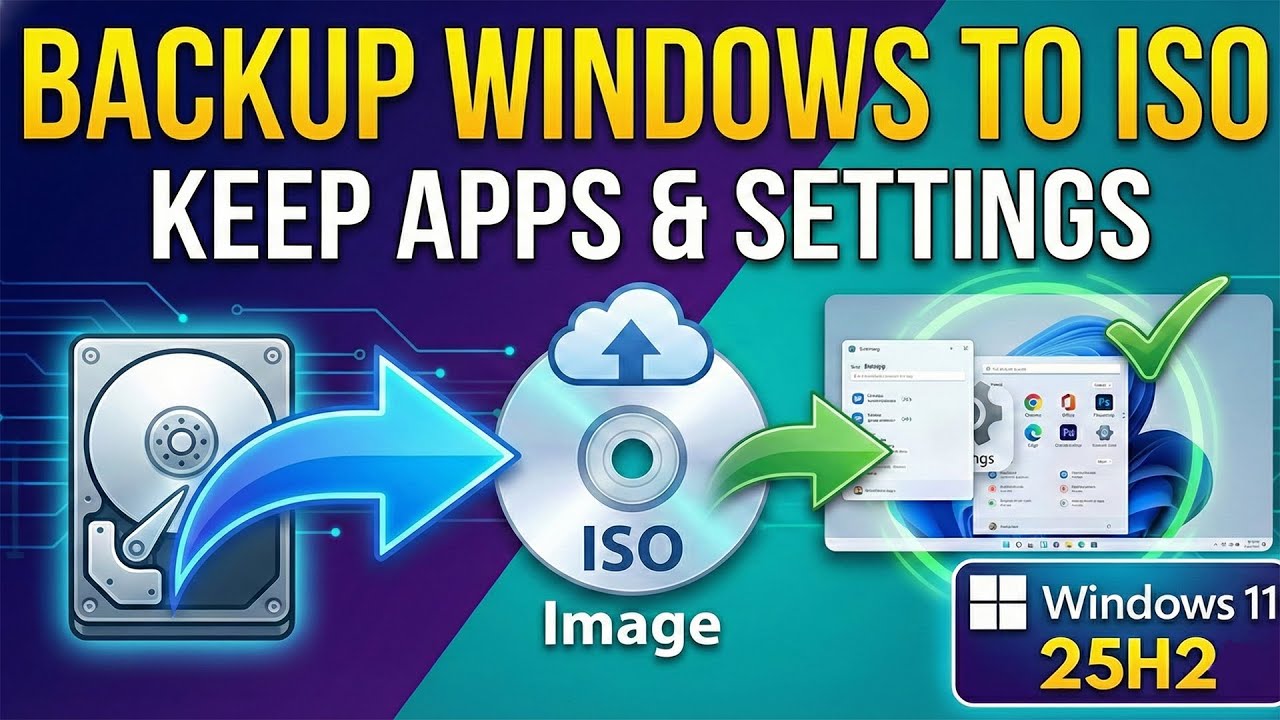
Backup Windows to ISO: Reinstall Without Losing Your Apps & Settings (Windows 11 25H2)
Автор: Meink WinLab
Загружено: 2026-01-24
Просмотров: 51783
Описание:
In this video, I’ll demonstrate how to create a full system backup of Windows 11 25H2 into a bootable ISO file. This method allows you to reinstall your OS while keeping every single app, setting, and driver intact. We will be using WinRE, DISM for maximum compression imaging, and AnyBurn for ISO rebuilding.
⚠️ IMPORTANT DISCLAIMER (PLEASE READ)
The methods shown in this video involve advanced system modifications, disk management, and command-line tools. Proceed at your own risk. I (Meink WinLab) am NOT responsible for any data loss, system instability, or "bricked" devices that may result from following this tutorial. Always ensure you have a separate backup of your most important files on an external drive before attempting to capture or replace system images. Technical procedures can fail due to hardware differences or user error. By continuing with this tutorial, you acknowledge that you are solely responsible for your own computer.
📋 Video Breakdown:
Step 1: Verifying disk space on Drive D: (Ensuring it can hold the compressed install.wim).
Step 2: Accessing WinRE via Shift + Restart.
Step 3: Executing the DISM Capture-Image command with Maximum Compression.
dism /Capture-Image /ImageFile:"wimpath" /CaptureDir:"path" /Name:"" /Compress:max
Since we are using Max Compression, the process may take 30 minutes to over an hour depending on your CPU speed and the amount of data on your C: drive. Be patient!
Step 4: Modifying the Windows ISO with AnyBurn to replace the default install.wim.
Step 5: Reinstalling Windows using the custom-built ISO.
🛠️ DISM Command Breakdown
The command you are using is: dism /Capture-Image /ImageFile:"D:\install.wim" /CaptureDir:C:\ /Name:"Windows11_Backup" /Compress:max
1. /Capture-Image
This is the primary switch that tells DISM to scan a specific drive or partition and package all its contents into a single Windows Image (.WIM) file.
2. /ImageFile:"wimpath"
Purpose: Defines the destination where the backup file will be saved.
Note: In your case, this points to Drive D. It is crucial to ensure Drive D has enough free space to store the final image, especially when backing up a large OS partition.
3. /CaptureDir:"path"
Purpose: Specifies the source—the drive you want to back up.
Note: Usually, this is C:\ (your Windows partition). Pro Tip: In WinRE, drive letters can shift, so always verify your OS drive letter using diskpart or dir before running the command.
4. /Name:""
Purpose: Assigns a label to the image inside the WIM file.
Why it matters: This is the name that appears during the Windows Setup process when you select which version to install. It is a mandatory field for the command to execute.
5. /Compress:max
Purpose: Sets the compression level to the maximum possible.
Pros: It significantly reduces the size of your install.wim, making it easier to fit into a standard ISO or onto a USB drive.
Cons: It is CPU-intensive and takes much longer to complete compared to fast or none compression.
🛠 Tools Used:
DISM (Deployment Image Servicing and Management)
AnyBurn (Professional ISO Editor)
Target OS: Windows 11 25H2
⏱️[Timestamps]
00:00 Begin
00:17 Capture Windows image
01:21 Create ISO File
02:33 Test
03:06 End
🔍 Keywords:
#Windows11 #Windows1125H2 #CustomISO #DISM #SystemBackup #WindowsBackup #AnyBurn #WinRE #MeinkWinLab #WindowsTips #TechTutorial #InstallWIM #Windows11Update #PCMaintenance
Повторяем попытку...
Доступные форматы для скачивания:
Скачать видео
-
Информация по загрузке: