Fusion Rendering Tip: Add Ruler Markings and Labels with Decals
Автор: What Make Art
Загружено: 2026-01-25
Просмотров: 257
Описание:
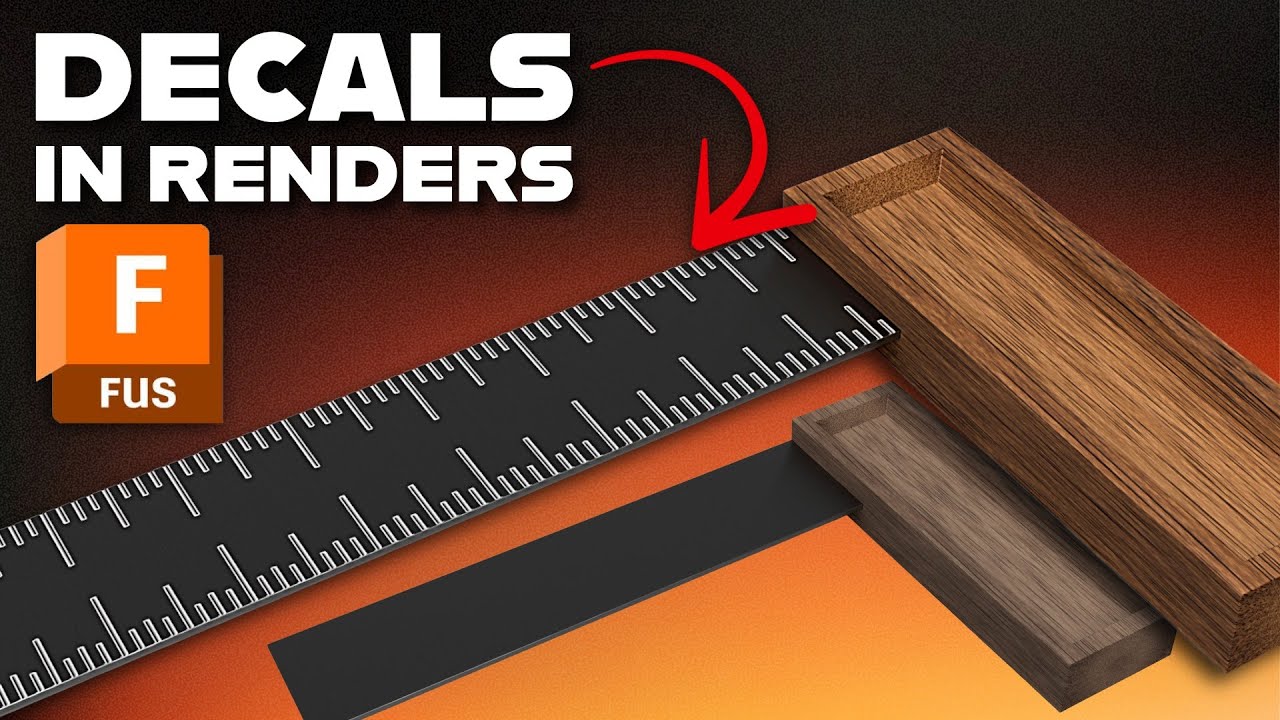
Want your Autodesk Fusion renders to look more realistic without remodeling extra geometry? In this quick Fusion 360 rendering tutorial, you’ll learn how to add a decal (like ruler markings, labels, logos, or texture details) using a transparent PNG. You’ll see where the Decal tool lives in the Render workspace, how to place the image on a face, and how switching to orthographic view makes alignment clean and accurate.
This walkthrough uses a tri square model with simple wood and brushed steel materials, then adds a ruler-style decal to boost visual detail for a more polished client-ready render. (If you’re looking for the modeling steps, the video mentions a separate link to the tri square build.)
Model this Tri Square:
• Autodesk Fusion Tutorial: Model a Tri Squa...
Link to decal PNG image:
https://drive.google.com/file/d/1PxFu...
Chapters
00:00 Add extra detail to Fusion renders with decals
00:24 Why decals help: making ruler markings visible
00:39 Switch from Design to Render workspace
00:43 Find and open the Decal tool
00:54 Select the target face for the decal
01:06 Use orthographic view for accurate placement
01:20 Rotate and position the decal for clean alignment
01:33 Final look: more detail and ready to render
01:46 Wrap-up and next steps
#fusion360 Fusion360
#autodeskfusion
#3drendering
Повторяем попытку...
Доступные форматы для скачивания:
Скачать видео
-
Информация по загрузке: