How To Enable GPU Hardware Accelerated Decoding En
Автор: MindVirus
Загружено: 2025-04-25
Просмотров: 154
Описание:
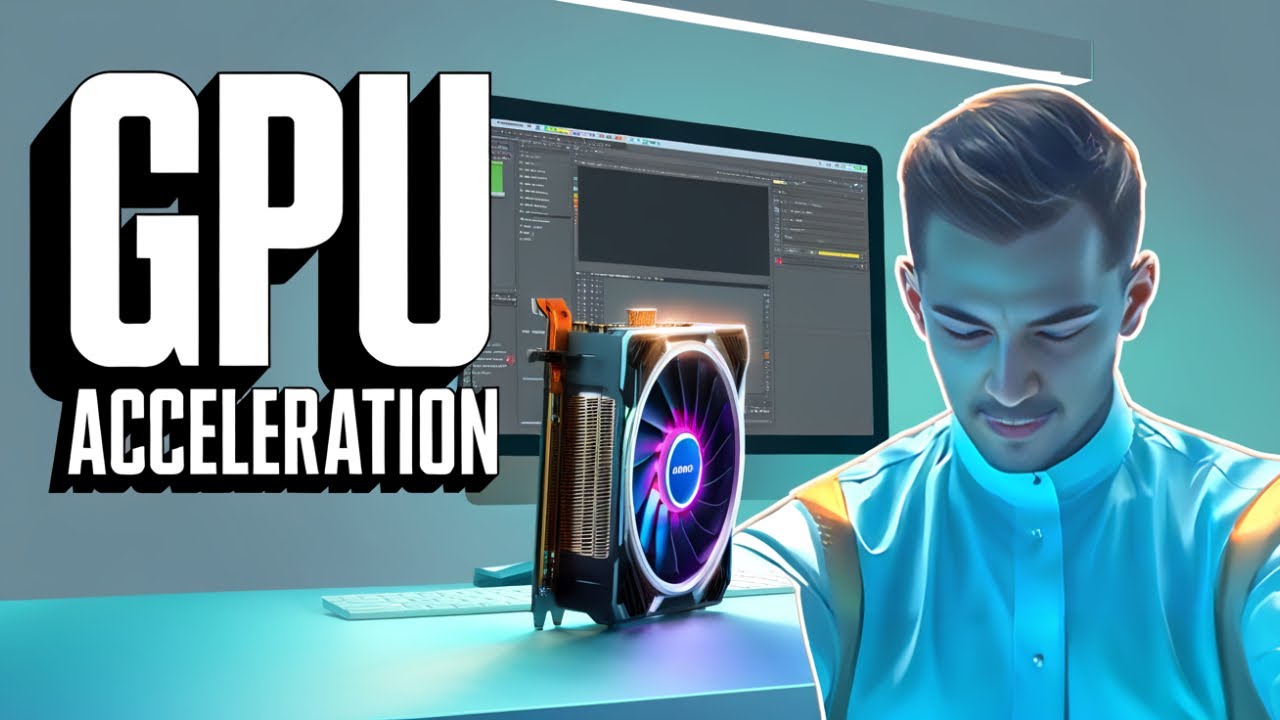
Premiere Pro: Enable GPU Hardware Accelerated Decoding
Enabling GPU hardware accelerated decoding in Premiere Pro can significantly improve playback performance, especially with demanding codecs like H.264 and HEVC. Here's how:
1. *Open Project Settings:* Go to File Project Settings General.
2. *Select GPU Acceleration:* Under the "Video Rendering and Playback" section, find the "Renderer" dropdown menu. Choose the "Mercury Playback Engine GPU Acceleration" option that corresponds to your graphics card:
*CUDA:* For NVIDIA GPUs.
*OpenCL:* For AMD GPUs.
*Metal:* For Apple Silicon Macs.
3. *Confirm and Restart:* Click "OK" to save the changes. You might need to restart Premiere Pro for the changes to take effect.
*Deeper Explanation:*
Hardware accelerated decoding offloads the computationally intensive task of decoding video codecs from your CPU to your GPU's dedicated hardware. GPUs are specifically designed for parallel processing, making them much more efficient at this task than the CPU.
*Benefits of Enabling GPU Hardware Accelerated Decoding:*
*Smoother Playback:* You'll experience less stuttering and lag during playback, especially with high-resolution or heavily compressed footage.
*Faster Scrubbing:* Moving through your timeline will be more responsive.
*Reduced CPU Load:* Freeing up your CPU allows it to handle other tasks more efficiently, potentially improving overall system performance.
*Troubleshooting:*
*Incompatible GPU:* Ensure your graphics card is compatible with Premiere Pro's GPU acceleration. Check Adobe's website for a list of supported GPUs.
*Outdated Drivers:* Make sure you have the latest drivers installed for your graphics card. You can usually find these on the manufacturer's website NVIDIA, AMD, Intel.
*Codec Support:* While Premiere Pro supports hardware decoding for many H.264 and HEVC variants, not all are supported. You can check if your footage is being hardware decoded using the Debug Monitor Ctrl+Alt+F12 on Windows or Cmd+Option+F12 on macOS and looking for "HW Decoded" in the ImporterMPEG section.
*Enable in Preferences:* Also ensure that "Enable hardware accelerated decoding" is checked in Edit Preferences Media. You might need to restart Premiere Pro after changing this setting.
By enabling GPU hardware accelerated decoding, you can optimize Premiere Pro for smoother and more efficient video editing.
#GPUAcceleration #PremierePro #VideoEditing
Повторяем попытку...
Доступные форматы для скачивания:
Скачать видео
-
Информация по загрузке:


![[4K FULL HD] Relaxing Water Background | 1 HOUR | Calm Water Wallpaper (No Sound)](https://image.4k-video.ru/id-video/y9PTNTSpGJs)


