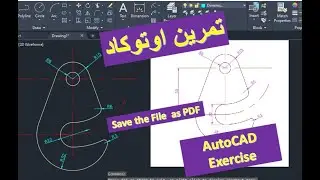
Drawing reversed curves in AutoCAD رسم منحنيات معكوسة في برنامج أوتوكاد
Автор: Waddah Jomaa
Загружено: 2024-11-22
Просмотров: 252
Описание:
To draw curves in AutoCAD, you can use various tools and commands depending on the type of curve you want to create. Here are the steps to draw some basic types of curves in AutoCAD:
1. Drawing Arcs:
Arc Command:
Type ARC in the command line and press Enter.
Specify the start point of the arc.
Specify the end point of the arc.
Specify a point on the arc to determine its curvature.
2. Drawing Curves Using SPLINE:
Spline Command:
Type SPLINE in the command line and press Enter.
Begin by specifying points through which you want the spline to pass.
Press Enter after you have specified all the points.
You can adjust the spline curve using the grips to modify its shape and curvature.
3. Drawing Curves Using Polylines:
Pline Command:
Type PLINE in the command line and press Enter.
Start drawing the polyline by specifying points. At each point, you can change the segment type to an arc by using the Arc sub-command.
After finishing the curve, press Enter to complete the polyline.
4. Using the Ellipse Command to Draw Elliptical Curves:
Ellipse Command:
Type ELLIPSE in the command line and press Enter.
Specify the center point of the ellipse.
Specify the endpoint of the first axis (major axis).
Specify the endpoint of the second axis (minor axis) to complete the ellipse.
5. Drawing Bezier Curves Using Advanced Tools:
If you need higher precision or want to design specific curves like Bezier curves, you can use advanced design tools available in certain versions or add-ons for AutoCAD.
Additional Tips:
Use the PEDIT command to edit polylines and convert straight segments to curves or modify existing curves.
Remember to use the OSNAP feature for precise point selection when drawing curves.
لرسم المنحنيات المعكوسة (Curves) في برنامج أوتوكاد، يمكنك استخدام أدوات وأوامر مختلفة تبعًا لنوع المنحنى الذي ترغب في رسمه. إليك خطوات رسم بعض أنواع المنحنيات الأساسية في أوتوكاد:
1. رسم أقواس (Arcs):
أمر Arc:
اكتب ARC في سطر الأوامر واضغط Enter.
حدد نقطة البداية للنصف الدائري.
حدد نقطة النهاية للنصف الدائري.
حدد نقطة على محيط القوس لتحديد تقوس القوس.
2. رسم منحنيات باستخدام SPLINE:
أمر Spline:
اكتب SPLINE في سطر الأوامر واضغط Enter.
ابدأ بتحديد النقاط التي تريد أن يمر بها المنحنى.
اضغط Enter بعد الانتهاء من تحديد النقاط.
يمكنك ضبط منحنى الـSpline باستخدام مقابض التحكم (grips) لضبط تقوسه وشكله.
3. رسم منحنيات باستخدام Polylines:
أمر Pline:
اكتب PLINE في سطر الأوامر واضغط Enter.
ابدأ برسم الـPolyline عن طريق تحديد النقاط، وفي كل مرة تحدد نقطة يمكنك تغيير نوع القطعة المستقيمة إلى قطعة منحنى باستخدام الأمر الفرعي Arc.
بعد الانتهاء من رسم المنحنى، اضغط Enter لإنهاء الـPolyline.
4. استخدام أمر Ellipse لرسم منحنيات بيضوية:
Повторяем попытку...

Доступные форматы для скачивания:
Скачать видео
-
Информация по загрузке: