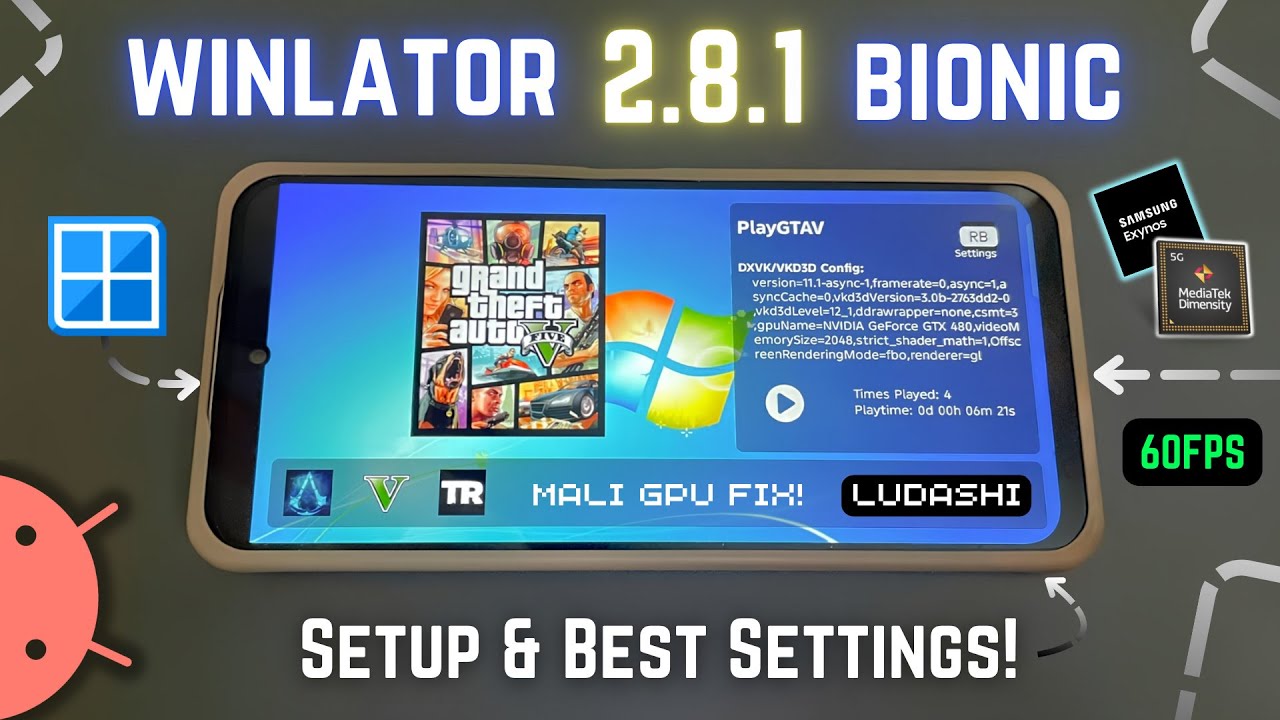
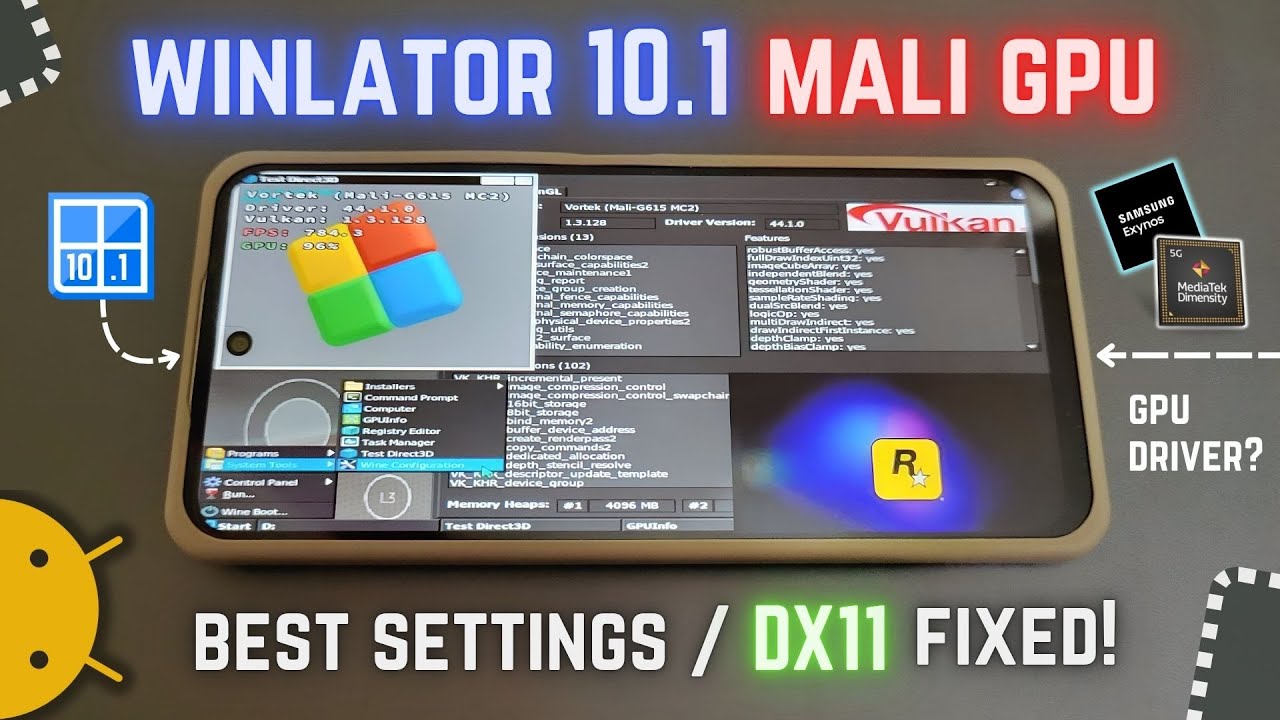
Winlator Best Settings for MediaTek, Dimensity & Exynos | Resolution + Driver Setup Guide! Gameplay
Автор: Bhushan Chaudhari
Загружено: 2025-04-19
Просмотров: 10673
Описание:
Struggling with lag on Winlator? Here’s the ultimate setup guide for MediaTek, Dimensity, and Exynos devices—covering the best resolution, graphics driver (VirGL), and WineD3D settings (OpenGL) based on your device!
Device-Based Winlator Settings:
---
1. Graphics Driver: Use VirGL
VirGL improves compatibility and supports 3D acceleration for many devices. It’s more stable than OpenGL on some chips and works well across MediaTek, Dimensity, and Exynos.
2. WineD3D: Set to OpenGL
This allows DirectX-based games to run using OpenGL backend—offering better compatibility and fewer crashes.
---
3. Resolution + DPI by Processor:
Dimensity 1200 / 8100 / 9200 / 9000
Resolution: 1280x720 or 1366x768
DPI: 160–180
Graphics Driver: VirGL
WineD3D: OpenGL
Dimensity 700 / 800U / 6020
Resolution: 1024x768
DPI: 140–160
Graphics Driver: VirGL
WineD3D: OpenGL
Exynos 1280 / 1380 / 2100 / 2200
Resolution: 1280x720 or 1024x768
DPI: 160
Graphics Driver: VirGL
WineD3D: OpenGL
Older MediaTek (Helio G35 / P22 / G70)
Resolution: 800x600 or 960x540
DPI: 120–140
Graphics Driver: VirGL (or fallback to OpenGL)
WineD3D: OpenGL
---
4. Extra Performance Tips:
Use JIT and enable all CPU cores
vRAM: 1–2GB (or more if possible)
Swap File: 1–4GB depending on RAM
Close background apps for better performance
---
Drop your processor name in the comments, and I’ll help you with exact settings.
Like & Subscribe for more Android emulation and Winlator tips!
Tags:
#Winlator #AndroidGaming #VirGL #WineD3D #Dimensity #Exynos #MediaTek #ETS2Android #WinlatorSettings #WineOnAndroid
Повторяем попытку...
Доступные форматы для скачивания:
Скачать видео
-
Информация по загрузке: