OBS Virtual Camera Tutorial
Автор: Owen Jeffreys
Загружено: 2020-05-02
Просмотров: 363
Описание:
Suppose you want to play high quality videos into a video conference? You may have tried to use the screen share feature, but were probably disappointed by the poor video quality. This is because the bandwidth is usually reserved for the webcam feeds to enable high quality pictures of you to be streamed. So if you want to share videos in full quality, the best way is to feed the video into the actual webcam feed.
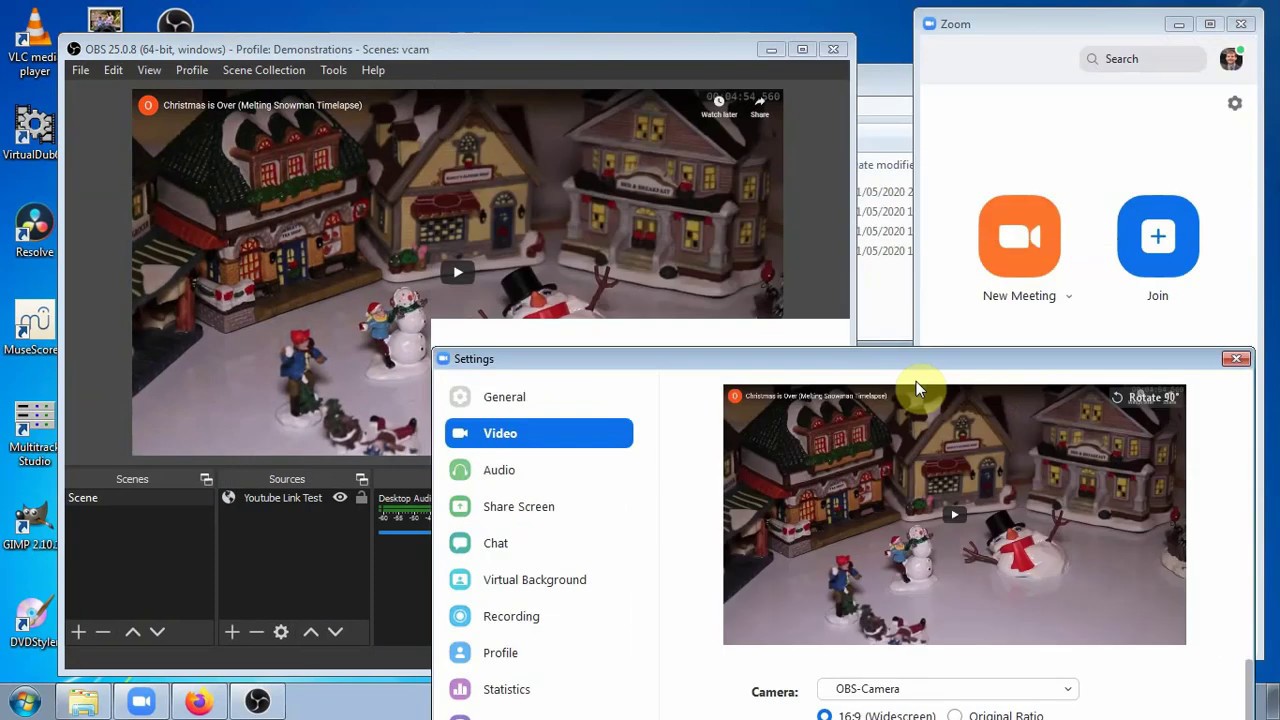
In this video I show how to use the "Virtual Camera" plugin for OBS Studio. This plugin enables you to play the output of OBS into a "virtual camera" which can then be selected in any video conferencing application. This allows you to play videos (from your local PC or directly from YouTube) directly into the conference application just as if it was your webcam.
Software Required:
OBS Studio (https://obsproject.com/download)
Virtual camera plugin (https://obsproject.com/forum/resource...)
Virtual audio cable (https://www.vb-audio.com/Cable/)
Basic Steps:
1. Download and install the identified applications
2. Start the virtual camera from inside OBS
3. Set "CABLE Input" as your default playback device
4. Setup your video sources in OBS
a. Use browser source to play YouTube videos
b. Use media source to play videos from your PC
5. In your video conferencing application (e.g. Zoom) set the camera to use "OBS Camera" and set the microphone to use "CABLE Output".
6. Make sure you unmute to allow the virtual audio to be fed in (remember, you can still speak as you mic is not selected).
Hope this video is helpful to everyone out there trying to stay connected during the lockdown. If you have any questions or want more tips and tricks, please leave something in the comments below. Enjoy the video!
Повторяем попытку...
Доступные форматы для скачивания:
Скачать видео
-
Информация по загрузке:





