The Sims 4 Tutorial: How to make a Pool Water Recolor
Автор: BakieGaming
Загружено: 2016-04-15
Просмотров: 10183
Описание:
-- Don't forget to SUBSCRIBE --
• Support me on Patreon
► / bakiegaming
Hello and welcome to BakieGaming.
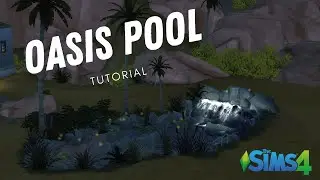
In this tutorial, I will teach you how to make a Pool Water Recolor.
I will show you step by step how to use The Sims 4 Studio in combination with Photoshop to make this kind of mod. I will also show you how it eventually will look in game.
🔽To DOWNLOAD these BLOODY POOL WATERS, click on the link🔽
==CurseForge==
► https://www.curseforge.com/sims4/buil...
🚨ADDITIONAL INFO for updating pool waters for the 'new' pool water section:🚨
In Studio, go to the Tags tab, Water Objects and check all checkboxes, except for 'Water Consumer'.
🚨ADDITIONAL INFO for Changing the windows tint color🚨
If you got the red pool water color, you want it to look red when looking from behind a window too.
To do this, all you have to do is copy-past the color codes fom the 'Diffuse line' in the 'Materials section', to the 'WindowTintColor' line. Thanks Amoebae for pointing me to this. :)
The 4th entry takes care of the transparency of the water, where 0 is fully transparent and 1 fully non-transparent. You can use all numbers in between too. For the bloody pool waters (Updated CurseForge version), I made this 0.85.
🚨What to do when using PNG files instead of DDS:🚨
In the beginning Studio only supported DDS files, but as PNG files are supported now too and easier to use, here's what you should do different:
First of all when exporting the diffuse file, save as png.
In photoshop you need to Ctrl+Left Mousebutton click the layer to select all the bits of shimmer and then follow the rest of the tutorial about picking a color for your shimmer to use. When you got the color you want to use, press Alt+Delete to fill the selection with your new color.
After that, save as png and import in Studio.
-----------------------------------------
You will need the following programs to follow this tutorial
• The Sims 4 Base Game
• Photoshop or Gimp ( In this tutorial I'm using Photoshop)
► Gimp download link: http://www.gimp.org/
• The Sims 4 Studio. Best thing to do is download the latest stable / community tested version.
► Download Link: http://sims4studio.com/board/31/downl...
IF USING DDS INSTEAD OF PNG
► DDS Plugin photoshop: https://developer.nvidia.com/nvidia-t...
► DDS Plugin Gimp: http://registry.gimp.org/node/70
If you have any question don't be afraid to ask them in the comments below.
Tips and/or constructive criticism for my next videos, are welcome in the comments too!
You can also find The Sims 4 Tutorials, Effect Player Episodes and more Custom Content made by me playlists on my channel and I will be making more videos over time to all Playlists.
• For the Tutorial Playlist click here:
► • All The Sims 4 Tutorials
• For the Custom Content playlist click here:
► • Bakies The Sims 4 Custom Content
• For the Sims 4 Effect Player playlist click here:
► • The Sims 4 Effect Player
PATREON -
If you like my mods and videos and want to support me a bit more, take a look at my Patreon page for more info:
► / bakiegaming
If you don't want to miss anything, please subscribe.
Hopefully see you next time
CREDITS:
• De Sims 4 made by EA
• The Sims 4 Studio made by The Sims 4 Studio team
• Photoshop made by Adobe
• Avid Studio made by Avid
Повторяем попытку...

Доступные форматы для скачивания:
Скачать видео
-
Информация по загрузке: