ycliper

Популярное

Музыка Кино и Анимация Автомобили Животные Спорт Путешествия Игры Юмор

Интересные видео

2025 Сериалы Трейлеры Новости Как сделать Видеоуроки Diy своими руками

Топ запросов

смотреть а4 schoolboy runaway турецкий сериал смотреть мультфильмы эдисон
Скачать

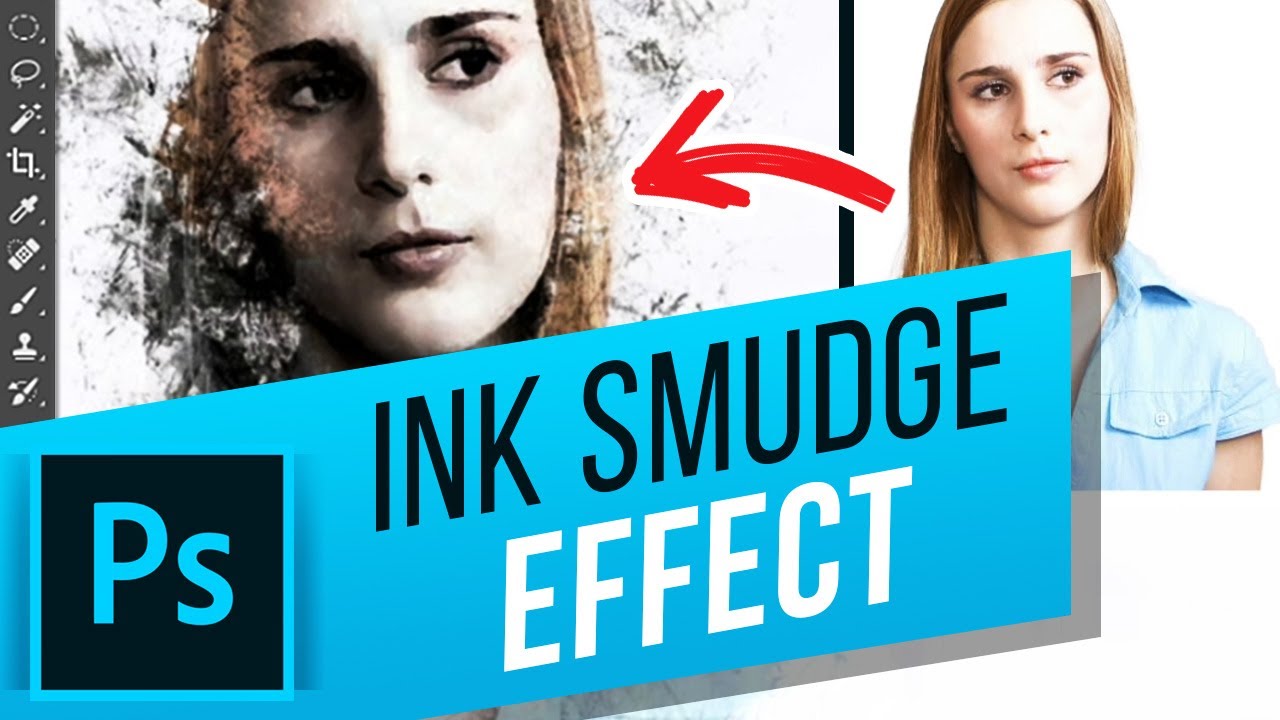
Ink Smudge Effect in Photoshop

Автор: Photoshop Design and Photo editing Tutorials from HowTech

Загружено: 2019-07-13

Просмотров: 2074

Описание: In this tutorial you will learn how to create Ink Smudge Effect in Photoshop CC.

For this effect, you will need a photo of your choice a few ink smudge graphics and custom brush presets that you can download from google or use the ones provided with this tutorial. To start, we will create a new document. For this tutorial we’ll go with the A4 size. Now bring in an image you want to use. Resize it to make the face fit in the center of the document.

Go to Filter - Filter Gallery. Select Dry Brush under Artistic. Depending on your image size, you will have to play with the values. Press OK. Press CMD+A to select all and press CMD+C to copy.

Create a new folder and add a layer mask to it. Holding Option, click on the layer mask to edit it. Press CMD+V and paste the image in the layer mask. Go to Image - Adjustments - Curves. Darken the image by dragging the lower slider. Press OK and press CMD+I to invert the colors of the mask.

Disable the original layer by clicking the eye icon next to it. Now we’ll bring in the ink graphics that we found on google earlier. Put it in the folder that we created earlier   and change the blending mode to multiply. Now you can transform the layer to better fit what you want to be visible. Bring in as many ink graphics as you desire.

Next we will bring back some color from the original image. Re-enable it and bring it to the front. Change the blending mode to multiply. Add a layer mask to it and make it black. Now select the layer mask and select Brush. Click on the brush preset picker icon and click on the gear icon. Click Import Brushes. Navigate to our brush preset file. Click OK. Now find the newly added folder, click on it and pick one of the brushes. Adjust the size and pick the color white for the brush. Now add a few strokes to bring in the color from the image.

Further tailor out the levels, by adding a levels adjustment layer.

❓ Do you like adding hand painted effects to your photos? Please let us know in comments.

#HowTech #Photoshop

--------------------------------------------------------------------------------------------------------------
✅ All our announcements are available here https://t.me/howtechtv
✅ Commercial questions [email protected]
✅ Instagram   / howtechprojects   
✅ Twitter   / howtechprojects  

Не удается загрузить Youtube-плеер. Проверьте блокировку Youtube в вашей сети.
Повторяем попытку...
Ink Smudge Effect in Photoshop

Поделиться в:

Доступные форматы для скачивания:

Скачать видео

  • Информация по загрузке:

Скачать аудио

Похожие видео

Easy Ombré Tie-Dye Effect - Photoshop Tutorial - Halloween Colors - Free Social Media Graphic

Easy Ombré Tie-Dye Effect - Photoshop Tutorial - Halloween Colors - Free Social Media Graphic

Как создать эффект акварельной живописи в Photoshop. iLLPhoCorPhics

Как создать эффект акварельной живописи в Photoshop. iLLPhoCorPhics

Ink Splash Photo Effect in Photoshop CC

Ink Splash Photo Effect in Photoshop CC

Эффект размазывания чернил — урок по Photoshop

Эффект размазывания чернил — урок по Photoshop

"ink smudge effect - photoshop tutorial"

Двойная экспозиция за 2 минуты — урок по Photoshop

Двойная экспозиция за 2 минуты — урок по Photoshop

ВСЕ накопители ДАННЫХ: объясняю за 8 минут

ВСЕ накопители ДАННЫХ: объясняю за 8 минут

Realistic Watercolor Painting Effect - Photoshop Tutorial

Realistic Watercolor Painting Effect - Photoshop Tutorial

Эффект цветущей головы — урок по Photoshop

Эффект цветущей головы — урок по Photoshop

Soft Airbrush Diffuse Effect | Photoshop Tutorial

Soft Airbrush Diffuse Effect | Photoshop Tutorial

Acrylic painting Photoshop effect tutorial

Acrylic painting Photoshop effect tutorial

Photoshop Tutorial: How to Make a PUZZLE from a photo.

Photoshop Tutorial: How to Make a PUZZLE from a photo.

How to Fade an Image to Transparent in Photoshop

How to Fade an Image to Transparent in Photoshop

Ink Scratch Portrait Effect + PSD - Photoshop Tutorial

Ink Scratch Portrait Effect + PSD - Photoshop Tutorial

Make a paint splatter effect with custom brushes in Photoshop

Make a paint splatter effect with custom brushes in Photoshop

Эффект фото в масляной живописи (одним щелчком) — урок по Photoshop

Эффект фото в масляной живописи (одним щелчком) — урок по Photoshop

Easy to animate the water surface for the still image using After Effects #oe351

Easy to animate the water surface for the still image using After Effects #oe351

Watercolor Painting in Photoshop | Tutorial for Beginners | Adobe Photoshop

Watercolor Painting in Photoshop | Tutorial for Beginners | Adobe Photoshop

Мы Построили Америку В Minecraft

Мы Построили Америку В Minecraft

Photoshop Tutorial : Fiber Smear Effect | How To Create

Photoshop Tutorial : Fiber Smear Effect | How To Create

© 2025 ycliper. Все права защищены.


  • Контакты
  • О нас
  • Политика конфиденциальности


Контакты для правообладателей: [email protected]