How to Twist an Image Object Using the Twister Effect in After Effect
Автор: TNO TM
Загружено: 2024-11-01
Просмотров: 92
Описание:
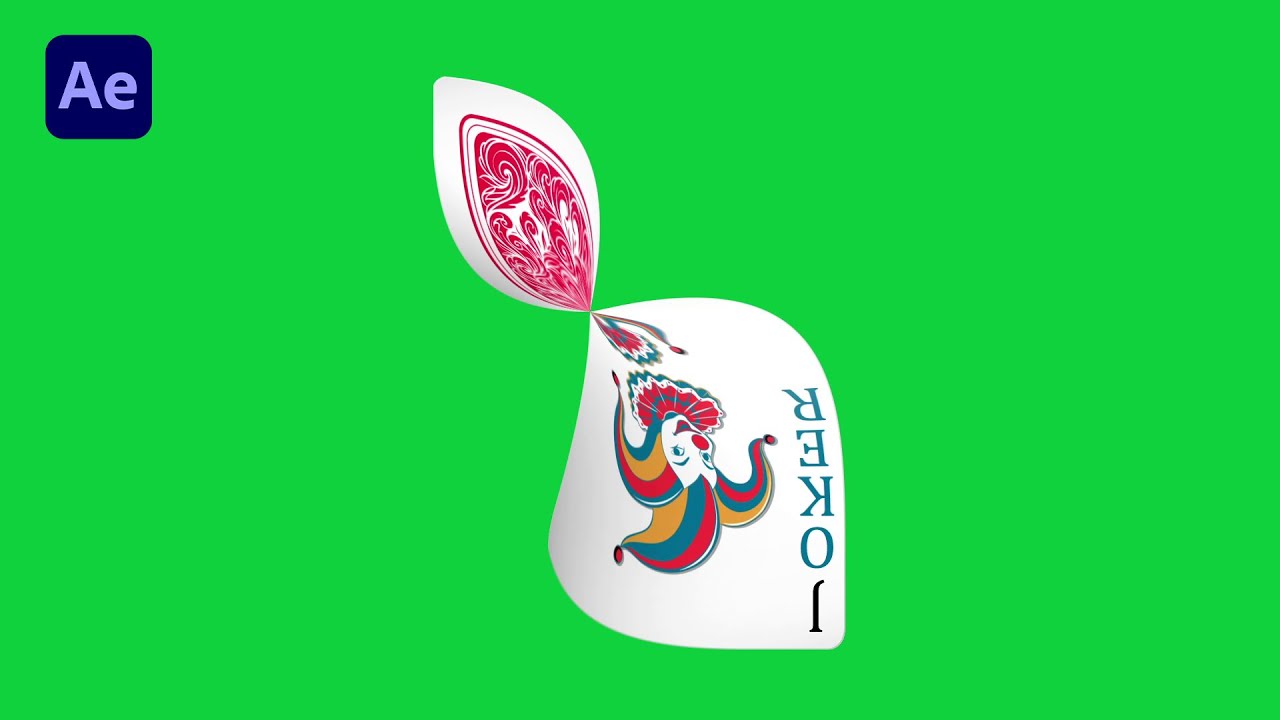
To create such a twisting card effect, you can watch this tutorial. In this Composition, I have inserted the background and card composition. There are two vector files in the card composition. For the front view, and the back of the card. Here, I will add an effect to the back display of the card.
In the Effects and Presets panel, type CC Twister. When it appears, drag and drop the effect onto the image layer. In the Effects and Presets panel, we can customize the effect. In the Backside settings, make sure it is in Source mode. Then determine the layer that is used as the target source. If it has been set, Hide the layer.
To turn it into the part that is behind it, we can set it through Completion to be. I will activate the Completion keyframe at 1 second. Then in the next 10 frames, I will add a keyframe, and change the value to 100 percent.
If you want to change the Twister point, you can do so through the Center setting. And in the Axis setting, I slightly changed the value. If you want to keep the black shadow when rotating, leave the Shading section checked. After that, we can add the Easy Ease effect to both keyframes, and change the graphic part through the graphic editor.
And I will copy-paste the keyframes part. And the result will be like this.Thank you for watching. And see you in another tutorial.
Music:
~ Side Show - Causmic
For business inquiries: [email protected]
Повторяем попытку...
Доступные форматы для скачивания:
Скачать видео
-
Информация по загрузке: