How to Get Fluffy Icons on Samsung Using Good Lock Theme Park | Doitright_tech
Автор: doitright_tech
Загружено: 2026-08-27
Просмотров: 11012
Описание:
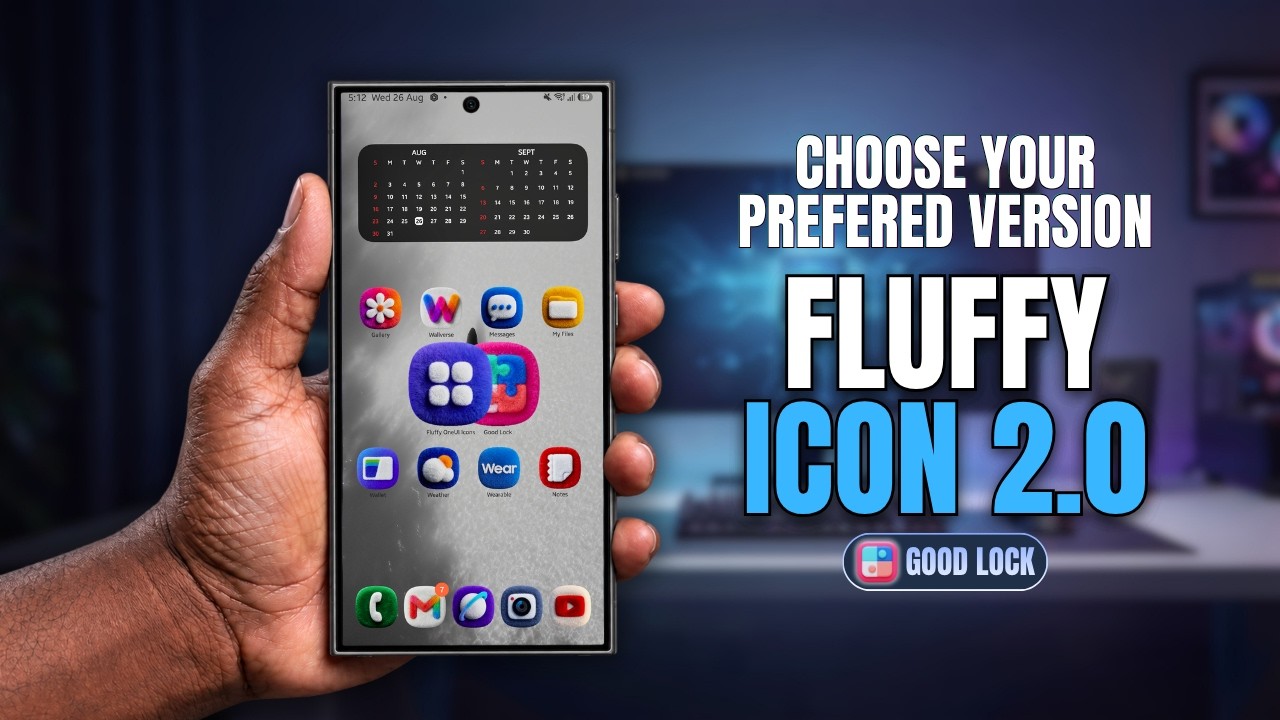
How to Get Fluffy Icons on Samsung Using Good Lock Theme Park
If you liked the fluffy Samsung icon setup I showed previously, here’s another version that gives your Galaxy phone a completely different look.
The previous setup had a more detailed, textured, material-like appearance. This new fluffy icon pack is softer, puffier, and has more of a foam-like 3D effect.
In this video, I’ll show you exactly how to download the icon pack and apply it to your Samsung using Good Lock Theme Park — without changing your launcher or going through a complicated setup.
All you need is the Google Play Store, Samsung Good Lock, and the Theme Park module.
We’ll also compare this new fluffy icon style with the previous version so you can decide which one looks better on your Samsung phone.
And if one of your applications doesn’t have a matching icon, I’ll point you to my tutorial showing how to manually change individual app icons using Theme Park.
TIMESTAMPS
00:00 Intro
00:34 Previous Fluffy Icon Setup
00:47 Dark Icon Setup
01:24 What You Need
01:51 Download the Fluffy Icon Pack
02:38 Apply Fluffy Icons Using Good Lock Theme Park
04:21 Previous vs New Fluffy Icons
04:28 What If One of Your Icons Doesn't Match?
04:51 How to Change Individual App Icons
05:10 Final Look
05:25 Outro
The setup is extremely simple:
Download the icon pack → Open Good Lock → Theme Park → Icon → Create New → Select Icon Pack → Save → Apply.
No third-party launcher required.
Now that you’ve seen both versions, which fluffy icon style would you actually keep?
The original textured fluffy icons or these softer foam-style icons?
Let me know in the comments.
CHATGPT OR GEMINI FLUFFY WALLPAPER PROMPT
Use the provided app icon as the base and transform it into a premium fluffy plush-style icon that matches the look of the reference image.
Preserve the icon’s original design, shape, proportions, layout, symbol arrangement, and overall recognizability, while reinterpreting the entire icon as if it were made from ultra-soft fuzzy fabric.
The final icon should have:
a rounded-square / squircle app icon shape
a thick, soft, plush microfiber texture
dense fluffy fibers across the whole surface
a matte, cozy, premium look
soft depth and gentle 3D volume
realistic soft shadows and subtle fabric shading
slightly raised or padded icon elements
stitched, embroidered, indented, or seam-like details instead of flat printed lines
Keep the colors clean, vivid, and close to the original icon, but make the whole icon feel like a handcrafted plush object.
All internal shapes, symbols, lines, and details should feel sewn, padded, or embedded into the fabric.
Edges should be soft, rounded, and fluffy, not glossy or plastic.
Do not add unnecessary decorations, extra symbols, or background clutter.
Overall style: cute, cozy, tactile, high-end, ultra-detailed fluffy Samsung-style plush app icon.
Background should be transparent.
Subscribe to Doitright_Tech for more Samsung customization, Good Lock tutorials, One UI tips, hidden Samsung features, icon packs, wallpapers, and Galaxy tricks.
#Samsung #GoodLock #ThemePark #SamsungCustomization #OneUI #FluffyIcons #DoitrightTech
Повторяем попытку...
Доступные форматы для скачивания:
Скачать видео
-
Информация по загрузке: