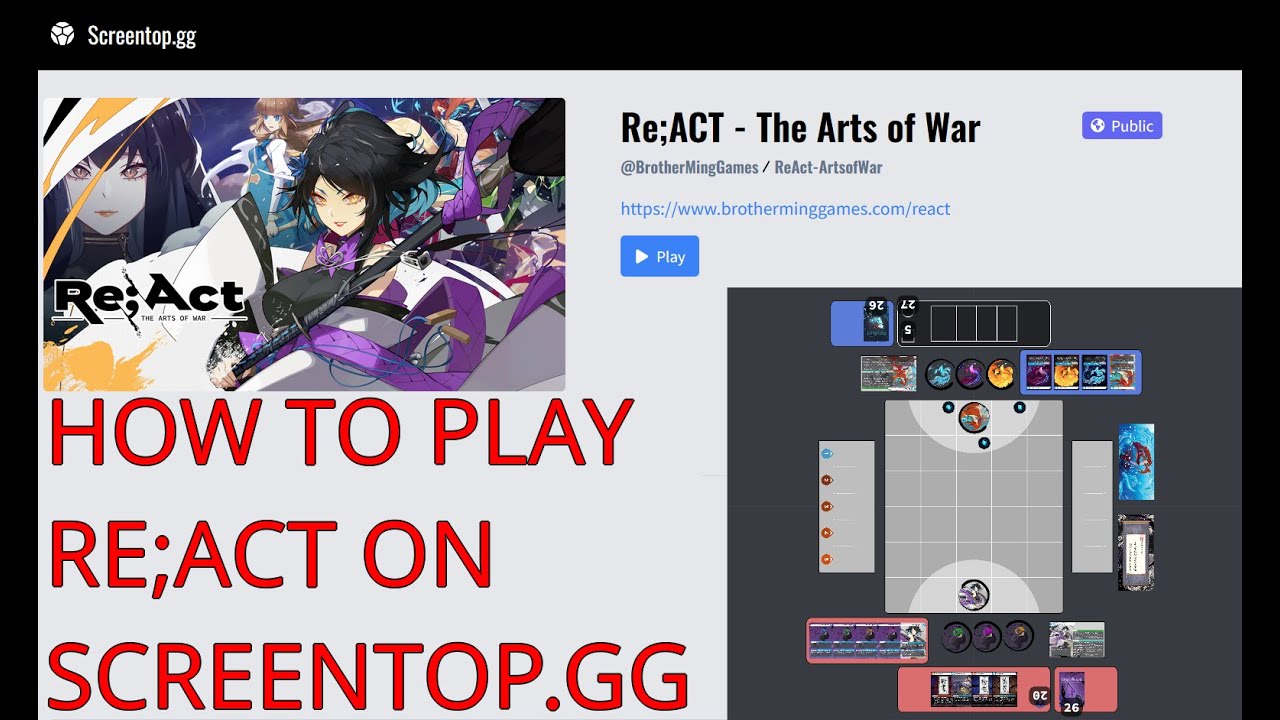
Exporting components to Screentop.gg from Dextrous
Автор: Dextrous – the Board Game Design Tool
Загружено: 2023-03-24
Просмотров: 2945
Описание:
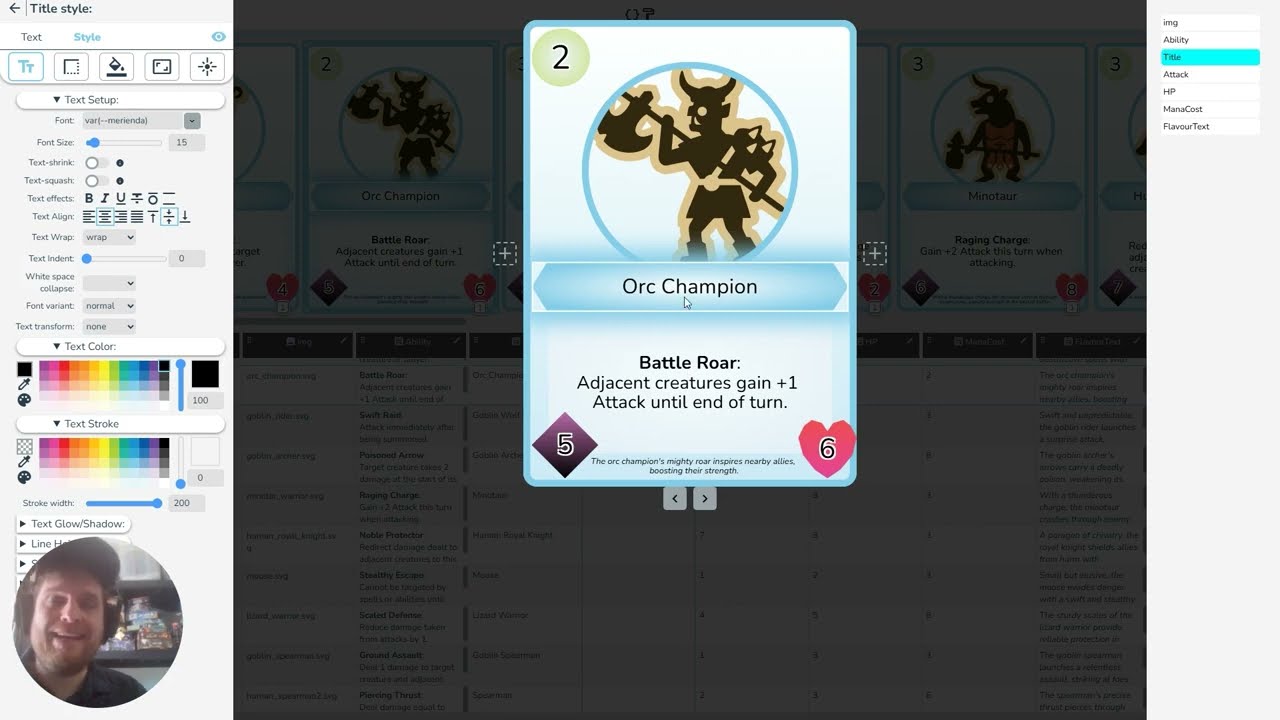
In this tutorial, I show you how to export cards from Dextrous and use them in Screentop.gg.
Although it takes a bit to set up the first time, updating your components is easy. Here's a summary:
Step 1. Get your component asset files into Screentop
a) On the Dextrous Export page click Export - Create Screentop.gg Files. Dextrous will generate you image block sprite sheets for each component you are exporting (including backs, if any). For each of these assets, you'll need to follow steps b and c below:
b) Download the asset image block (sprite sheet) for your component and upload it to Assets in Screentop, making sure to give the asset the exact same name in Screentop as what it is labelled in Dextrous. (The reason for this is that we use this name in the JSON code which you'll copy later, so it has to be identical).
c) In Screentop, specify the rows and columns for the asset (e.g looking at the asset image block, you might see it has 12 columns and 2 rows - plug that into Screentop). Click Save to save your asset to Screentop.
d) Update: If you are exporting a component with backs you'll need to apply steps b and c to the back asset image block sprite sheet as well (don't forget to name it according to the label in Dextrous (ie 'Component name_back').
Step 2. Set up your assets and components in Screentop
To link your component asset to a new set of cards in Screentop you can use these steps:
a) Create a new component (Blank Tile) and size its shape according to the shape of the component. If you want a poker card size try something like Width: 250 and Height: 350, or Width: 160 and Height 224. Click Save.
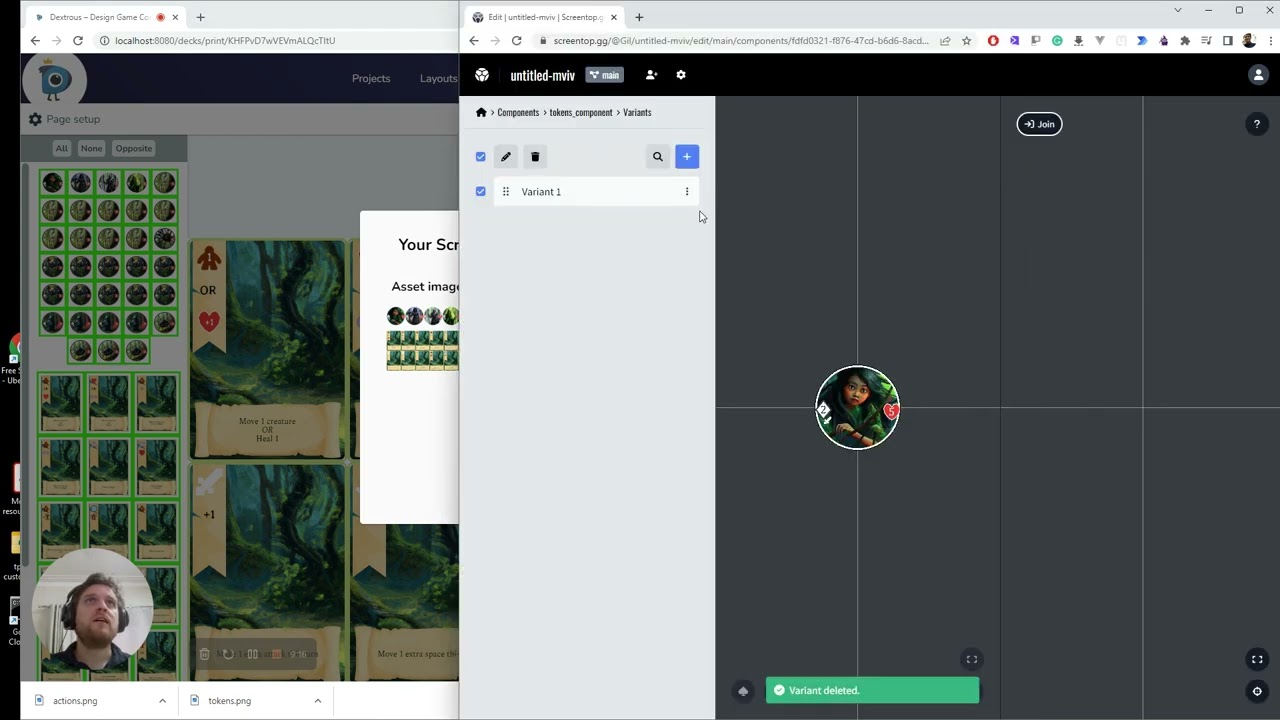
b) On the same component screen just below, click Variants, then click on Variant 1, and set the Front Asset to the asset image block (sprite sheet) you just uploaded. Click Save.
c) Back in Varients, click the 3 dots on Varient 1, and clone it as many times as you need for your component. ie If you have 30 cards, you'll need to get 29 new clones of Varient 1. (Tip: the total number you need is displayed in Dextrous above the component name on the Screentop export screen).
Step 3. Paste in the JSON code
a) Select all your variants (use the checkbox to the left of the pencil icon) then click the pencil icon to go to the JSON editor. In Dextrous (from the Screentop export screen), click the JSON code button {} for the component to copy JSON code for that component. In Screentop, select all the JSON code (ctrl+a) and paste in the JSON code from your clipboard (ctrl+v). Click Save.
b) You're done! Nice job getting your component into Screentop. If you want to update your component now you only need to update the spritesheet (under Assets) by uploading a fresh image block over the top in Screentop (leave the name as is and the current JSON will work).
Happy designing!
--------------------------------------------------------------
https://www.dextrous.com.au/
Dextrous is an online card game design tool for making board game components including cards, boards and tokens. This is a tool made by designers, for designers, with a drag-and-drop editor and a focus on speed and flexibility.
Print your designs to PDF, or quickly export to platforms like Tabletop Simulator so you can get your game ideas out of your head and onto the table as quickly as possible. Use our built-in template layouts or create your own to get a truly dextrous prototyping workflow that frees you up to focus on the fun stuff.
--------------------------------------------------------------
Повторяем попытку...
Доступные форматы для скачивания:
Скачать видео
-
Информация по загрузке: