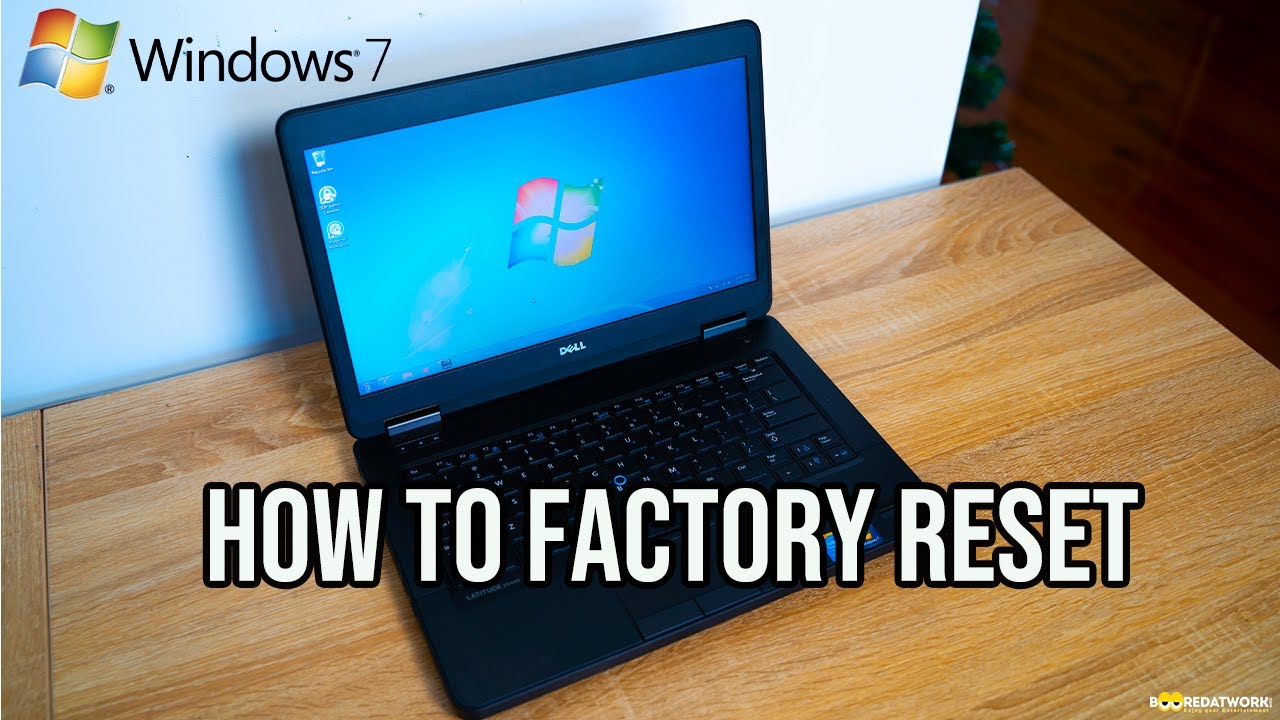
How to Factory Reset Your Windows PC Step-by-Step Tutorial | Factory Resetting Your Windows Computer
Автор: Basics Of Computer007
Загружено: 2022-08-11
Просмотров: 300
Описание:
Do you need to reset your PC to factory settings to fix problems or improve performance? In this Video, we'll show you.
"Complete Guide: How to Factory Reset Your Windows PC - Step-by-Step Tutorial"
"Start Fresh: Factory Resetting Your Windows PC for Optimal Performance"
"Windows PC Factory Reset: A Comprehensive Walkthrough and Tips"
"Factory Reset Your Computer: Restore Windows to Its Original State"
"Getting a Clean Slate: How to Factory Reset Your Windows PC Safely"
"Factory Reset Tutorial: Rejuvenate Your Windows PC with Ease"
"Resetting Your Windows PC: The Ultimate Solution for Performance Issues"
"Step-by-Step Guide: Factory Resetting Your Windows Computer for Beginners"
"Clearing the Slate: How to Factory Reset Windows 10 for a Fresh Start"
"Windows PC Factory Reset: Troubleshooting Guide and Best Practices"
Performing a factory reset on your Windows PC can help you restore your computer to its original state, removing all personal files, settings, and applications. Here's a step-by-step guide on how to do it:
Important Note: Factory resetting your PC will erase all data on your hard drive, so make sure to back up any important files before proceeding.
Step 1: Backup Your Data
Before you start the factory reset process, back up your important files to an external storage device, cloud storage, or another computer. This will ensure that you don't lose any important data during the reset.
Step 2: Access Recovery Options
There are different methods to access the recovery options based on your Windows version:
Windows 10 and Windows 11:
Click on the "Start" menu (Windows icon) in the bottom-left corner.
Click on "Settings" (gear icon).
Go to "Update & Security."
Select "Recovery" from the left sidebar.
Under "Reset this PC," click on "Get started."
Step 3: Choose Reset Options
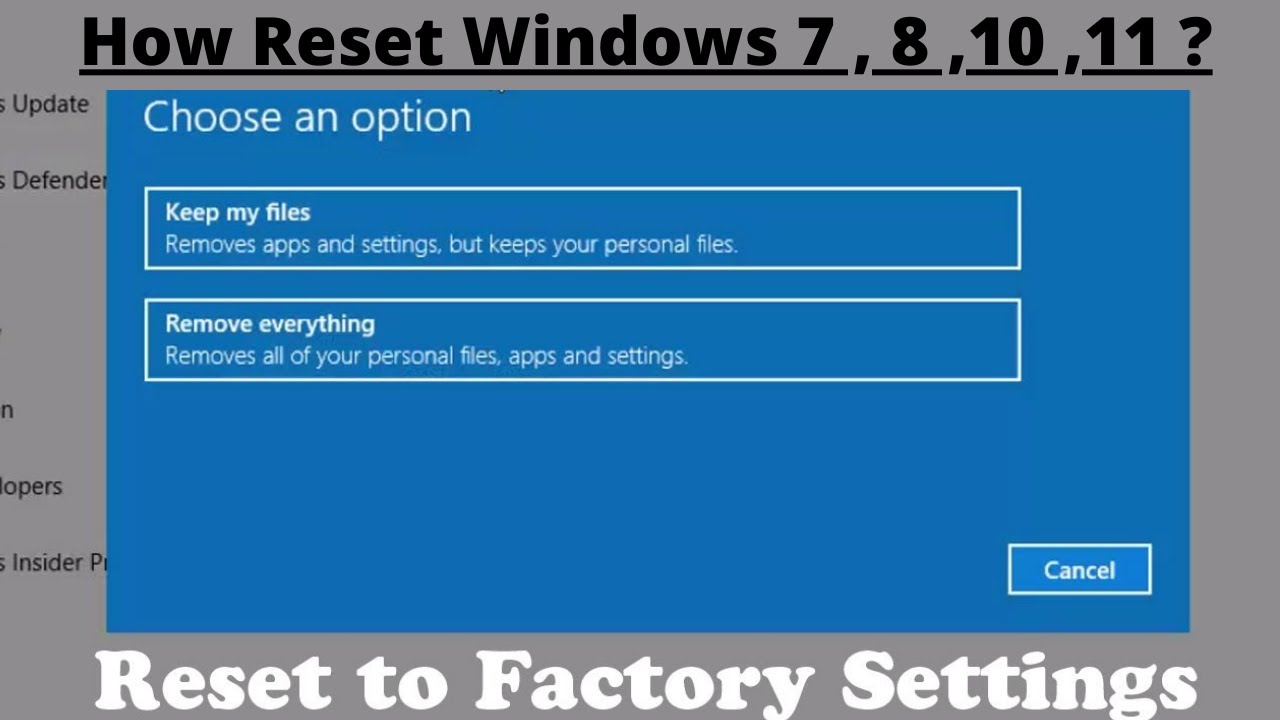
You'll have two options for resetting your PC:
Keep my files: This option will remove apps and settings, but keep your personal files.
Remove everything: This option will remove all your personal files, apps, and settings.
Choose the option that suits your needs. For a complete factory reset, select "Remove everything."
Step 4: Choose Drive Cleaning Option
You'll have two drive cleaning options:
Just remove my files: This option will quickly remove your files without thoroughly cleaning the drive. It's suitable if you're keeping the PC or giving it to someone you trust.
Remove files and clean the drive: This option is more secure as it cleans your drive more thoroughly, making it harder to recover deleted data. Use this if you're selling or donating the PC.
Choose the appropriate option based on your intentions.
Step 5: Start the Reset Process
After selecting your options, confirm your choice and click "Next" or "Reset" to start the process. Your PC will begin the factory reset procedure. The process may take some time, and your computer may restart several times.
Step 6: Set Up Windows
Once the reset is complete, your PC will boot into the initial Windows setup process, similar to when you first got the computer. Follow the on-screen instructions to set up your language, region, keyboard layout, and Wi-Fi connection.
Step 7: Sign In and Complete Setup
You'll need to sign in with your Microsoft account or create a new account. Follow the prompts to personalize your settings, including privacy preferences and user accounts.
Step 8: Reinstall Apps and Restore Data
After the initial setup, you'll need to reinstall your apps and restore your data from the backup you created earlier.
Remember that the exact steps may vary slightly based on your Windows version, so be sure to consult the official Microsoft support documentation if you encounter any issues.
Factory resetting your PC can be a powerful tool to resolve system issues, but it should be done with caution, especially due to the data loss involved.
#basicsofcomputer007 #factoryreset #resetwindows
FACEBOOK: 👇
https://www.facebook.com/Basics-of-co...
Повторяем попытку...
Доступные форматы для скачивания:
Скачать видео
-
Информация по загрузке: