💡 How to work with PRESENTATIONS in Excalidraw+ 👀 | TUTORIAL #10
Автор: Excalidraw
Загружено: 2024-05-29
Просмотров: 14664
Описание:
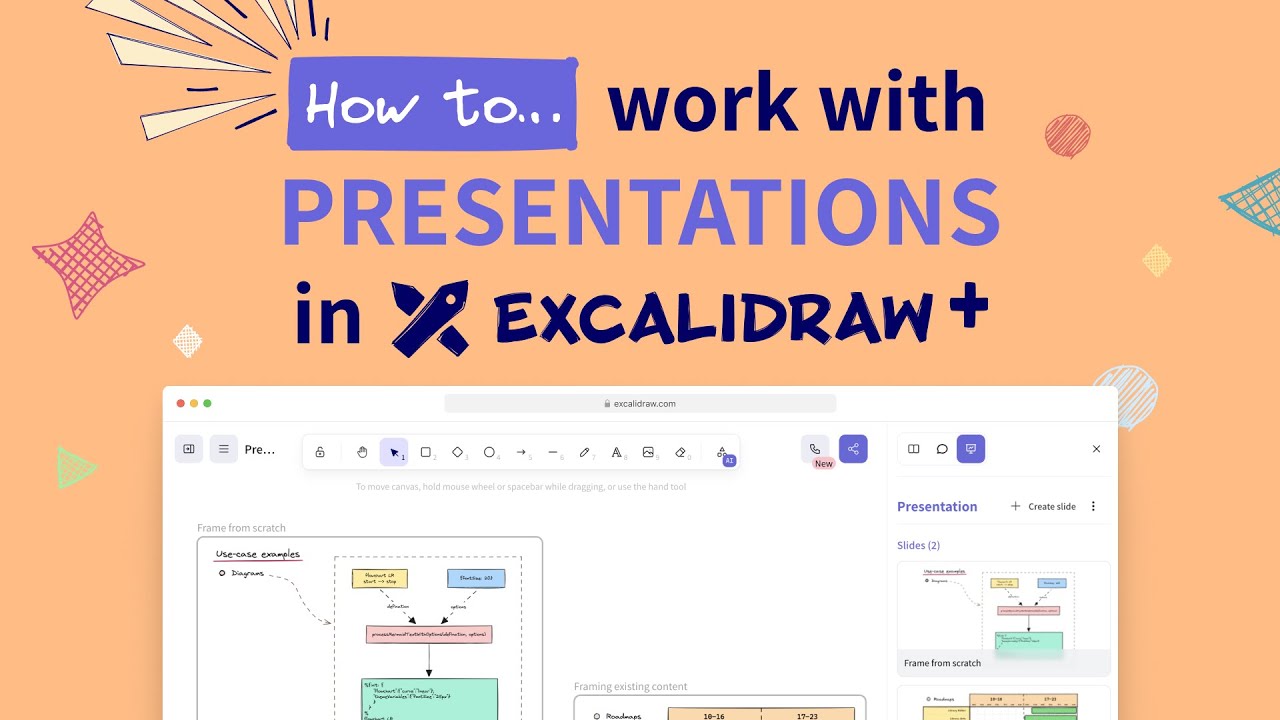
In mini-tutorial #10 or our series you'll learn how to work with presentations in Excalidraw+. The presentation tool is especially useful if you want to quickly share ideas for an existing scene or just need a presentation and want to have it in our unique handwritten style. Creating presentations is just as easy as you're used to in Excalidraw. Check out our mini-tutorial and get to know all its great features and functions!
=========================
⬇️ CHAPTERS & INSTRUCTIONS ⬇️
0:00 | How to create a presentation
Select the Frame tool from the toolbar at the top of the editor. Click on the canvas and either create a frame around existing content on your scene that you want to include in the presentation, or create a new frame/slide and fill it with various objects, as you would with any other presentation tool. (0:02)
If necessary, rename each frame for easier orientation. You can do this either by double-clicking on the title above each frame or from the presentation sidebar after clicking on the three dots on the chosen slide and selecting "Rename slide." If you've already opened the presentation sidebar, you can also rearrange the slide order here via drag and drop. (1:54)
Check that everything is in order and that every slide contains what you want to present. Ensure that objects are placed inside the frame and bound to it (you'll see a purple border when this happens). (2:25)
2:38 | How to start a presentation
A presentation can be started from multiple places: either from the presentation sidebar or by clicking on the hamburger menu in the top left corner. (2:41)
When you're ready, hit the "Start presentation" button and let the magic begin. (3:00)
3:08 | What to do during a live presentation (presenter edition)
By default, our laser pointer tool is activated for the presenter. Use it to highlight items in your presentation. (3:12)
Navigate between slides using the arrow buttons, keyboard arrows, or by selecting a specific slide. (3:22)
Invite guests to your presentation by enabling sharing. If you don’t enable it, only members of your workspace with access to that scene will be able to see the presentation. (3:38)
Create a hangout for an even better experience and talk with your guests (viewers). (3:57)
Switch between light and dark mode if necessary. (4:06)
Customize the presentation as needed: (4:14)
Change the slide animation.
Show or hide the mouse cursor.
Show or hide the slide title.
Use our remote controller (especially useful if you’re presenting in front of an audience and don’t want to be bound to your laptop/tablet). (4:43)
4:52 | How to join a live presentation
Click on the link shared with you by the presenter and select "Join presentation." (4:55)
If you are a workspace member, go to the Dashboard of your workspace (all workspace members can see ongoing presentations and join them there) and click on the ongoing presentation. (5:08)
5:23 | What to do with an offline presentation (presenter edition)
If you need an offline version of your presentation, you can share the slides directly via a link (either from the presentation sidebar or from the hamburger menu). (5:27)
You can also export your presentation as a PDF or PPTX file to create a downloadable file for sharing or embedding. (5:48)
=========================
🔗 Try it out for yourself at https://plus.excalidraw.com
🔗 Or use our forever-free editor at https://www.excalidraw.com
👇 CONNECT WITH US 👇
🐦 Follow us on X: https://x.com/excalidraw
🦋 Follow us on BlueSky: https://bsky.app/profile/excalidraw.com
👔 Follow us on LinkedIn: / excalidraw
💬 Join our community on Discord: / discord
#HowTo #HowToDo #Tutorials #Presentations #PresentationSkills #Productivity #KeepItSimle #Excalidraw
Повторяем попытку...
Доступные форматы для скачивания:
Скачать видео
-
Информация по загрузке: