Zinio Tutorial
Автор: EODLSHQ
Загружено: 2014-08-12
Просмотров: 1102
Описание:
Join me in this how to use Zinio tutorial for the Eastern Oklahoma District Library System.
Links:
Zinio:http://www.zinio.com/
Libray's Magazine Collection: https://www.rbdigital.com/easternokla...
EODLS: http://www.eodls.org
Transcript:
1. Thank you for joining me in this how to use Zinio tutorial. So, let's get started.
2. For the first step, click in your browser’s address bar, and type in the URL zinio.com Then, hit enter on your keyboard.
3. This will take you to the Zinio homepage, and now click “sign up” on the right side.
4. Next, fill out all the information.
5. Once you are signed up, click sign in. Type in the email address and password you just used to sign up, and click “sign in.”
6. Once again, click in your browser’s address bar, and type in the URL https://www.rbdigital.com/easternokla... Then, hit enter on your keyboard.
7. Next, click “Create New Account” on the right side, and type in your library card number, and click “next.” Then, fill out all of the information.
8. Type in the email address and password you used to create an account. If you are using a public computer, make sure this box is unchecked. Then, click “Log In.”
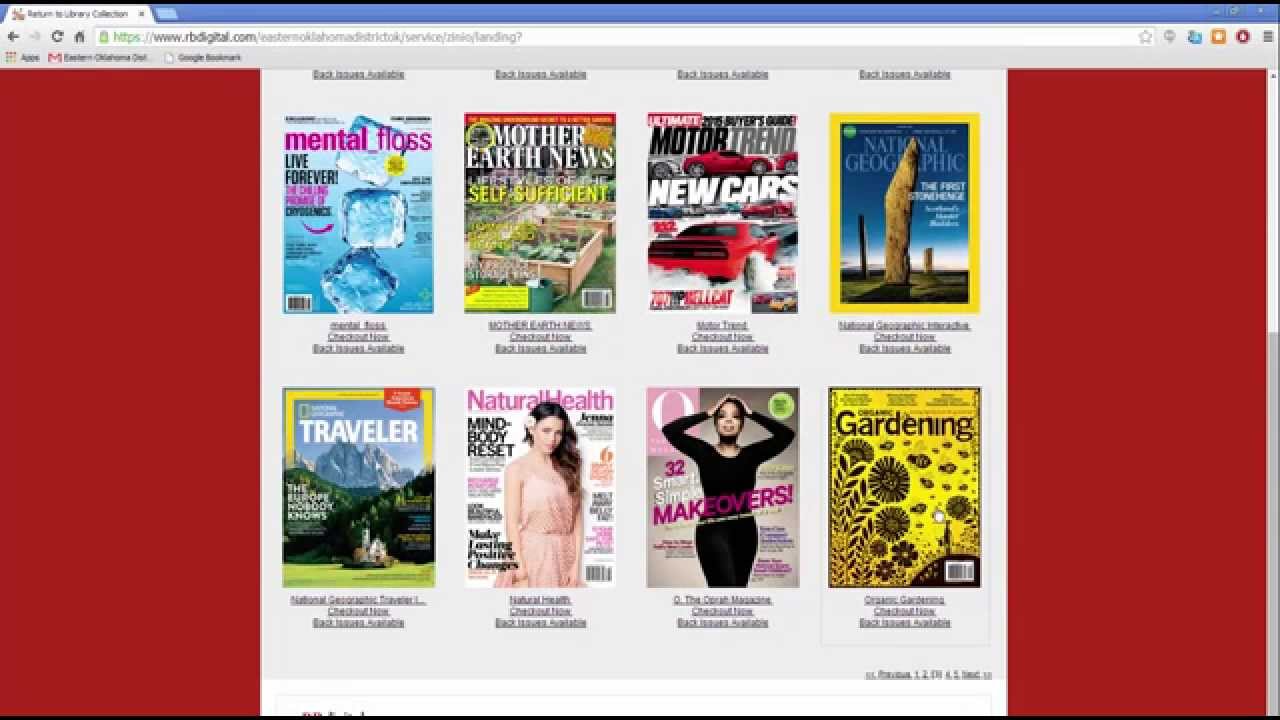
9. To check out a magazine, click on its cover. If there are any back issues available for that magazine, they will be displayed below the current issue.
10. Then, click “Check out” next to your selected issue.
11. Now, you can choose to keep browsing the EODLS magazine collection, or start reading the issue in Zinio. Keep in mind that any magazine issues you checkout are yours to keep forever. You never have to return them.
12. Once you click “Start Reading,” a new tab or window will open to your Zinio reading list.
13. To remove issues from your reading list, click “Edit your reading list.” To read a magazine issue, click its cover.
14. To turn the pages in the issue, click on the sides of the pages. In the bottom right, click on the grid to show thumbnails of the pages, click here to go to the table of contents page, and click on an article name to be take to it.
15. To zoom in, double click on that page or click on the magnifying glass in the bottom right. Then, use the slider bar.
16. Click here to search within that issue, click here to print off pages, and click here to learn more about using Znio and read magazines. You can also contact your local library branch, if you need help
17. To close the issue, click the “x” in the top right.
18. Once you have finished using Zinio, click on the “gear” symbol in the top right. Then, click “log out.”
19. Next, close the tab by clicking the small “x” here.
20. Finally, click “log out” on the library collection's page as well.
21. That concludes this tutorial. I hope it was helpful, and be sure to check out our other technology tutorials.
Повторяем попытку...
Доступные форматы для скачивания:
Скачать видео
-
Информация по загрузке: