How to import symbols & footprints into Altium
Автор: SnapMagic
Загружено: 2019-03-07
Просмотров: 154535
Описание:
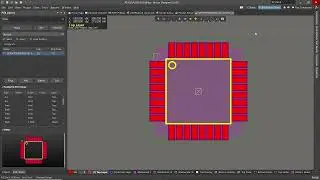
This video will show you how to import symbols and footprints into Altium.
Here are the steps:
1. Download the Altium file from SnapEDA: Search for the desired part on SnapEDA's website and download the footprint and symbol in the Altium format.
2. Import to Altium: Open Altium, click on File then Import Wizard
3. Choose the .lia file to import: Click Next and select P-CAD Designs and Libraries Files, then click Next.
*Important: Please click on 'Next' again and make sure you are in P-CAD Libraries Files window, then click Add and select the .lia file.*
Click Next until you reach Current Layer Mapping window
4. Select Mechanical Layer 1: In “Current Layer Mapping” import step, for the cutout layer, choose: ‘10’: Mechanical Layer 1.
5. Select Mechanical Layer 15: In “Current Layer Mapping” import step, for the courtyard layer, choose: ‘21’: Mechanical Layer 15.
6. Select Mechanical Layer 13: In “Current Layer Mapping” import step, for the documentation layer, choose: ‘20: Mechanical Layer 13.
7. Click Next and follow the remaining prompts, then click Finish
8. Start designing!
After this simple steps, you are ready to start design in Altium with your SnapEDA footprints and symbols.
Head over to our website for free access to our libraries!
www.snapeda.com
Повторяем попытку...

Доступные форматы для скачивания:
Скачать видео
-
Информация по загрузке:




![Altium Designer [Create Board Cutout from Selected Primitives]](https://image.4k-video.ru/id-video/yPirByXN5MU)