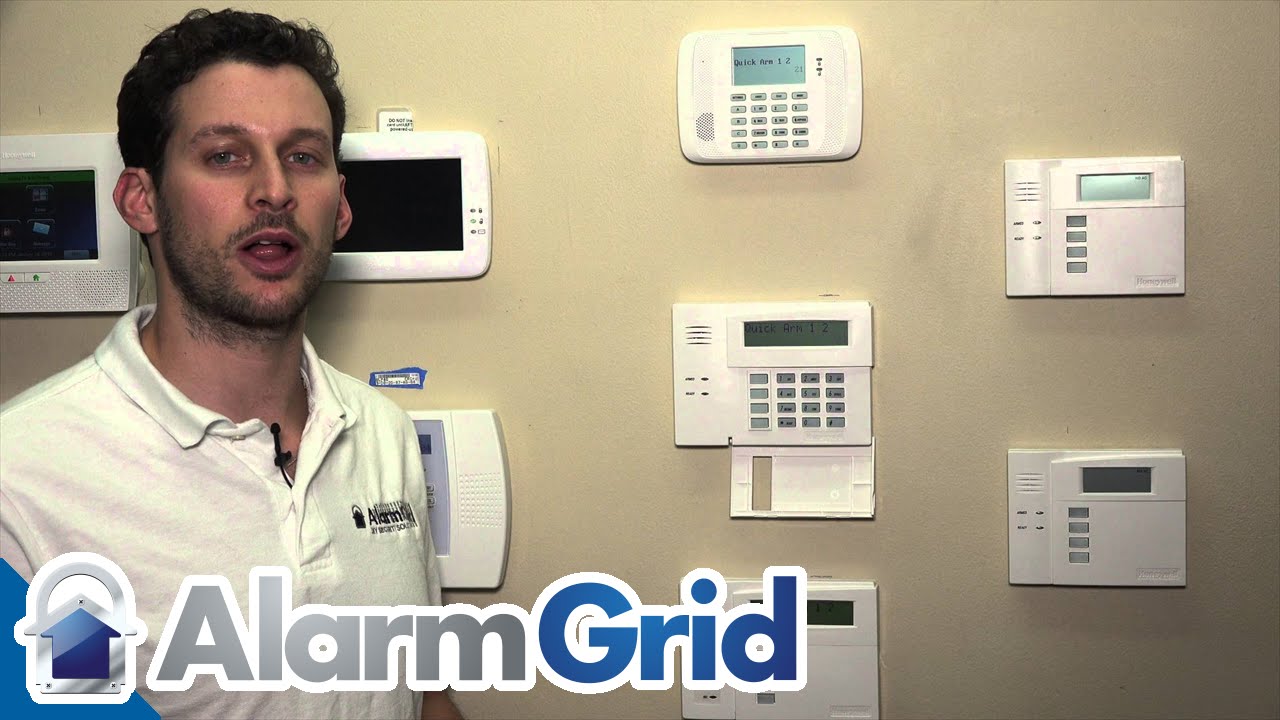
Honeywell VISTA: Resetting or Changing the Master Code
Автор: Alarm Grid
Загружено: 2016-03-01
Просмотров: 296330
Описание:
Our video tutorial has two ways to reset the Master Code for your Honeywell VISTA alarm system should the code ever become lost or compromised.
Honeywell VISTA 21iP: http://alrm.gd/honeywell-vista-21ip
Honeywell VISTA 20P: http://alrm.gd/honeywell-vista-20p
Get Monitored: http://alrm.gd/get-monitored
The Master Code for your security system is the key to daily operation. If your code becomes compromised, the security of the entire alarm system is at risk. This complete video guide shows you how to change and reset the Master Code of the Honeywell VISTA.
Don’t be embarrassed if you don’t quite understand the difference between the Master Code and the Installer Code. Many Do-it-Yourselfers are confused at first. The Master Code is designed for daily end user operations such as arming, disarming and setting alarm zones.
The Installer Code lets you access more technical, system-specific info like daily logs, maintenance operations and system resets. As a do-it-yourselfer, you’ll have a need to use both codes, because you’re both installer and user.
The system ships with default Master and Installer codes. The default Master Code is 1234 and Installer is 4122. You’ll need the default codes for initial installation but then you’ll want to change them to something personal.
There are two ways to reset the Master Code. The first way is if you know the current Master Code. This could be a code you created previously or the default code.
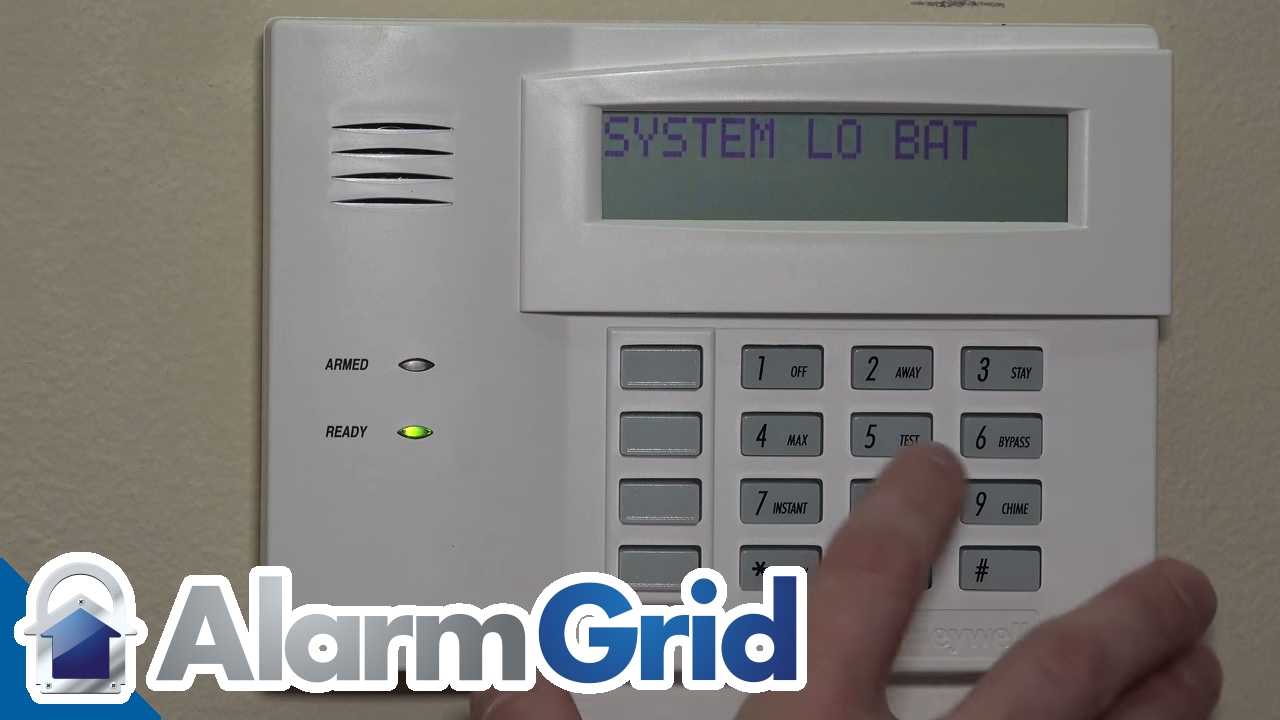
As the video shows, you first enter the Master Code into the system. Then you push 02. Two is the slot number for the Master User, which is you (and anyone else who knows the Master Code). Then you enter the new code you want to use. Finally, you confirm that new code by entering it a second time.
If the system accepts the code you’ll hear a short beep. If the code is invalid, you’ll hear a longer error tone. The video has clear examples of both so you can make sure your code was accepted.
The main reason a code would not be accepted is if it were already in use by the system. For example, you can’t have the same Master Code as Installer Code or any sub-user code.
The second way to reset the code is to access Programming by entering the Installer Code. Within the installer menu is the option to reset the Master Code to the default. You don’t need to know the Master Code you’re resetting.
Using the Installer Code to reset the Master Code is a great solution if you’ve forgotten the Master Code or it was changed without your knowledge. But the feature also illustrates the importance of changing your Installer Code. If someone knew the default Installer Code – info which isn’t hard to find – they can wipe out your Master Code and access your entire alarm system.
Fortunately, regular system users will never have a need for the Installer Code, so you can keep it pretty secure. A secure Installation Code combined with a regularly changed Master Code is a powerful combination for your home alarm system.
Повторяем попытку...

Доступные форматы для скачивания:
Скачать видео
-
Информация по загрузке: