How To Access iCloud Photos on PC (2026)
Автор: Fixphile
Загружено: 2026-04-08
Просмотров: 14
Описание:
How To Access iCloud Photos on PC (2026)
Here’s a simple step-by-step guide to view and manage your iCloud photos directly from a Windows PC.
Step 1: Open iCloud on Your PC
First, download and install iCloud for Windows from Apple’s official website.
Once installed, open the iCloud application and sign in with your Apple ID.
Step 2: Enable iCloud Photos
Inside the iCloud app, check the box for Photos.
Click on Options next to Photos.
Make sure iCloud Photos is enabled, and optionally, you can enable Download new photos and videos to my PC.
Click Done, then Apply.
Step 3: Access Your Photos
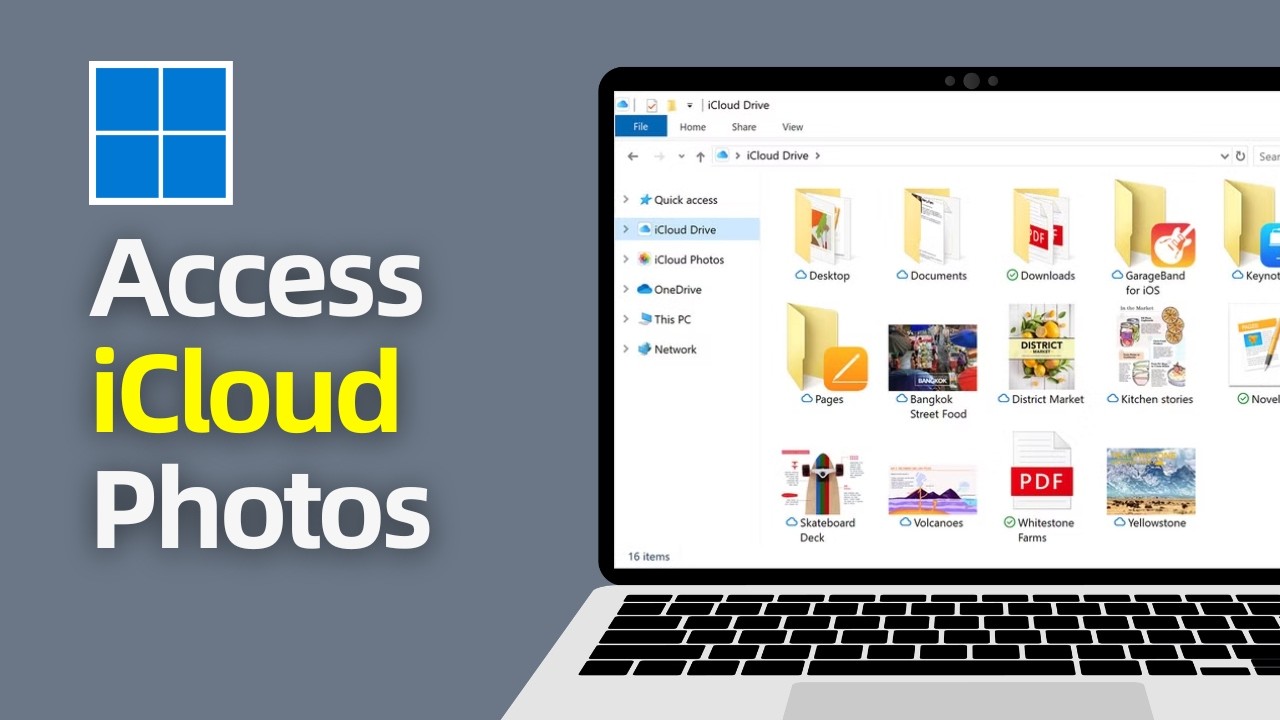
Open File Explorer on your PC.
In the left sidebar, you’ll see iCloud Photos.
Inside, you’ll find Downloads and Uploads folders.
Downloads: Photos synced from your iCloud to your PC.
Uploads: Photos you want to add to iCloud from your PC.
Step 4: Using iCloud.com (Alternative Method)
If you don’t want to install iCloud for Windows, go to iCloud.com
.
Sign in with your Apple ID.
Click on Photos, and you can view, download, or upload photos directly from the browser.
Step 5: Syncing Changes
Any changes you make on your PC (adding or deleting photos) will sync across all devices connected to your iCloud account.
Make sure you have an active internet connection for real-time syncing.
That’s it! You can now access, download, and upload iCloud photos directly on your PC.
Thank you for watching! If this video was helpful, consider subscribing to our channel and liking this video.
Повторяем попытку...
Доступные форматы для скачивания:
Скачать видео
-
Информация по загрузке: